
A Better Way to Design Large SharePoint Canvas Apps: The Delegation Issue Solution.
One of the most repeated statements in Power Apps development is:
“Power Apps can’t load more than 2,000 SharePoint records.”
That statement is partly true, but also misleading.
The real issue is not that Power Apps cannot work with large SharePoint lists. The real issue is delegation. When Power Apps can translate your Power Fx formula into a query that SharePoint understands, the query runs on the SharePoint side and Power Apps receives the matching results. When the formula is not delegable, Power Apps only brings down a limited set of records and processes them locally. By default that limit is 500 records, and makers can increase it up to 2,000 records in app settings. (Microsoft Learn)
That difference matters. A Canvas App connected to a SharePoint list with 10,000+ records can work well when the app is designed around delegable queries. But if the app uses nondelegable formulas, the user may see incomplete results, incorrect counts, missing records, or reports that quietly tell the wrong story.
The Delegation Problem in Plain English
Delegation means Power Apps says to SharePoint:
“You filter and sort the data, then send me only what I need.”
Nondelegation means Power Apps says:
“Send me the first 500 or 2,000 records, and I will try to figure it out locally.”
That second approach is where most apps fail.
For example, this kind of logic may look harmless:
Filter(
    SharePointList,
    SearchBox.Text in Title
)
Depending on the data source and formula, parts of this may not delegate. If the query is not fully delegable, Power Apps may only evaluate the first 500 or 2,000 records. If the matching record is item 2,501 or 10,000, the app may not find it. Microsoft’s delegation guidance warns that nondelegable formulas can return incorrect results when the data source is larger than the local row limit. (Microsoft Learn)
So the problem is not just performance. The bigger problem is trust. Users believe they are seeing the full dataset, but they may only be seeing a partial slice.
The Statement We Need to Correct
“Power Apps can’t load more than 2,000 SharePoint records” should be rewritten as:
Power Apps cannot reliably process more than the configured data row limit locally when the formula is nondelegable. But Power Apps can work with larger SharePoint datasets when the queries are designed to delegate properly.
That is the professional distinction.
The 2,000-record setting is not a magic performance setting. It is a safety limit for nondelegable local processing. Raising it from 500 to 2,000 may hide the problem during testing, but it does not solve delegation. Microsoft even recommends testing with a very low row limit, such as 1, to expose nondelegable formulas before production. (Microsoft Learn)
The Pattern: Indexed Column + Batch Loading
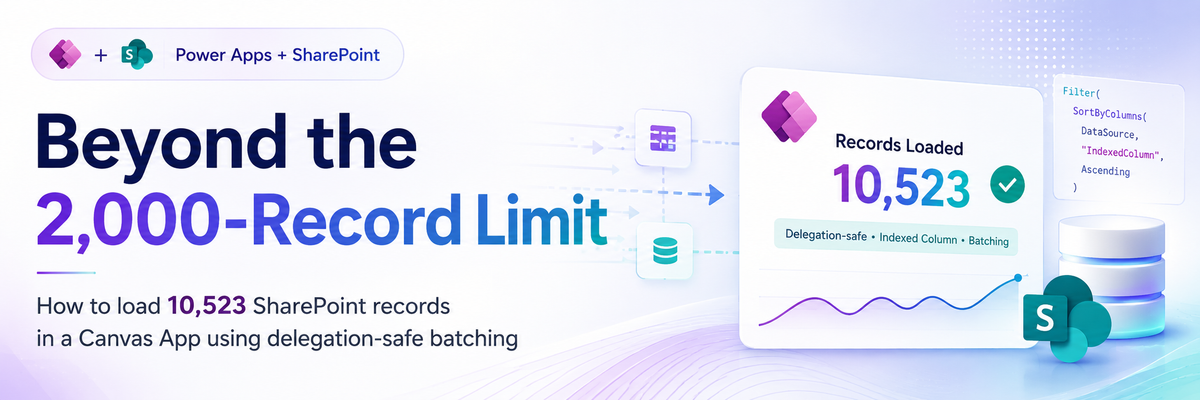
The infographic shows a practical design pattern:
- Add a numeric index column in SharePoint.
- Make sure that column is indexed.
- Sort by that index to find the highest value.
- Divide the dataset into batches of 2,000 or less.
- Use
Sequence()to generate batch numbers. - Use
ForAll()to loop through those batch ranges. - Use a delegable
Filter()against the indexed column. - Use
Collect()to append each batch into a local collection.
The important idea is this:
You are not bypassing delegation. You are designing multiple smaller queries that stay within the rules.
A simplified version looks like this:
Clear(TestData);

With(
    {
        BatchSize: 2000,
        MaxRecord:
            First(
                SortByColumns(
                    SharePointData,
                    "Count",
                    SortOrder.Descending
                )
            ).Count
    },
    ForAll(
        Sequence(
            RoundUp(MaxRecord / BatchSize, 0)
        ),
        With(
            {
                FirstValue: (Value - 1) * BatchSize,
                LastValue: Value * BatchSize
            },
            Collect(
                TestData,
                Filter(
                    SharePointData,
                    Count > FirstValue &&
                    Count <= LastValue
                )
            )
        )
    )
);
This allows each batch to request a controlled range, such as:
1–2000
2001–4000
4001–6000
6001–8000
8001–10000
10001–12000
In your example, that pattern loaded 10,523 SharePoint records into a Canvas App collection.
Why the Indexed Column Matters
The indexed column is the foundation of this pattern.
Without an indexed numeric column, SharePoint may struggle to filter large lists efficiently. Your app may become slow, inconsistent, or vulnerable to SharePoint list threshold behavior. A clean numeric index gives Power Apps a predictable way to request data in stable ranges.
A good index column should be:
| Requirement | Why It Matters |
|---|---|
| Number type | Supports clean range filtering |
| Unique or near-unique | Prevents missing or duplicate records |
| Indexed in SharePoint | Helps SharePoint process large filters efficiently |
| Stable | Prevents records from moving between batches unexpectedly |
| Populated for every record | Avoids blank records being skipped |
Do not use a display title, person field, lookup field, choice field, or calculated field as the main batching column. SharePoint delegation support varies by function and column type; Microsoft’s SharePoint connector guidance specifically calls out limitations around certain expressions and complex field types. (Microsoft Learn)
The Honest Technical Caveat
Here is the part many posts skip:
Collect(), ClearCollect(), and ForAll() are not delegable in the same way that a clean Filter() can be. Microsoft’s documentation says Collect and ClearCollect cannot be delegated when used directly with a data source, and ForAll() itself is not delegable. (Microsoft Learn) (Microsoft Learn)
So why does this pattern work?
Because the goal is not to delegate ForAll() itself. The goal is to use ForAll() over a small local table generated by Sequence(), then run multiple server-filtered queries where each filtered result is small enough to collect safely.
That is why batch size matters.
This is also why you should not present this as a universal “delegation bypass.” It is better described as:
A controlled batch retrieval pattern using delegable SharePoint filters and a local collection.
That wording is more accurate and more professional.
When This Pattern Is Useful
This approach can be useful when you need to temporarily load a larger SharePoint dataset into a local collection for:
- Offline-style browsing
- A controlled reporting screen
- A one-time load experience
- A gallery that needs local search after loading
- Export-style user experiences
- Admin screens where the dataset is large but still manageable
It is especially useful when the business requirement says:
“We need to keep SharePoint as the source. We are not ready for Dataverse, SQL, or Power Automate.”
In that situation, this pattern can be a practical middle ground.
When You Should Not Use This Pattern
Here is the sharper truth: needing to load 10,000+ records into a Canvas App collection is often a design smell.
A Canvas App is not Power BI. It is not a database engine. It is not meant to casually pull huge datasets into device memory. Collections can go stale, consume memory, increase load time, and create a second copy of the data inside the app. Microsoft also cautions that copying data into collections can consume memory, bandwidth, and time, and may cause the copied data to fall out of sync. (Microsoft Learn)
Use this pattern carefully if:
- The list has many columns.
- The list has attachments or image columns.
- The list uses many person, lookup, or calculated columns.
- Users are on mobile devices or weak networks.
- The data changes frequently.
- Security trimming is important.
- You need real reporting or analytics.
Microsoft’s performance guidance also warns that wide SharePoint lists, dynamic lookup columns, picture columns, attachments, and large lists can slow down app performance. (Microsoft Learn)
For serious enterprise-scale apps, consider Dataverse, SQL, Azure SQL, custom APIs, or Power BI depending on the use case.
Better Solutions for Common Delegation Problems
1. Filter First, Then Display
The best solution is usually not to load everything.
Instead of this:
ClearCollect(colAllData, SharePointData)
Use this:
Filter(
    SharePointData,
    Status.Value = "Active"
)
Even better, combine filters that reduce the dataset before it reaches the app:
Filter(
    SharePointData,
    Department = ddDepartment.Selected.Value &&
    Status.Value = "Active"
)
The professional rule is simple:
Let SharePoint do the filtering whenever possible.
2. Use Search Patterns That Delegate
Avoid formulas that look convenient but break delegation. For example, some text searches, complex conditions, and functions such as Distinct() can create incomplete results if used directly against large data sources. Microsoft notes that nondelegable formulas only process the first portion of the data source. (Microsoft Learn)
Instead of trying to search every column locally, create specific searchable fields:
Filter(
    SharePointData,
    StartsWith(Title, txtSearch.Text)
)
For more advanced search, create a dedicated normalized search column in SharePoint, such as:
EmployeeName + EmployeeID + Department + RequestNumber
Then search against that column using delegable logic where possible.
3. Use Pagination Instead of Full Loading
Many apps do not need all records at once. They need page 1, page 2, page 3.
A better design is:
Show 100 records
Load next 100
Filter by department
Filter by date
Filter by status
This gives users faster screens and reduces memory load.
4. Use Views and Pre-Filtered Lists
SharePoint views can help shape user experience, but do not assume that a SharePoint view automatically solves Power Apps delegation. Still, using well-designed columns, indexes, and filtered views can make the app’s logic cleaner.
Good examples:
Active Requests
Current Fiscal Year
My Department
Pending Approval
Closed Last 90 Days
5. Move the Right Workload to the Right Platform
Use SharePoint when the dataset is moderate, list-based, and document-centric.
Use Dataverse when you need relational data, security roles, business rules, scalable app data, and enterprise-grade Power Platform architecture.
Use Power BI when the requirement is analytics, dashboards, trends, and aggregated reporting.
Use SQL or Azure SQL when you need high-volume transactional querying, relational joins, or advanced backend control.
Use Power Automate when you need scheduled processing, background jobs, notifications, approvals, or integration.
The mistake is forcing SharePoint + Canvas Apps to behave like every platform at once.
Production Checklist
Before using the batch collection pattern, validate these items:
| Check | Why |
|---|---|
| Data row limit set to 2,000 | Keeps each batch under the local processing cap |
| Batch size less than or equal to 2,000 | Prevents partial batch collection |
| Indexed numeric column exists | Enables stable range filtering |
| No blank index values | Prevents missing records |
| Batch count matches expected total | Confirms all records loaded |
| Collection count equals SharePoint count | Validates the result |
| No delegation warnings on the filter | Reduces risk of partial results |
| App tested with large data | Prevents false confidence from small test data |
| App tested on slow network | Reveals real user experience |
| Columns minimized | Improves load performance |
Best Practice Formula Structure
For readability, avoid placing everything in one massive formula. Use variables and comments where possible.
Example:
// 1. Clear old local data
Clear(TestData);

// 2. Set batch size
Set(varBatchSize, 2000);

// 3. Find highest indexed value
Set(
    varMaxCount,
    First(
        SortByColumns(
            SharePointData,
            "Count",
            SortOrder.Descending
        )
    ).Count
);

// 4. Calculate number of batches
Set(
    varBatchCount,
    RoundUp(varMaxCount / varBatchSize, 0)
);

// 5. Load each batch
ForAll(
    Sequence(varBatchCount),
    With(
        {
            FirstValue: (Value - 1) * varBatchSize,
            LastValue: Value * varBatchSize
        },
        Collect(
            TestData,
            Filter(
                SharePointData,
                Count > FirstValue &&
                Count <= LastValue
            )
        )
    )
);
Then validate:
CountRows(TestData)
You can also show a loading message:
"Loaded " & CountRows(TestData) & " records"
Final Takeaway
Power Apps delegation is not a bug. It is a design boundary.
The beginner reaction is:
“Power Apps only gives me 2,000 records.”
The professional reaction is:
“How do I design the app so SharePoint does the heavy lifting?”
The batching pattern in your infographic is valuable because it changes the mindset. It does not fight the platform. It works with the platform by using indexed columns, controlled ranges, and delegated filters.
But the most important decision is still architectural:
Do users truly need 10,523 records loaded into the app, or do they need a better search, filter, pagination, and reporting experience?
That question separates a working app from a scalable solution.