Mastering Power Apps Table Functions
Power Apps is one of the most powerful low-code platforms for building business applications quickly. But as apps grow, one challenge appears again and again:
How do you shape, clean, retrieve, and optimize data before showing it to users?
This is where Power Apps table functions become essential.
Many beginners connect a SharePoint list, Dataverse table, or Excel source directly to a gallery and start building screens. That works for small apps, but it can quickly become messy when the app grows. You may see slow loading galleries, confusing formulas, unnecessary columns, poor user experience, and formulas that are hard to maintain.
A professional Power Apps developer does not just display data.
A professional developer shapes the data first.
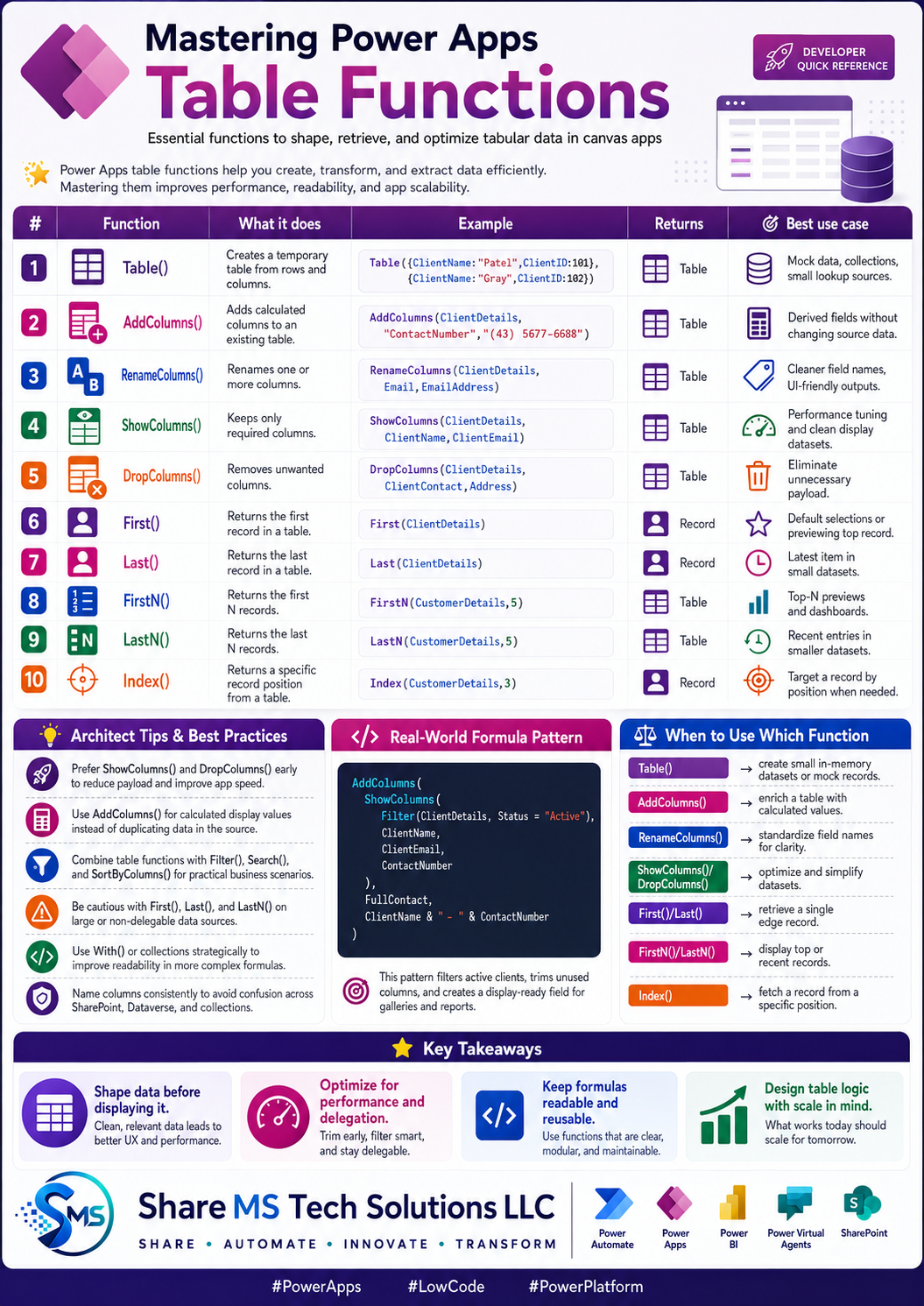
In this article, we will break down 10 important Power Apps table functions every developer should understand:
- Table()
- AddColumns()
- RenameColumns()
- ShowColumns()
- DropColumns()
- First()
- Last()
- FirstN()
- LastN()
- Index()
These functions help you build cleaner, faster, and more scalable canvas apps.
Why Table Functions Matter in Power Apps
In Power Apps, tables are everywhere.
A gallery uses a table.
A collection is a table.
A SharePoint list returns a table.
A Dataverse table is treated as tabular data.
A combo box can use a table.
A data table control uses table data.
Because of this, understanding table functions gives you more control over how your app behaves.
Table functions help you answer important questions:
- Which columns should I display?
- Which records should I retrieve?
- Do I need to add a calculated field?
- Do I need only the first record?
- Do I need the top 5 records?
- Do I need to rename columns for readability?
- Am I bringing too much unnecessary data into the screen?
Once you understand these functions, your formulas become cleaner and your apps become easier to maintain.
1. Table()
The Table() function creates a temporary table directly inside Power Apps.
Example:
Table(
    {ClientName: "Patel", ClientID: 101},
    {ClientName: "Gray", ClientID: 102}
)
This creates a small table with two records.
Best Use Cases
Use Table() when you need:
- Mock data
- Static dropdown values
- Small menu items
- Temporary records
- Testing formulas before connecting to a real source
For example, you can use Table() to create a navigation menu:
Table(
    {Title: "Home", Screen: HomeScreen},
    {Title: "Requests", Screen: RequestsScreen},
    {Title: "Reports", Screen: ReportsScreen}
)
Developer Tip
Table() is useful, but it should not replace a real data source when long-term storage is required. Use it for small, temporary, or static datasets.
2. AddColumns()
The AddColumns() function adds calculated columns to an existing table.
Example:
AddColumns(
    ClientDetails,
    "ContactNumber",
    "(43) 5677-6688"
)
This returns the original table with an additional column called ContactNumber.
A better real-world example is creating a display field:
AddColumns(
    ClientDetails,
    "DisplayName",
    ClientName & " - " & ClientEmail
)
Best Use Cases
Use AddColumns() when you need to:
- Create calculated display values
- Combine multiple fields
- Prepare gallery labels
- Add temporary columns without changing the source
- Format data for the user interface
Developer Tip
AddColumns() is excellent for presentation logic. Instead of creating extra columns in SharePoint or Dataverse only for display purposes, you can calculate them inside Power Apps.
However, do not overuse AddColumns() with large datasets without thinking about delegation and performance.
3. RenameColumns()
The RenameColumns() function renames columns in a returned table.
Example:
RenameColumns(
    ClientDetails,
    Email,
    EmailAddress
)
This changes the column name from Email to EmailAddress in the returned table.
Best Use Cases
Use RenameColumns() when you need to:
- Make column names easier to understand
- Standardize field names
- Clean up confusing SharePoint internal names
- Prepare data for formulas, galleries, or collections
Developer Tip
RenameColumns() does not rename the actual column in your SharePoint list or Dataverse table. It only renames the column inside the result of the formula.
This is especially helpful when working with data sources where column names are not clean or consistent.
4. ShowColumns()
The ShowColumns() function keeps only the columns you specify.
Example:
ShowColumns(
    ClientDetails,
    ClientName,
    ClientEmail
)
This returns only the ClientName and ClientEmail columns.
Best Use Cases
Use ShowColumns() when you want to:
- Reduce unnecessary data
- Improve gallery performance
- Keep formulas clean
- Send only selected fields into a collection
- Prepare a smaller dataset for display
Why This Matters
Imagine your SharePoint list has 80 columns, but your gallery only needs 5.
Without shaping the data, your app may carry unnecessary fields into the screen logic. ShowColumns() helps you be intentional.
Instead of loading everything, you only keep what the app needs.
Developer Tip
For performance-focused apps, ShowColumns() is one of the most important functions to understand.
A cleaner formula often starts with reducing the data to only the required fields.
5. DropColumns()
The DropColumns() function removes unwanted columns from a table.
Example:
DropColumns(
    ClientDetails,
    ClientContact,
    Address
)
This returns the table without ClientContact and Address.
Best Use Cases
Use DropColumns() when you want to:
- Remove unnecessary fields
- Clean a table before displaying it
- Avoid exposing fields that are not needed
- Simplify a collection or gallery dataset
ShowColumns() vs DropColumns()
Both functions shape columns, but they work differently.
Use ShowColumns() when you know exactly which columns you want to keep.
Use DropColumns() when you only need to remove a few columns.
In many enterprise apps, ShowColumns() is often cleaner because it forces you to define exactly what the screen needs.
6. First()
The First() function returns the first record in a table.
Example:
First(ClientDetails)
This returns one record, not a table.
Best Use Cases
Use First() when you need:
- The first record from a table
- A default selected item
- A quick preview record
- The first result from a filtered dataset
Example:
First(
    Filter(ClientDetails, Status = "Active")
)
This returns the first active client.
Developer Tip
First() is useful, but make sure the order of your data is intentional. If you need the newest item, sort the data first.
Example:
First(
    SortByColumns(
        ClientDetails,
        "Created",
        SortOrder.Descending
    )
)
This is much better than assuming the first record is automatically the newest.
7. Last()
The Last() function returns the last record in a table.
Example:
Last(ClientDetails)
This returns a single record.
Best Use Cases
Use Last() when you need:
- The final record in a small table
- The last item from a local collection
- The last step in a static sequence
Developer Tip
Be careful using Last() with large SharePoint or Dataverse sources.
In many real business scenarios, it is better to sort the table and use First().
Instead of this:
Last(ClientDetails)
Use a more controlled formula like:
First(
    SortByColumns(
        ClientDetails,
        "Created",
        SortOrder.Descending
    )
)
This makes the logic clearer and more reliable.
8. FirstN()
The FirstN() function returns the first N records from a table.
Example:
FirstN(CustomerDetails, 5)
This returns the first 5 records.
Best Use Cases
Use FirstN() when you need:
- Top 5 records
- Limited preview data
- Dashboard cards
- Small result sets
- Sample records for display
A stronger business example:
FirstN(
    SortByColumns(
        Filter(ClientDetails, Status = "Active"),
        "Created",
        SortOrder.Descending
    ),
    5
)
This returns the 5 most recent active clients.
Developer Tip
FirstN() becomes more valuable when combined with Filter() and SortByColumns(). That is how you create meaningful top records, not random records.
9. LastN()
The LastN() function returns the last N records from a table.
Example:
LastN(CustomerDetails, 5)
This returns the last 5 records.
Best Use Cases
Use LastN() when you need:
- Recent records from a local collection
- Last few steps in a static table
- Small dataset previews
- Local app data analysis
Developer Tip
LastN() can be useful for small local collections, but be careful with large data sources. In enterprise apps, sorting and filtering first is usually a stronger design pattern.
For example:
FirstN(
    SortByColumns(
        CustomerDetails,
        "Created",
        SortOrder.Descending
    ),
    5
)
This gives you more predictable results when trying to show recent records.
10. Index()
The Index() function returns a specific record based on position.
Example:
Index(CustomerDetails, 3)
This returns the third record from the table.
Best Use Cases
Use Index() when you need:
- A record from a specific position
- A step from a fixed sequence
- A specific item from a local collection
- Ordered small datasets
Developer Tip
Do not use Index() when you really need to find a business record by ID.
For example, if you want a specific client, this is usually better:
LookUp(
    ClientDetails,
    ClientID = 101
)
Index() depends on position. LookUp() depends on identity.
In business apps, identity is usually more reliable than position.
Real-World Formula Pattern
Here is a practical formula that combines multiple table functions:
AddColumns(
    ShowColumns(
        Filter(ClientDetails, Status = "Active"),
        ClientName,
        ClientEmail,
        ContactNumber
    ),
    FullContact,
    ClientName & " - " & ContactNumber
)
This formula does three important things:
- Filters only active clients.
- Keeps only the required columns.
- Adds a calculated display field called FullContact.
This is a clean pattern for galleries, reports, dropdowns, and dashboard screens.
Instead of sending raw data directly to the user interface, you prepare the data first.
That is the difference between a simple app and a well-designed business solution.
Architect Tips and Best Practices
1. Shape Data Early
Use ShowColumns() and DropColumns() early when possible. This helps reduce unnecessary fields and keeps your formulas focused.
2. Do Not Duplicate Display Logic in the Data Source
Use AddColumns() for calculated display values when the field does not need to be permanently stored.
3. Combine Functions for Real Business Scenarios
Table functions become more powerful when combined with:
Filter()
Search()
SortByColumns()
LookUp()
With()
For example:
With(
    {
        ActiveClients: Filter(ClientDetails, Status = "Active")
    },
    ShowColumns(
        ActiveClients,
        ClientName,
        ClientEmail
    )
)
This makes formulas easier to read and maintain.
4. Think About Delegation
Delegation matters when working with large data sources.
Some formulas work perfectly on small local collections but may not scale well with SharePoint or Dataverse. Before using functions like Last(), LastN(), or complex AddColumns() logic on large data sources, confirm whether the formula can be delegated properly.
Ignoring delegation is one of the fastest ways to build an app that works during testing but fails in production.
5. Use Clear Naming
Use consistent column names across SharePoint, Dataverse, collections, and formulas.
Poor naming creates confusion and makes formulas harder to troubleshoot.
6. Keep Formulas Maintainable
A formula that works but is impossible to understand later is not a good formula.
Use formatting, With(), collections, and naming standards to make your app easier to maintain.
When to Use Which Function
Use Table() when you need small in-memory datasets or mock records.
Use AddColumns() when you need calculated values.
Use RenameColumns() when you need cleaner or standardized column names.
Use ShowColumns() when you want to keep only required fields.
Use DropColumns() when you want to remove unnecessary fields.
Use First() when you need the first record.
Use Last() when you need the last record from a small or local dataset.
Use FirstN() when you need the top N records.
Use LastN() when you need the last N records from a small or local dataset.
Use Index() when you need a record from a specific position.
Common Mistakes to Avoid
Mistake 1: Displaying Raw Data Directly
Do not always connect your gallery directly to the full data source without shaping it.
A better approach is to filter, sort, and select only the fields the screen needs.
Mistake 2: Ignoring Delegation
Your app may work with 100 test records but fail with 10,000 production records.
Always think about delegation when working with larger SharePoint or Dataverse sources.
Mistake 3: Using Position Instead of Identity
Index() is useful, but do not use it when you should use LookUp().
If you need a specific business record, use a unique ID or key.
Mistake 4: Creating Too Many Unnecessary Source Columns
Not every display value needs to become a SharePoint or Dataverse column.
Sometimes AddColumns() is enough.
Mistake 5: Writing Long Formulas Without Structure
If your formula becomes too long, consider using With() or breaking logic into collections where appropriate.
Readable formulas are easier to support.
Final Takeaways
Power Apps table functions are not just formula tricks. They are core building blocks for professional canvas app development.
When used correctly, they help you:
- Improve performance
- Reduce unnecessary data
- Build cleaner galleries
- Create better user experiences
- Keep formulas readable
- Design apps that scale better
The key principle is simple:
Shape your data before displaying it.
If you master Table(), AddColumns(), RenameColumns(), ShowColumns(), DropColumns(), First(), Last(), FirstN(), LastN(), and Index(), you will have a stronger foundation for building reliable Power Apps solutions.
Power Apps is easy to start, but professional app building requires discipline.
These table functions help you move from basic formulas to scalable business application design.
About Share MS Tech Solutions LLC
At Share MS Tech Solutions LLC, we focus on helping professionals and organizations use Microsoft 365, Power Platform, SharePoint, Power Automate, Power Apps, Power BI, and AI automation to improve business processes.
Share • Automate • Innovate • Transform