SharePoint Lists + Power Automate: A Small Update That Can Save Businesses Real Time
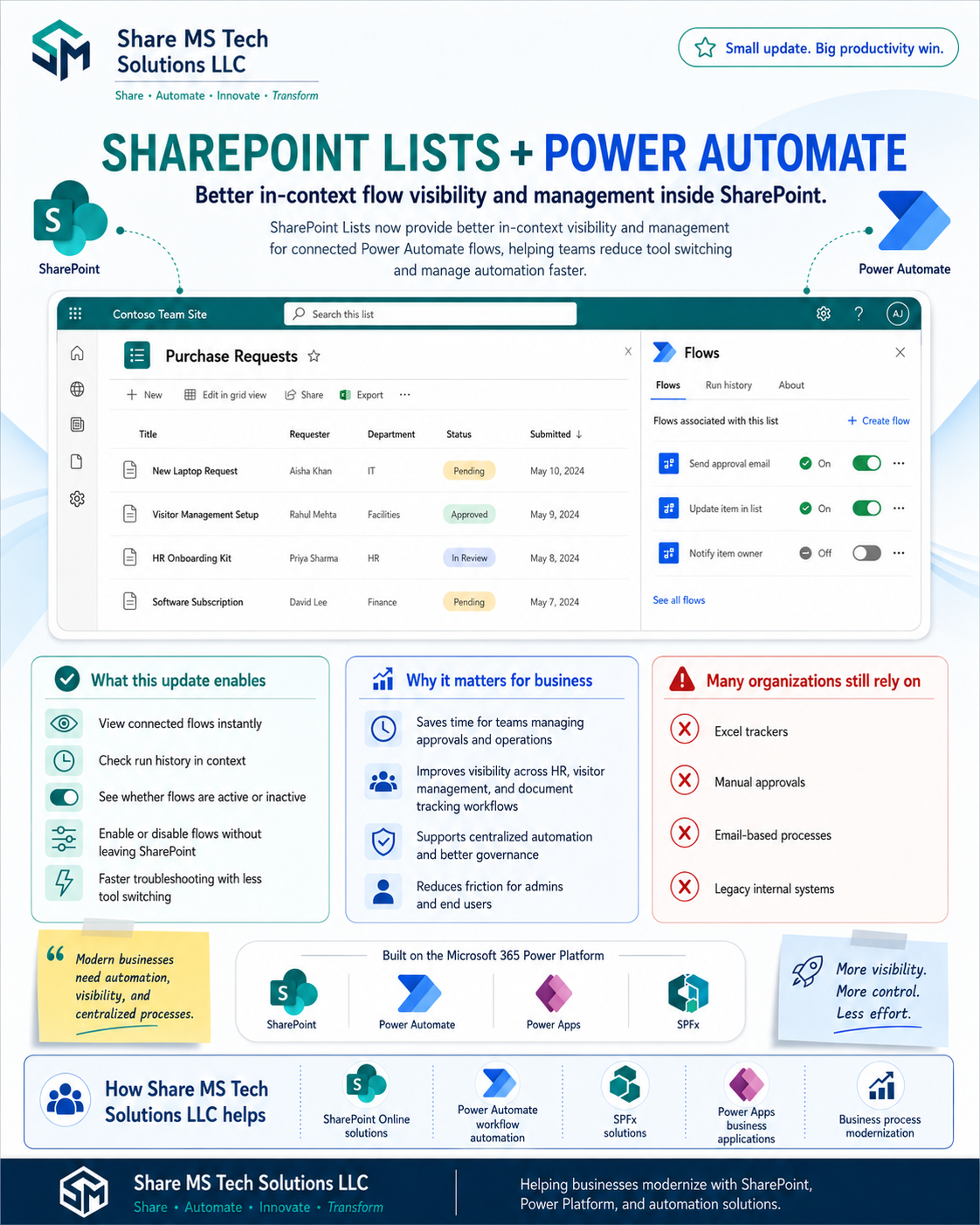
Microsoft continues to improve how SharePoint Lists and Power Automate work together, and one of the most useful improvements is better in-context visibility and management of flows directly inside SharePoint.
At first glance, this may look like a small user-interface improvement. But for organizations that depend on approvals, HR workflows, operations tracking, visitor management, document routing, or internal request systems, this change can make everyday work noticeably faster and easier to manage.
Instead of jumping back and forth between SharePoint and Power Automate, users and admins can now manage more of the flow experience directly where the business data lives: inside the SharePoint list.
Why This Update Matters
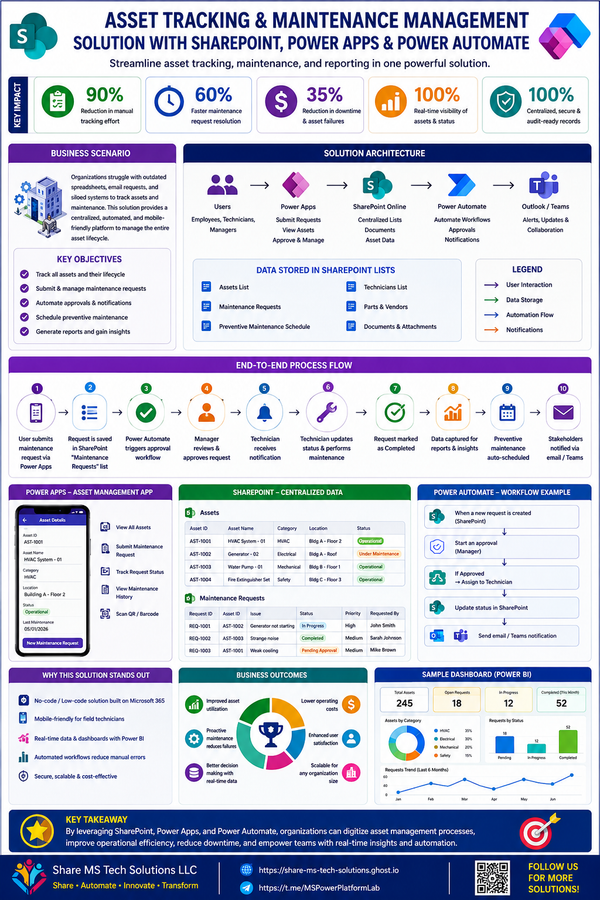
SharePoint Lists are often the foundation of business processes. Many companies use lists to track purchase requests, employee onboarding, asset management, project tasks, help desk tickets, document approvals, and many other operational workflows.
Power Automate adds the automation layer on top of those lists. It can send approval emails, update list items, notify owners, create tasks, route documents, and connect SharePoint to Outlook, Teams, Excel, Dataverse, and other systems.
The challenge is that many business users do not want to constantly switch tools just to understand what automation is connected to a list. They want to know:
Is there a flow attached to this list?
Is the flow turned on or off?
Did the flow run successfully?
Can I check the run history quickly?
Can I enable or disable a flow without leaving SharePoint?
This update helps answer those questions faster.
What This Update Enables
The improved SharePoint Lists and Power Automate experience gives teams better visibility into automation directly from the list experience.
Key benefits include:
View connected flows instantly
Users can quickly see which Power Automate flows are associated with a specific SharePoint list. This makes it easier to understand what automation is running behind the scenes.
Check run history in context
Instead of opening Power Automate separately and searching for the right flow, users can view flow activity closer to the list where the process begins.
See whether flows are active or inactive
Knowing whether a flow is on or off is important for troubleshooting. A disabled flow can quietly break a business process if nobody notices.
Enable or disable flows without leaving SharePoint
This reduces unnecessary tool switching and gives admins more control from the place where the work is happening.
Troubleshoot faster
When flows are easier to find, check, and manage, support teams can resolve issues faster. This is especially useful for high-volume approval processes, HR requests, and operational workflows.
The Real Business Problem This Solves
Many organizations are still running important business processes through outdated methods such as:
Excel trackers
Manual approvals
Email-based follow-ups
Legacy internal systems
Disconnected spreadsheets
Unstructured Teams messages
These methods may work in the beginning, but they become difficult to manage as the business grows. Information gets lost. Approvals are delayed. Employees do not know the status of their requests. Managers waste time asking for updates. IT teams spend too much time troubleshooting unclear processes.
This is where SharePoint and Power Platform become powerful.
SharePoint gives the business a structured place to store and manage data. Power Automate adds workflow automation. Power Apps can provide a user-friendly front end. SPFx can extend the experience with custom components when needed.
Together, they help businesses move from scattered manual work to centralized digital operations.
Practical Example: Purchase Request Automation
Imagine a company using a SharePoint list to manage purchase requests.
An employee submits a new laptop request. The list captures the requester, department, item, cost, status, and submitted date.
A Power Automate flow can automatically:
Send an approval email to the manager
Update the request status
Notify the requester when the approval is complete
Escalate if there is no response
Create a record for finance or procurement
Previously, if something went wrong, an admin might need to leave SharePoint, open Power Automate, search for the flow, check its status, review the run history, and then return to SharePoint.
With better in-context flow management, that process becomes much simpler. The admin can stay closer to the list and quickly see the automation connected to it.
That means less time searching and more time solving the actual issue.
Why This Matters for Admins and Business Users
For admins, this improvement creates better control and faster troubleshooting.
For business users, it creates more transparency.
For organizations, it improves governance because automation is easier to locate, review, and manage.
The biggest benefit is not just convenience. The real value is operational clarity.
When companies build many flows across many SharePoint lists, visibility becomes critical. Without proper visibility, flows can become hidden dependencies. A business process may depend on a flow that only one person understands. If that flow fails, gets turned off, or is not documented, the business process can break.
Better in-context management helps reduce that risk.
Best Practices for SharePoint + Power Automate Solutions
This update is helpful, but organizations still need good design practices. A better interface does not replace proper architecture.
Here are important best practices businesses should follow:
1. Use Clear Flow Naming Standards
Flow names should clearly explain what the flow does.
Instead of naming a flow:
“Flow 1”
Use a name like:
“Purchase Request - Manager Approval - Update Status”
Good naming makes support, documentation, and troubleshooting much easier.
2. Document Every Business-Critical Flow
Every important flow should have basic documentation:
Purpose of the flow
Trigger
Main actions
Owner
Connected SharePoint list
Error handling approach
Business impact if the flow fails
This is especially important when flows support HR, finance, compliance, or customer-facing processes.
3. Add Error Handling
Enterprise-grade flows should not fail silently.
Use scopes such as:
Try
Catch
Finally
Also consider notifications for failed runs, logging to a SharePoint list, and escalation messages for critical processes.
4. Avoid Hardcoding Values
Hardcoded emails, list names, site URLs, and status values can create maintenance problems.
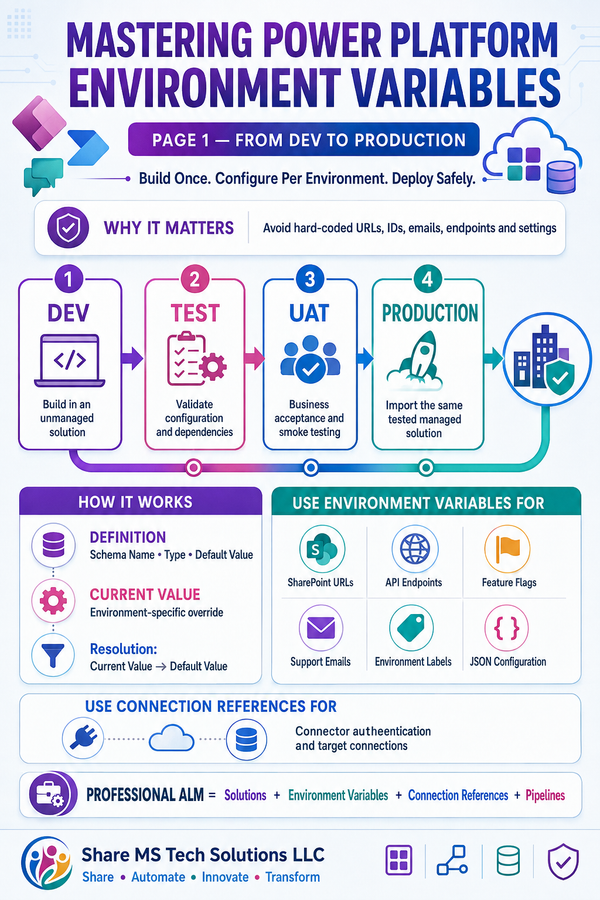
Use environment variables, configuration lists, or solution-aware flows where possible.
5. Monitor Flow Ownership
Many organizations create flows under individual user accounts. This can become a problem when that employee leaves the company.
For business-critical automation, organizations should have a clear ownership model using service accounts, solution ownership, or proper admin governance.
6. Build With Governance in Mind
As Power Automate usage grows, organizations need governance around:
Who can create flows
Which connectors are allowed
How flows are named
How flows are documented
How errors are monitored
How critical workflows are reviewed
The easier it becomes to create automation, the more important governance becomes.
Where Share MS Tech Solutions LLC Helps
At Share MS Tech Solutions LLC, we help businesses modernize manual processes using the Microsoft 365 and Power Platform ecosystem.
Our focus includes:
SharePoint Online solutions
Power Automate workflow automation
Power Apps business applications
SPFx solutions
Business process modernization
We help organizations replace manual trackers, email-based approvals, and disconnected processes with structured, automated, and scalable solutions.
Whether your business needs a simple approval flow or a more advanced SharePoint-based business application, the goal is the same:
More visibility.
More control.
Less effort.
Final Thoughts
The improved SharePoint Lists and Power Automate experience is a reminder that digital transformation does not always come from massive system changes.
Sometimes, a small improvement in visibility and workflow management can save time every single day.
For organizations already using Microsoft 365, SharePoint and Power Platform remain one of the most practical ways to modernize operations without starting from scratch.
The key is to build solutions that are not only automated, but also visible, manageable, and governed properly.
That is where real business value begins.
Share • Automate • Innovate • Transform
Share MS Tech Solutions LLC