The Ultimate Guide to Power Automate Actions Every Developer Should Master
Building Enterprise-Grade Automations Starts with Mastering the Fundamentals
When people think about Power Automate, they often focus on connectors, AI capabilities, or complex approval workflows.
However, after designing hundreds of automations across SharePoint, Microsoft 365, HR systems, Finance platforms, and enterprise business processes, I have found that the difference between an average flow and an enterprise-grade solution comes down to one thing:
Mastering the core actions that serve as the foundation of every successful automation.
Whether you're automating employee onboarding, document approvals, invoice processing, compliance tracking, or system integrations, the same building blocks appear repeatedly.
Understanding when and how to use these actions properly can dramatically improve:
- Performance
- Scalability
- Reliability
- Maintainability
- User experience
Let's explore the most important Power Automate actions every developer should know.
Why Power Automate Actions Matter
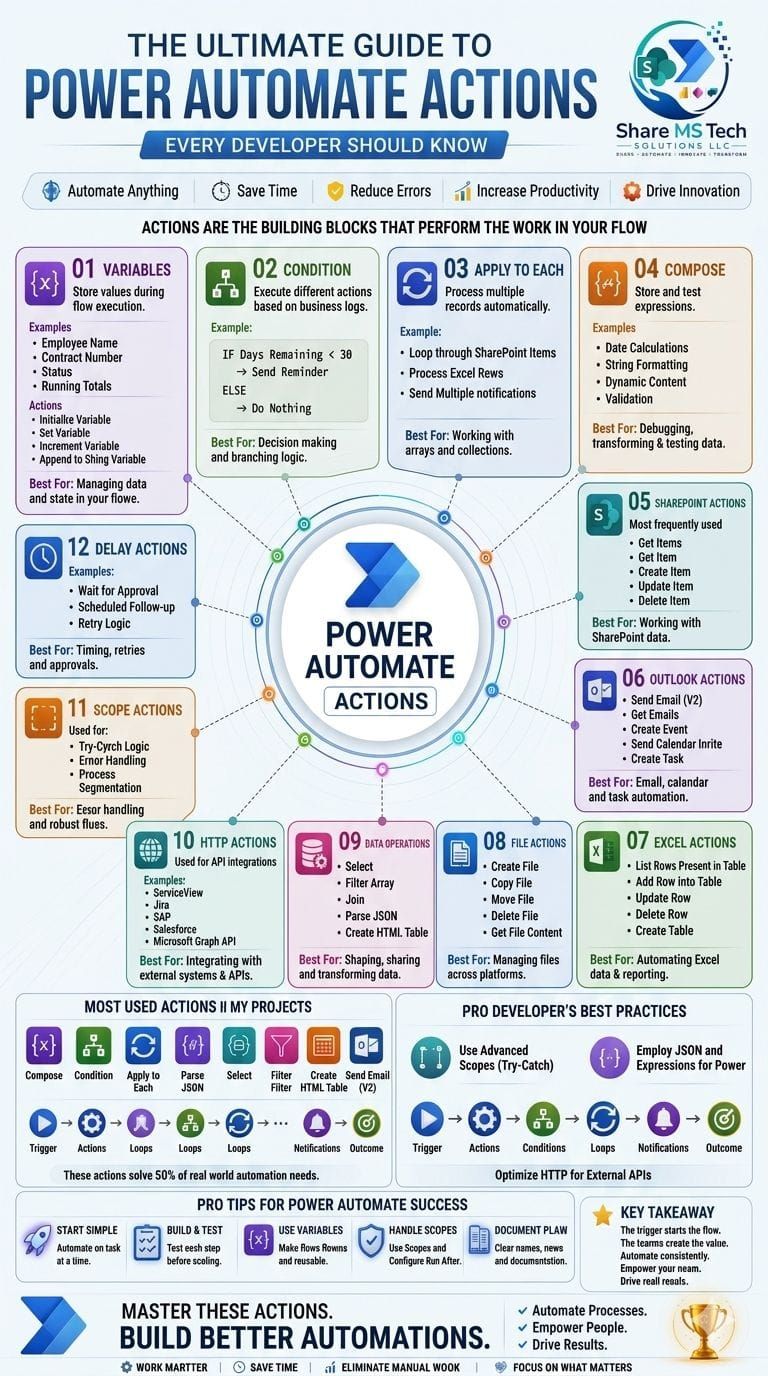
Think of Power Automate actions as the building blocks of your automation architecture.
A flow is essentially the following:
Trigger → Actions → Logic → Outcomes
The quality of your automation depends on how effectively you design and connect these building blocks.
Poor action design often leads to:
- Slow flow execution
- API throttling
- Failed runs
- Infinite loops
- Difficult troubleshooting
- Increased licensing costs
Strong action design creates:
- Faster workflows
- Better governance
- Easier maintenance
- Reduced support effort
- Enterprise scalability
1. Variables
What They Do
Variables temporarily store information during flow execution.
Common examples include:
- Employee Name
- Request ID
- Approval Status
- Running Totals
- Calculated Values
Typical Actions
- Initialize Variable
- Set Variable
- Increment Variable
- Append to String Variable
Real-World Scenario
An onboarding workflow processes multiple tasks.
A variable stores completion percentages as tasks are completed and updates the overall onboarding status automatically.
Best Practice
Avoid creating excessive variables.
Use Compose whenever values don't need to change.
This improves performance and reduces memory consumption.
2. Condition Actions
What They Do
Conditions introduce business logic into workflows.
They allow Power Automate to make decisions automatically.
Example
If Days Remaining < 30
Send Reminder
Else
Do Nothing
Real-World Scenario
A compliance workflow automatically sends certification reminders only when expiration dates fall within 60 days.
Best Practice
Keep conditions simple and readable.
Complex nested conditions should often be replaced with Switch statements or child flows.
3. Apply to Each
What It Does
Processes multiple records sequentially or in parallel.
Typical Use Cases
- SharePoint Lists
- Excel Rows
- Dataverse Records
- Outlook Messages
Real-World Scenario
A training management system loops through employees and sends reminders to those with overdue certifications.
Common Mistake
Many developers create nested loops unnecessarily.
This significantly slows performance.
Best Practice
Enable concurrency where appropriate and minimize nested loops.
4. Compose
What It Does
Stores values temporarily without creating variables.
Common Uses
- Date calculations
- String formatting
- JSON manipulation
- Dynamic expressions
Real-World Scenario
Formatting employee names:
FirstName + LastName
into a single display field.
Best Practice
Compose is one of the most underutilized performance optimization techniques in Power Automate.
Use it extensively.
5. SharePoint Actions
Why They're Critical
SharePoint remains one of the most common Power Automate data sources.
Key actions include:
- Get Items
- Get Item
- Create Item
- Update Item
- Delete Item
Enterprise Use Cases
- Employee onboarding
- Request management
- Asset tracking
- Training systems
- Compliance registers
Best Practice
Always use OData filtering whenever possible.
Avoid retrieving thousands of records and filtering afterward.
6. Outlook Actions
Common Actions
- Send Email (V2)
- Get Emails
- Create Event
- Send Calendar Invite
- Create Task
Real-World Scenario
Automated approval notifications sent to managers.
Best Practice
Use HTML email formatting and dynamic content carefully.
Well-designed emails improve user adoption significantly.
7. Excel Actions
What They Enable
Excel remains heavily used in business operations.
Common actions include:
- List Rows Present in Table
- Add Row
- Update Row
- Delete Row
Real-World Scenario
Finance departments updating budget spreadsheets automatically.
Best Practice
Excel is excellent for low-volume solutions.
For enterprise-scale workloads, consider SharePoint Lists or Dataverse.
8. File Actions
Common Actions
- Create File
- Copy File
- Move File
- Delete File
- Get File Content
Real-World Scenario
Generating automated reports and saving them to SharePoint document libraries.
Best Practice
Always implement file naming standards.
This simplifies governance and improves searchability.
9. Data Operations
Essential Actions
- Select
- Join
- Filter Array
- Parse JSON
- Create HTML Table
Why They Matter
These actions transform raw data into business-ready information.
Real-World Scenario
Creating executive summary reports from SharePoint data.
Best Practice
Learning Select and Filter Array can reduce flow complexity by more than 50%.
10. HTTP Actions
Enterprise Superpower
HTTP actions unlock integrations beyond Microsoft's ecosystem.
Popular integrations include:
- Microsoft Graph
- ServiceNow
- Salesforce
- Jira
- SAP
- Workday
- Custom APIs
Real-World Scenario
Creating Microsoft Teams channels automatically through Microsoft Graph API.
Best Practice
Always implement:
- Retry policies
- Error handling
- Authentication management
11. Scope Actions
Why They Matter
Scopes allow you to organize flows into logical sections.
Think of them as containers.
Enterprise Pattern
Try
↓
Catch
↓
Finally
This pattern dramatically improves supportability and troubleshooting.
Best Practice
Every enterprise workflow should include structured error handling using Scopes.
12. Delay Actions
What They Do
Pause execution temporarily.
Use Cases
- Approval reminders
- Scheduled follow-ups
- Escalations
- Waiting for external systems
Example
If approval isn't completed within three days:
Send escalation notification.
Best Practice
Avoid excessive delays in long-running workflows.
Consider scheduled flows when possible.
The Actions I Use Most Frequently
Across most enterprise implementations, these actions appear repeatedly:
✔ Compose
✔ Condition
✔ Apply to Each
✔ Parse JSON
✔ Select
✔ Filter Array
✔ Create HTML Table
✔ Send Email (V2)
Mastering these eight actions alone can solve the majority of business automation scenarios.
Enterprise Best Practices from Real-World Projects
After years of building solutions for HR, Finance, Operations, and IT departments, these practices consistently separate successful automations from problematic ones.
Use Scopes for Error Handling
Implement Try-Catch-Finally patterns.
Use Compose Instead of Variables
Whenever possible.
Limit Apply to Each Loops
Reduce processing overhead.
Use OData Filters
Filter at the source.
Leverage Parse JSON
Create cleaner and more maintainable flows.
Document Everything
Future developers will thank you.
Use Environment Variables
Avoid hardcoding values.
Establish Naming Standards
Governance begins with consistency.
Final Thoughts
Power Automate has evolved into one of the most powerful low-code automation platforms available today.
Yet even the most sophisticated automation solutions rely on a small set of foundational actions.
By mastering Variables, Conditions, Apply to Each, Compose, SharePoint, Outlook, Excel, HTTP, Data Operations, Scopes, and Delay actions, you can design workflows that are:
- Faster
- More reliable
- Easier to maintain
- Enterprise-ready
- Future-proof
The secret isn't building more complex flows.
The secret is mastering the fundamentals and applying them consistently.
Because great automations are not built with complexity.
They are built with simplicity, structure, and strong architecture.
About Share MS Tech Solutions LLC
At Share MS Tech Solutions LLC, we help organizations modernize business processes through Microsoft 365, SharePoint Online, Power Apps, Power Automate, Power BI, Copilot, and AI-powered automation solutions.
Share • Automate • Innovate • Transform