The Ultimate Power Apps Gallery Cheat Sheet
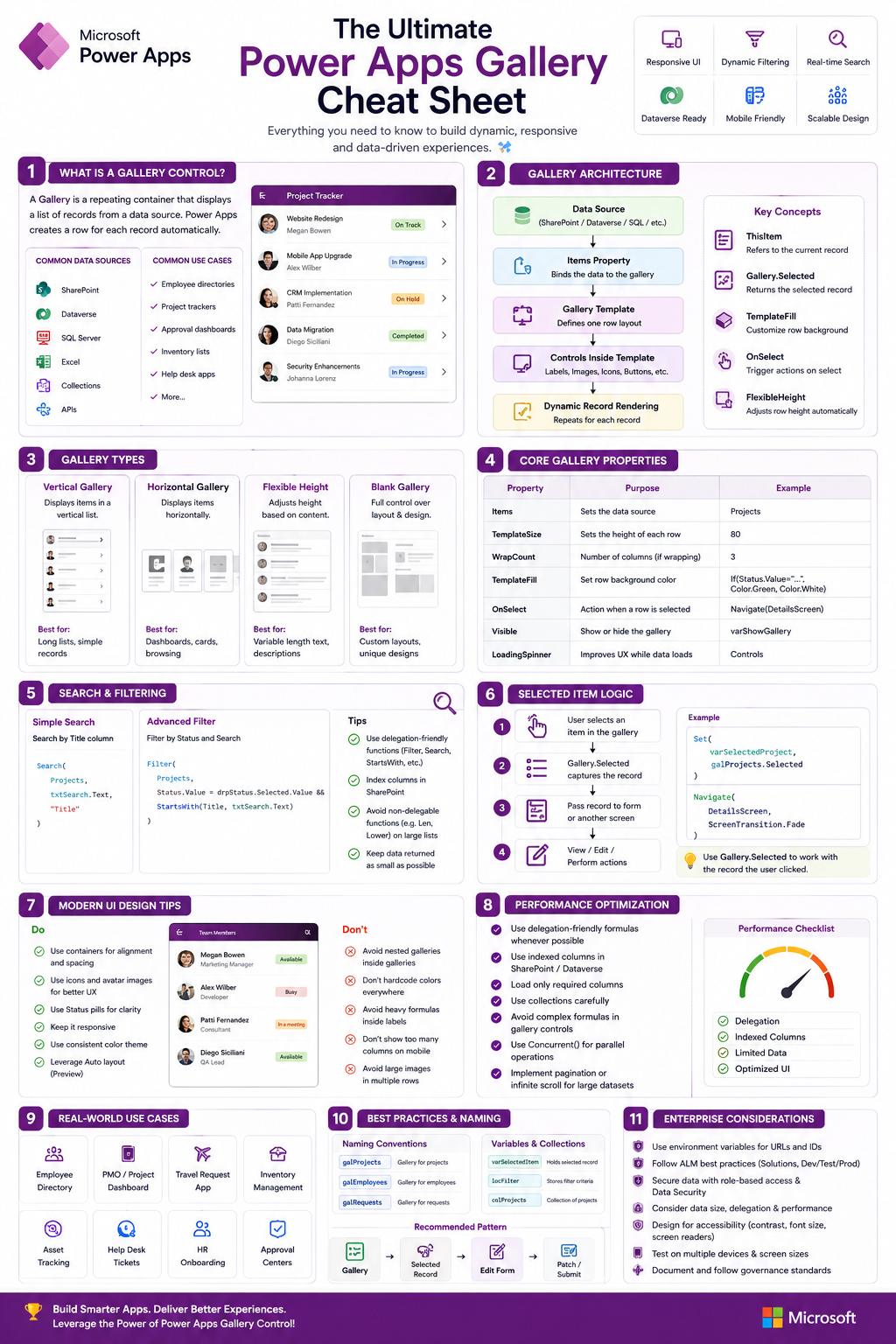
Mastering Dynamic, Responsive, Enterprise-Ready Gallery Controls in Microsoft Power Apps
Modern business applications are no longer just about forms and data entry. Organizations now expect apps to feel intuitive, responsive, visually modern, and scalable across desktop, tablet, and mobile devices.
In Microsoft Power Apps, the Gallery Control is one of the most important building blocks for creating these modern user experiences.
Whether you are building:
- Employee directories
- Approval dashboards
- Help desk systems
- Travel request apps
- Inventory trackers
- Project management solutions
- PMO dashboards
- HR onboarding systems
…the Gallery Control is usually at the center of the experience.
This guide breaks down everything you need to know about Power Apps Galleries — from beginner concepts to enterprise-level design patterns and performance optimization strategies.
What Is a Power Apps Gallery Control?
A Gallery Control is a repeating container that displays records from a data source dynamically.
Instead of manually creating one row for every item:
- Power Apps creates the layout once
- Then automatically repeats it for every record in your dataset
Think of it like a smart, dynamic list view.
For example:
| Employee | Department | Status |
|---|---|---|
| John Smith | IT | Active |
| Sarah Lee | HR | Active |
| David Kim | Finance | Inactive |
Instead of manually designing every row, the Gallery automatically generates them from your data source.
Why Galleries Are So Powerful
The Gallery Control is one of the core reasons Power Apps can build modern business applications quickly.
Galleries allow you to:
✅ Display dynamic records
✅ Create responsive layouts
✅ Build dashboards
✅ Show cards and tiles
✅ Enable filtering and search
✅ Create navigation experiences
✅ Display images and icons
✅ Build approval systems
✅ Create mobile-friendly apps
Without galleries, most modern Power Apps would feel static and limited.
Common Data Sources Used with Galleries
The Gallery Control works with almost every major Power Platform data source.
Most common sources include:
| Data Source | Typical Use |
|---|---|
| SharePoint | Lists & document management |
| Dataverse | Enterprise relational data |
| SQL Server | Large business systems |
| Excel | Lightweight prototypes |
| Collections | Temporary in-memory data |
| APIs | External integrations |
Gallery Types Explained
Power Apps offers multiple gallery layouts depending on the scenario.
1. Vertical Gallery
Best For:
- Lists
- Employee directories
- Ticket systems
- Approvals
- Inventory
Behavior:
Items scroll from top to bottom.
This is the most common gallery type.
2. Horizontal Gallery
Best For:
- Dashboards
- Card layouts
- KPI panels
- Mobile navigation
Behavior:
Items scroll left to right.
Excellent for modern dashboard-style apps.
3. Flexible Height Gallery
Best For:
- Dynamic content
- Comments
- Chat-style interfaces
- Long descriptions
Behavior:
Rows automatically resize based on content.
This improves responsiveness significantly.
4. Blank Gallery
Best For:
- Fully custom UI
- Advanced layouts
- Enterprise design systems
Behavior:
You build the entire layout manually.
Provides maximum flexibility.
Understanding the Gallery Architecture
At a high level, the Gallery Control works like this:
Data Source ↓Items Property ↓Gallery Template ↓Controls Inside Template ↓Dynamic Record RenderingThe Gallery acts as a loop that automatically repeats your design for every record.
The Most Important Gallery Property: Items
The Items property determines what data appears inside the Gallery.
Example:
ProjectsListThis tells the Gallery:
“Display all records from ProjectsList.”
You can also use formulas:
Filter( ProjectsList, Status.Value = "Active")Now the Gallery only shows active projects.
What Goes Inside a Gallery?
Inside each Gallery row, you can place:
- Labels
- Buttons
- Images
- Icons
- Containers
- Status indicators
- Toggle controls
- Progress bars
Each control repeats automatically for every record.
This is where Power Apps becomes extremely powerful for UI design.
Understanding ThisItem
Inside a Gallery, Power Apps automatically creates a special reference called:
ThisItemThisItem represents the current row being rendered.
Examples:
ThisItem.TitleThisItem.Status.ValueThisItem.'Project Owner'.DisplayNameYou use ThisItem constantly when building galleries.
Gallery.Selected Explained
When a user clicks a row, Power Apps stores that selected record automatically.
Example:
galProjects.SelectedYou can then pass that record anywhere in the app.
Example:
galProjects.Selected.TitleThis enables:
- Detail screens
- Edit forms
- Navigation
- Approval workflows
Real-World Navigation Pattern
One of the most common enterprise patterns is:
Set( varSelectedProject, galProjects.Selected);Navigate( scrProjectDetails)This pattern:
- Stores the selected record
- Navigates to another screen
- Displays the selected project details
This is foundational for scalable app architecture.
Search Function Explained
The Search() function enables real-time searching.
Example:
Search( ProjectsList, txtSearch.Text, "Title")This allows users to search dynamically as they type.
Advanced Filtering
Filtering allows users to narrow data intelligently.
Example:
Filter( ProjectsList, Status.Value = drpStatus.Selected.Value)You can combine filters and search together:
Filter( ProjectsList, StartsWith( Title, txtSearch.Text ) && Status.Value = drpStatus.Selected.Value)Delegation: The Hidden Performance Issue
One of the biggest mistakes beginners make is ignoring delegation.
What Is Delegation?
Delegation means Power Apps pushes filtering and searching to the data source instead of loading everything locally.
Non-delegable formulas can:
- slow apps down
- miss records
- break at scale
Delegation-Friendly Functions
Prefer:
✅ Filter()
✅ Search()
✅ StartsWith()
✅ Sort()
Avoid excessive:
❌ CountRows() on huge datasets
❌ Nested LookUps
❌ Complex calculations inside galleries
Performance Optimization Tips
Enterprise apps can become slow if Galleries are not optimized properly.
Best Practices for Fast Galleries
1. Load Only Needed Columns
Instead of loading everything:
ShowColumns( ProjectsList, "Title", "Status", "Owner")2. Use Delegation-Friendly Queries
Avoid formulas that force local processing.
3. Minimize Controls Inside Galleries
Too many controls per row increases rendering cost.
4. Avoid Nested Galleries
Nested galleries can severely impact performance.
5. Use Containers for Layout
Modern container layouts improve responsiveness significantly.
Modern UI Design Tips
If you want your apps to look professional:
Use:
✅ Containers
✅ Auto-layout
✅ Responsive design
✅ Fluent UI spacing
✅ Rounded corners
✅ Status pills
✅ Modern buttons
✅ Avatar images
✅ Soft shadows
Avoid:
❌ Hardcoded positions
❌ Overcrowded layouts
❌ Tiny click areas
❌ Excessive colors
❌ Large unfiltered lists
Recommended Naming Conventions
Good naming dramatically improves maintainability.
Gallery Naming Standards
| Control | Recommended Name |
|---|---|
| Employee Gallery | galEmployees |
| Projects Gallery | galProjects |
| Request Gallery | galRequests |
Variable Naming
| Type | Example |
|---|---|
| Variable | varSelectedProject |
| Collection | colProjects |
| Local Variable | locFilter |
Enterprise Use Cases
The Gallery Control powers many enterprise systems.
Common Real-World Scenarios
Employee Directory
Searchable employee listings with profile photos.
Approval Dashboard
Approval queues with status indicators.
PMO Tracking
Project status dashboards and KPI tracking.
Inventory Management
Equipment tracking with barcode integration.
Help Desk Applications
Ticket management and prioritization.
HR Onboarding
Employee onboarding workflows.
Accessibility Considerations
Modern enterprise apps must also be accessible.
Recommended Practices:
✅ High contrast colors
✅ Keyboard navigation
✅ Screen reader labels
✅ Responsive layouts
✅ Touch-friendly spacing
Gallery Design Pattern Recommended for Enterprise Apps
Gallery ↓Selected Record ↓Edit Form ↓Submit / PatchThis pattern is:
- scalable
- maintainable
- reusable
- easy to debug
Final Thoughts
The Power Apps Gallery Control is more than a list component.
It is:
- a UI engine
- a dynamic rendering system
- a navigation framework
- a dashboard component
- a scalable enterprise design pattern
Mastering Galleries is one of the fastest ways to elevate your Power Apps development skills from beginner-level apps to enterprise-grade business solutions.
The developers who truly understand:
- responsive gallery design
- performance optimization
- delegation
- modern UI patterns
- scalable architecture
…are the ones building the most professional Power Platform solutions today.
As organizations continue investing in digital transformation and low-code development, understanding Gallery Controls deeply will remain one of the highest-value skills in the Power Apps ecosystem.
Build smarter.
Design cleaner.
Automate intentionally.