Build an Enterprise Asset Tracking & Maintenance Management Solution with SharePoint, Power Apps & Power Automate.
How to replace spreadsheets, email-based maintenance requests, and disconnected asset records with a centralized Microsoft 365 solution
Organizations often invest heavily in equipment, technology, facilities, and operational assets—but still manage those assets through spreadsheets, emails, shared folders, and manual follow-ups.
That creates a familiar set of problems:
- Where is the asset?
- Who is responsible for it?
- Is it operational or under maintenance?
- When was it last serviced?
- Are there unresolved maintenance requests?
- Who approved the repair?
- What equipment is approaching preventive maintenance?
- How much downtime are we experiencing?
These questions become increasingly difficult to answer as the organization grows.
The good news is that organizations already using Microsoft 365 can build a powerful asset and maintenance management solution by combining SharePoint Online, Power Apps, Power Automate, Teams/Outlook, and optionally Power BI.
The result is not simply another asset list.
It becomes an end-to-end digital system for managing the entire asset lifecycle.
The Business Problem
Consider an organization managing hundreds or thousands of assets across multiple buildings and departments.
Assets might include:
- Laptops and desktop computers
- Servers and network equipment
- HVAC systems
- Generators
- Vehicles
- Manufacturing equipment
- Safety equipment
- Laboratory equipment
- Office equipment
- Facilities infrastructure
In many organizations, asset information lives in multiple places.
One spreadsheet contains the inventory.
Another spreadsheet tracks maintenance.
Employees email maintenance requests.
Technicians communicate through Teams.
Managers approve expensive repairs through email.
Documents are stored in separate folders.
Reporting requires manually combining information from several systems.
The result is a fragmented process:
Asset → Problem → Email → Spreadsheet → Approval → Technician → Another Spreadsheet → Report
The goal should be to transform that into:
Asset → Power App → SharePoint → Power Automate → Technician → Status Update → Analytics
That is where the Microsoft Power Platform becomes extremely useful.
Solution Architecture
The solution can be built primarily using services many organizations already use.
Power Apps — The User Experience
Power Apps becomes the front-end application for employees, technicians, asset managers, and administrators.
Users can:
- View assets
- Search inventory
- Submit maintenance requests
- Scan QR codes or barcodes
- View maintenance history
- Check request status
- Update work orders
- Record maintenance activities
- Add notes and photos
Instead of asking users to interact directly with SharePoint lists, Power Apps provides a cleaner and more controlled business application.
SharePoint Online — The Central Data Layer
SharePoint can serve as the centralized data repository for small-to-medium asset-management solutions.
A practical architecture might contain the following lists.
Assets
Stores the master asset inventory.
Example columns:
| Column | Purpose |
|---|---|
| Asset ID | Unique identifier |
| Asset Name | Equipment name |
| Category | HVAC, IT, Electrical, Safety, etc. |
| Location | Building/floor/site |
| Department | Business owner |
| Serial Number | Manufacturer identifier |
| Purchase Date | Acquisition information |
| Status | Operational, Maintenance, Retired |
| Last Maintenance | Previous service date |
| Next Maintenance | Scheduled service |
| Assigned To | Responsible employee |
| Business Owner | Asset owner |
Maintenance Requests
Stores maintenance incidents and service requests.
Typical fields include:
- Request ID
- Asset ID
- Issue description
- Priority
- Requested by
- Request date
- Assigned technician
- Status
- Resolution
- Completion date
- Maintenance cost
- Attachments
This creates a relationship between an asset and its maintenance history.
Preventive Maintenance Schedule
This list controls recurring maintenance.
For example:
| Asset | Frequency | Last Service | Next Service |
|---|---|---|---|
| Generator 02 | Quarterly | Jun 15 | Sep 15 |
| HVAC 01 | 6 Months | Apr 1 | Oct 1 |
| Fire Extinguisher | Annual | Jan 15 | Jan 15 |
Power Automate can monitor these dates and automatically initiate maintenance activities.
Supporting Lists
Additional lists could include:
Technicians
- Technician
- Specialty
- Region
- Availability
Vendors
- Vendor
- Contact
- Contract
- Service category
Parts Inventory
- Part number
- Description
- Quantity
- Reorder threshold
- Supplier
This modular structure makes the solution much easier to expand.
End-to-End Maintenance Process
Now consider what happens when an employee discovers an equipment problem.
Step 1 — Submit the Request
The employee opens the Power Apps application.
Instead of sending an email, they select the affected asset and submit a maintenance request.
For example:
Asset: Generator 02
Location: Building A
Issue: Generator fails to start
Priority: High
The employee can also attach a photo.
Step 2 — Create the SharePoint Record
Power Apps submits the information to the Maintenance Requests SharePoint list.
A unique request ID can be generated, such as:
REQ-2026-1048
The request now becomes a trackable business record instead of an email sitting inside someone's inbox.
Step 3 — Trigger Power Automate
Creating the SharePoint record triggers Power Automate.
A simplified workflow might look like:
When a maintenance request is created
              ↓
Validate request
              ↓
Determine priority
              ↓
Determine approval requirement
              ↓
Start approval if required
              ↓
Assign technician
              ↓
Notify technician
              ↓
Update SharePoint
              ↓
Notify requester
Now the workflow is automated.
Step 4 — Apply Business Rules
Not every maintenance request should follow the same process.
Power Automate can evaluate business rules.
For example:
IF Priority = Critical
→ Notify Maintenance Manager immediately
Or:
IF Estimated Cost > $5,000
→ Require Manager Approval
Or:
IF Category = HVAC
→ Assign HVAC Technician
Or:
IF Location = Building B
→ Route to Building B Facilities Team
This is where the solution becomes much more powerful than a basic SharePoint list.
The workflow begins making routing decisions automatically.
Step 5 — Manager Approval
Some repairs may require approval.
Power Automate can create an approval and send it through Microsoft Teams or Outlook.
The manager receives information such as:
Request: REQ-2026-1048
Asset: Generator 02
Issue: Generator not starting
Priority: High
Estimated Cost: $7,500
The manager can approve or reject the request.
The decision is automatically written back to SharePoint.
No separate approval spreadsheet is required.
Step 6 — Technician Assignment
After approval, Power Automate can determine the appropriate technician.
The technician receives a Teams or email notification containing:
- Request number
- Asset
- Location
- Priority
- Problem description
- Requester
- Link to the maintenance request
The technician can open the Power App directly from a mobile device.
This makes the solution particularly useful for field operations.
Step 7 — Technician Performs Maintenance
After arriving at the equipment, the technician can update the request through Power Apps.
For example:
Status: In Progress
Later:
Resolution: Replaced failed starter relay
Parts Used: Relay Model XR-42
Maintenance Time: 1.5 hours
Status: Completed
Photos or supporting documentation can also be attached.
Step 8 — Update the Asset Automatically
When maintenance is completed, Power Automate can update the associated asset record.
For example:
Asset Status = Operational
Last Maintenance Date = utcNow()
Next Maintenance Date = calculated service date
This eliminates another manual administrative step.
The asset record and maintenance history stay synchronized.
Step 9 — Notify Stakeholders
Power Automate can automatically send the requester a completion message.
For example:
Maintenance Request REQ-2026-1048 has been completed.
Asset: Generator 02
Status: Operational
Completed: August 17, 2026
Resolution: Starter relay replaced
Managers can also receive notifications for critical equipment.
Step 10 — Capture Data for Analytics
Every completed request generates valuable operational data.
Over time, the organization can answer questions such as:
- Which assets fail most frequently?
- Which equipment generates the highest maintenance cost?
- Which locations submit the most requests?
- What is our average repair time?
- How many requests are currently overdue?
- What percentage of preventive maintenance is completed on time?
- Which equipment should be replaced rather than repaired?
This is where Power BI can become the analytics layer.
Adding Power BI
A management dashboard could display:
Asset KPIs
Total Assets
245
Open Maintenance Requests
18
Requests In Progress
12
Completed This Month
52
Additional visualizations could show:
- Assets by category
- Assets by location
- Requests by priority
- Maintenance cost by asset
- Average resolution time
- Maintenance trends
- Equipment downtime
- Preventive maintenance compliance
- Top recurring equipment failures
This transforms maintenance information into operational intelligence.
Preventive Maintenance Automation
One of the most valuable improvements is moving from reactive maintenance to preventive maintenance.
Instead of waiting until equipment fails, Power Automate can run every morning and identify equipment approaching its maintenance date.
Scheduled Cloud Flow
        ↓
Get Assets
        ↓
NextMaintenanceDate approaching?
        ↓
        YES
        ↓
Create Maintenance Request
        ↓
Assign Technician
        ↓
Send Notification
        ↓
Track Completion
For example, seven days before maintenance:
Generator 02 requires quarterly maintenance within seven days.
The system can automatically create the maintenance request before anyone manually intervenes.
That can help reduce unexpected equipment failures and downtime.
Add QR or Barcode Scanning
Power Apps can make the system even easier for technicians.
Attach a QR code to each asset.
A technician scans the code using a mobile device.
Instead of searching manually, Power Apps immediately opens:
Asset Details
Asset ID: AST-1002
Asset: Generator 02
Location: Building A
Status: Under Maintenance
The technician can then select:
View Maintenance History
or:
Create Maintenance Request
This is an excellent example of Power Apps turning SharePoint data into a practical operational application.
Don't Load Everything Into Power Apps
This is also where solution architecture becomes important.
If the organization eventually has tens of thousands of assets and maintenance records, avoid designing the application to load the entire dataset into collections.
Instead, design queries intentionally.
For example:
Filter(
    Assets,
    Department = varDepartment
)
Where supported by the chosen data source and formula, delegable queries allow filtering to occur at the data source rather than forcing Power Apps to process large datasets locally.
For SharePoint implementations, appropriate column indexing can also become important as list sizes and query patterns grow.
Large enterprise implementations should evaluate whether SharePoint remains the appropriate data layer or whether Dataverse, SQL, or another enterprise system would better meet scale, security, relational-data, and integration requirements.
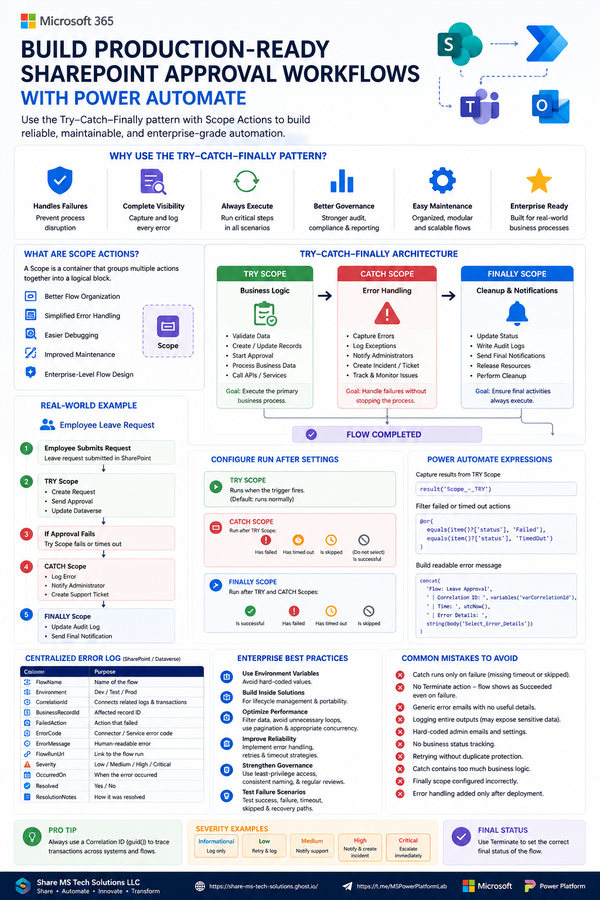
Add Enterprise Error Handling
Production Power Automate workflows should not assume every operation succeeds.
I recommend using a Try–Catch–Finally architecture.
TRY
│
├── Validate Request
├── Start Approval
├── Assign Technician
├── Update SharePoint
└── Send Notifications

        ↓

CATCH
│
├── Capture Error
├── Log Failed Action
├── Record Flow Run
└── Notify Support

        ↓

FINALLY
│
└── Write Audit Information
This dramatically improves maintainability.
If an API, SharePoint action, approval, or notification fails, administrators have a structured way to determine what happened.
Security Must Be Designed Into the Solution
An enterprise application also needs appropriate security.
For example:
Employees
Create requests and view permitted assets.
Technicians
View assigned work and update maintenance information.
Managers
Approve requests and view operational reporting.
Asset Administrators
Manage assets, categories, vendors, and configuration.
System Administrators
Maintain the application and automation.
Avoid treating security as something to add after development.
It should be part of the architecture from the beginning.
Why This Architecture Works
The strength of this solution comes from giving each Microsoft technology a specific responsibility.
SharePoint
System of record
Stores assets, requests, schedules, supporting documents, and configuration.
Power Apps
User experience
Provides employees and technicians with a modern application instead of exposing raw lists.
Power Automate
Process orchestration
Handles approvals, assignments, notifications, escalations, scheduled maintenance, and integration.
Teams and Outlook
Communication
Bring workflow notifications and approvals into tools employees already use.
Power BI
Analytics
Turns operational data into management insights.
Together:
SharePoint + Power Apps + Power Automate + Teams + Power BI
becomes far more valuable than using each technology independently.
What I Would Add for a Production Enterprise Deployment
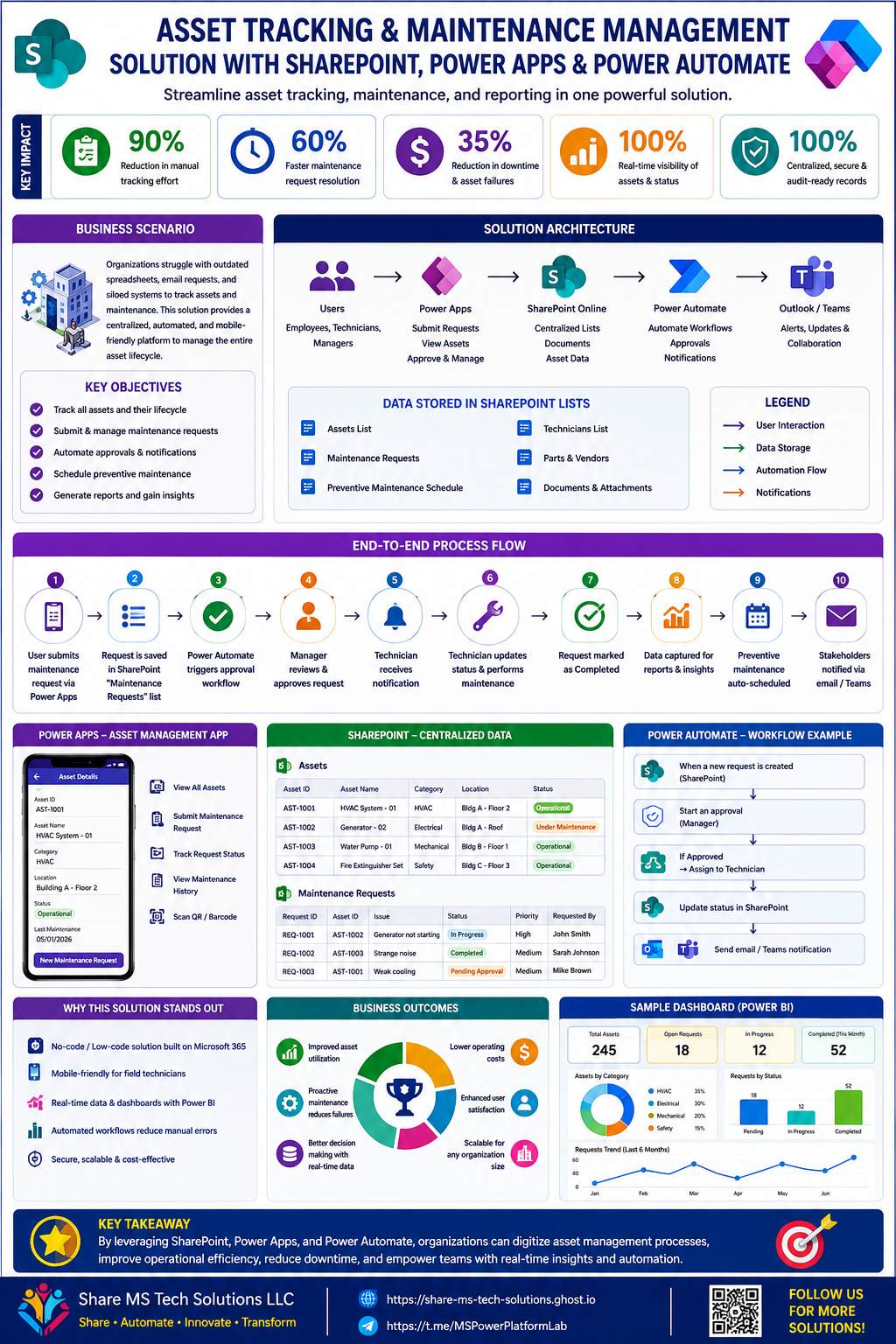
The infographic represents the core architecture. For a production implementation, I would take it further.
Consider adding:
- Environment strategy — Development, Test/UAT, and Production.
- Solutions and connection references — Package Power Apps and Power Automate components appropriately for deployment and lifecycle management.
- Configuration-driven workflows — Store routing rules, approval thresholds, and notification settings in configuration tables instead of hard-coding them.
- Error logging — Capture failed flow executions and business exceptions.
- Security design — Define roles and data-access requirements before deployment.
- Archiving strategy — Prevent historical maintenance records from degrading operational performance.
- Performance testing — Test using realistic data volumes rather than a small development dataset.
- Governance — Establish ownership, support procedures, naming conventions, and change management.
- Monitoring — Track failed flows, delayed approvals, connector issues, and application performance.
- ALM — Use managed deployment practices rather than making uncontrolled production changes.
These additions are what move the solution from an impressive demonstration to a maintainable enterprise application.
The Bigger Lesson
The real value of the Power Platform is not simply replacing paper forms with digital forms.
The opportunity is to redesign the entire business process.
Instead of:
Spreadsheet + Email + Manual Approval + More Email + Manual Reporting
we can create:
Power Apps → SharePoint → Power Automate → Approvals → Teams → Analytics
Every interaction creates structured data.
Every workflow becomes measurable.
Every asset develops a history.
Every maintenance request becomes traceable.
And management gains visibility into an operation that previously depended on spreadsheets and people's inboxes.
Key Takeaway
A well-designed asset tracking solution can become much more than an inventory application.
By combining SharePoint Online, Power Apps, Power Automate, Teams/Outlook, and Power BI, organizations can create a centralized platform that manages assets from acquisition through maintenance and ultimately retirement.
The most important principle is this:
Don't automate individual tasks in isolation. Design the entire asset lifecycle as one connected business process.
That is where Microsoft Power Platform delivers its greatest value.
Share MS Tech Solutions LLC
Share • Automate • Innovate • Transform
Practical Microsoft 365, SharePoint, Power Apps, Power Automate, Power BI, Copilot, and enterprise automation solutions.