Mastering Power Platform Environment Variables: Management, Coding, and DevOps
How to move Power Apps from development to production without hard-coded configuration
Building a Power App in a development environment is only the beginning. The real test comes when the solution must move through testing, user acceptance testing, and production without broken links, incorrect SharePoint addresses, test email recipients, expired API endpoints, or accidental connections to development data.
That is where Power Platform environment variables become essential.
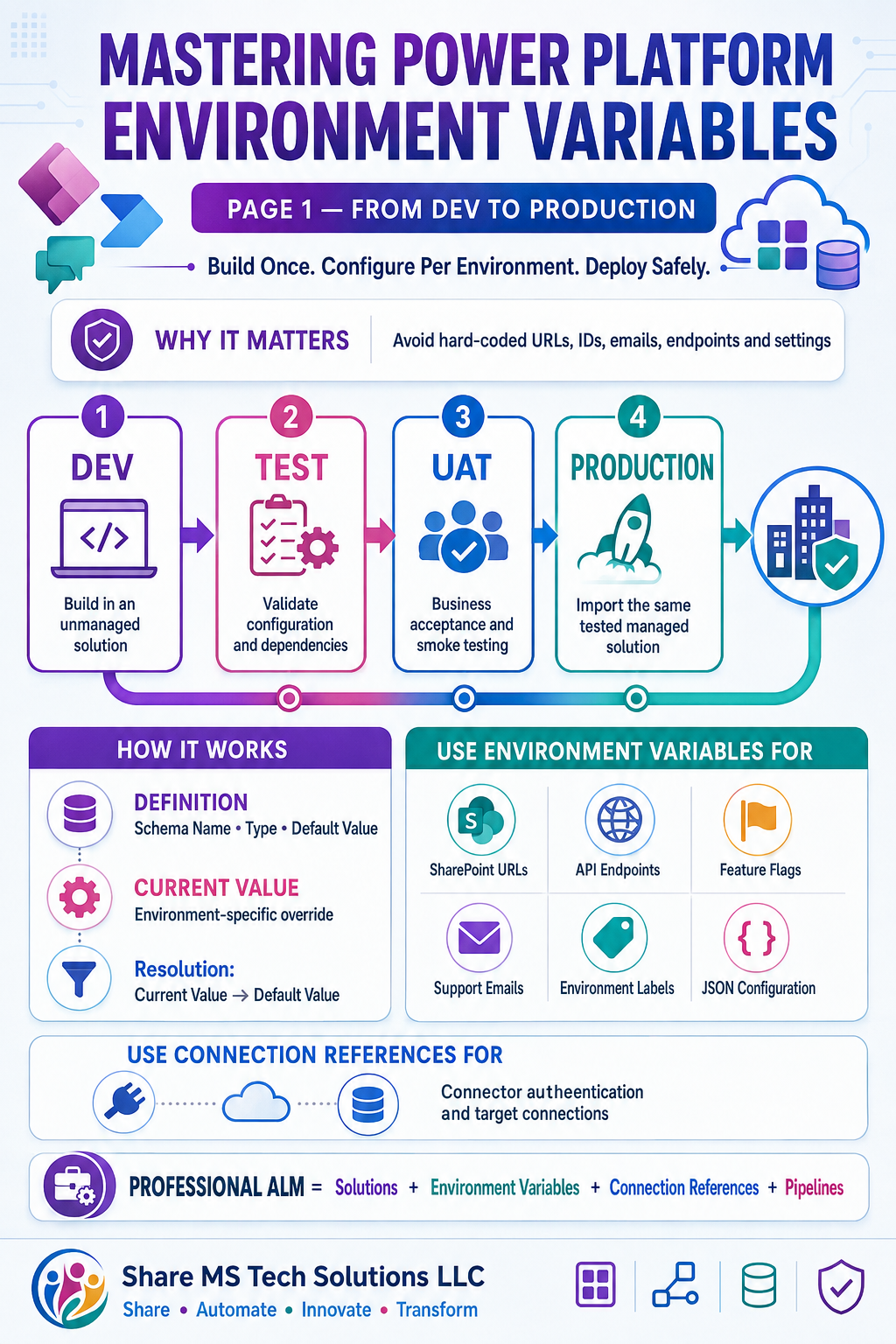
Environment variables are configurable, solution-aware placeholders for values that may change between environments. Instead of embedding an environment-specific value throughout an app or flow, you define it once, reference it wherever it is needed, and supply the correct value during deployment.
For example, a cloud flow should not contain a SharePoint URL such as:
https://contoso.sharepoint.com/sites/PowerPlatformDevIt should reference an environment variable such as:
sms_SharePointSiteUrlThe variable can resolve differently in each stage:
| Environment | Current value |
|---|---|
| Development | https://contoso.sharepoint.com/sites/PowerPlatformDev |
| Test/UAT | https://contoso.sharepoint.com/sites/PowerPlatformUAT |
| Production | https://contoso.sharepoint.com/sites/PowerPlatform |
The app and automation logic remain unchanged. Only the configuration changes.
Why hard-coding becomes an enterprise risk
Hard-coding may feel faster during initial development, but it creates operational debt. A value embedded in several formulas, flow actions, custom connectors, plug-ins, or scripts becomes difficult to locate and risky to replace.
Hard-coded configuration can cause:
- Production flows to write to development lists or Dataverse tables.
- Test notifications to be sent to real customers or executives.
- Apps to fail after a site, endpoint, queue, or mailbox changes.
- Developers to maintain separate copies of the same app for Dev, Test, and Production.
- Deployment teams to make fragile manual edits after every solution import.
- Credentials or secrets to appear in source control, exported solutions, or logs.
The unspoken truth is that copying an app into production is not a deployment strategy. Professional Application Lifecycle Management, or ALM, requires the same solution artifact to move forward while environment-specific configuration is supplied separately.
How environment variables work: definitions and values
Power Platform stores environment variables in Microsoft Dataverse using two related tables:
- Environment Variable Definition describes the variable—its display name, schema name, type, description, and optional default value.
- Environment Variable Value stores an environment-specific current value associated with that definition.
At runtime, the current value takes precedence. If no current value exists, Power Platform can fall back to the default value. Microsoft documents this separation so publishers can service a definition and its default independently without overwriting a customer’s environment-specific value.
Supported variable types include text, decimal number, Yes/No, JSON, data source, and secret. The right type matters: a JSON variable can hold structured configuration, a data-source variable can represent connector-specific information, and a secret variable can reference Azure Key Vault rather than exposing the secret as ordinary text.
Default value versus current value
Use these two fields deliberately:
- Default value: A portable fallback that is appropriate wherever the solution is installed.
- Current value: The active override for one specific environment.
In many enterprise ALM scenarios, leaving the default blank is safer. It forces the deployment process to provide an explicit target value and prevents a development default from silently becoming the production configuration. Microsoft also notes that an existing default or current value can prevent the import experience from prompting for a new one.
What should become an environment variable?
Good candidates include:
- SharePoint site and list identifiers
- API base URLs and resource identifiers
- Application Insights or telemetry configuration
- Queue, mailbox, or Teams channel identifiers
- Feature flags
- Support and escalation addresses
- Business-unit identifiers
- Environment labels such as
DEV,UAT, andPROD - Non-secret JSON configuration
- References to secrets stored in Azure Key Vault
Do not use environment variables as a substitute for everything. They are not intended to hold ordinary business data, rapidly changing transactional data, or a large configuration model that belongs in a governed Dataverse table. They also do not replace connection references. A connection reference tells a solution-aware flow which connector connection to use; an environment variable supplies configuration used by the app, flow, connector, or component. A production deployment commonly needs both.
Step-by-step: move a Power App from development to production
Step 1: Build inside an unmanaged solution
Create the app and all dependent components inside a named solution in the development environment. Use a dedicated publisher and a consistent prefix, such as sms_, for schema names.
Include:
- Canvas or model-driven app
- Cloud flows
- Dataverse tables, columns, forms, and views
- Connection references
- Environment variable definitions
- Custom connectors and other dependencies
Avoid building important components outside a solution and adding them at the last minute. Solution-aware development makes dependency discovery, source control, packaging, and repeatable deployment much more reliable.
Step 2: Create environment variables in the solution
In Power Apps, open the solution and select New > More > Environment variable. Give each variable a clear display name, schema name, description, and data type.
A practical naming standard is:
<PublisherPrefix>_<Application>_<Purpose>Examples:
sms_InvoiceApp_SharePointSiteUrl
sms_InvoiceApp_SupportEmail
sms_InvoiceApp_EnvironmentName
sms_InvoiceApp_FeatureFlagsJson
Do not export a development current value simply because it already exists. Review whether the target must supply its own value.
Step 3: Replace hard-coded references
In solution-aware Power Automate cloud flows, environment variables appear in dynamic content and can be used in supported trigger and action parameters. Replace static URLs, identifiers, addresses, and flags with the corresponding variables.
For canvas apps, use the variable through the supported component or data-source pattern appropriate to the application. If a canvas app reads the Dataverse environment-variable tables directly, centralize that lookup, handle current-versus-default precedence, and confirm that end users have the required read privileges. Avoid placing repeated Dataverse lookups throughout screen formulas.
Step 4: Configure connection references
Map each solution connection reference to an authorized connection in the target environment. Never assume that an imported flow will automatically use the correct owner or service account.
For production, prefer a properly governed service principal or service account where the connector and organizational policy support it. Document ownership, licensing, data-loss-prevention policies, and recovery responsibility.
Step 5: Validate in a test environment
Export the development solution and import it into Test or UAT. For enterprise delivery, the source is normally unmanaged and downstream releases are normally managed.
During deployment:
- Supply target-specific environment variable values.
- Bind connection references.
- Turn on required flows after connections are valid.
- Share the app and assign security roles.
- Run smoke tests and business acceptance tests.
- Confirm that no component still points to development resources.
Step 6: Deploy the same release artifact to production
Promote the tested solution package—not a freshly exported, slightly different build. Apply production deployment settings, run validation, and retain the deployment record for audit and rollback planning.
Microsoft’s native Power Platform pipelines can provide governed deployment between environments. Organizations already invested in Azure DevOps can use Power Platform Build Tools and the Power Platform CLI to export, unpack, validate, pack, and import solutions with a deployment settings file.
Using environment variables in Power Automate
Environment variables are particularly effective in solution-aware cloud flows. A flow can use them for values such as a SharePoint site, API endpoint, notification address, feature flag, or JSON configuration object.
A clean pattern is:
- Add the environment variable to the same solution as the flow.
- Insert the environment variable from dynamic content in the required action or trigger field.
- Keep the target-specific value out of expressions whenever possible.
- Validate the resolved value early in critical flows.
- Terminate with a meaningful configuration error if a required value is missing.
For a JSON variable, parse the value once and reuse the resulting properties:
{
  "enableNewApproval": true,
  "approvalTimeoutDays": 5,
  "supportEmail": "powerplatform-support@contoso.com"
}
This can support controlled feature activation without creating a separate variable for every small setting. However, keep the JSON schema documented and version-compatible; an undocumented configuration blob can become another form of hidden technical debt.
Secret values require different treatment
Never store passwords, client secrets, tokens, or API keys in an ordinary text environment variable. Use the Secret type backed by Azure Key Vault and restrict access appropriately. Microsoft notes that retrieving an environment-variable secret uses a dedicated action and has specific execution constraints. Secret rotation, access policies, and auditability must be part of the design.
Reading an environment variable from C#
Custom code may need to resolve the current value and fall back to the default. The following Dataverse SDK example shows the core pattern. In production code, add structured logging, explicit exception handling, caching where appropriate, and unit tests.
using Microsoft.Xrm.Sdk;
using Microsoft.Xrm.Sdk.Query;
using System.Linq;

public static string? GetEnvironmentVariable(
    IOrganizationService service,
    string schemaName)
{
    var query = new QueryExpression("environmentvariabledefinition")
    {
        ColumnSet = new ColumnSet("defaultvalue"),
        Criteria = new FilterExpression(LogicalOperator.And),
        TopCount = 1
    };

    query.Criteria.AddCondition("schemaname", ConditionOperator.Equal, schemaName);

    var valueLink = query.AddLink(
        "environmentvariablevalue",
        "environmentvariabledefinitionid",
        "environmentvariabledefinitionid",
        JoinOperator.LeftOuter);

    valueLink.EntityAlias = "v";
    valueLink.Columns = new ColumnSet("value", "createdon");
    valueLink.Orders.Add(new OrderExpression("createdon", OrderType.Descending));

    Entity? definition = service.RetrieveMultiple(query).Entities.FirstOrDefault();
    if (definition is null)
    {
        throw new InvalidPluginExecutionException(
            $"Environment variable '{schemaName}' was not found.");
    }

    string? currentValue = definition
        .GetAttributeValue<AliasedValue>("v.value")?.Value as string;

    string? defaultValue = definition.GetAttributeValue<string>("defaultvalue");
    return string.IsNullOrWhiteSpace(currentValue) ? defaultValue : currentValue;
}
For newer integrations, Dataverse also exposes supported Web API operations such as RetrieveEnvironmentVariableValue and UpsertEnvironmentVariable. Prefer supported APIs over unsupported database access. Also note that secrets require the dedicated secret retrieval mechanism and should not be treated like ordinary text values.
Azure DevOps and automated value substitution
Manual import is acceptable for a small proof of concept, but it becomes unreliable when several solutions and environments are involved. Automated deployments should treat solution files as immutable release artifacts and configuration as target-specific input.
Generate a deployment settings file
The Power Platform CLI can generate a settings file from a solution package:
pac solution create-settings `
  --solution-zip .\drop\InvoiceManagement.zip `
  --settings-file .\config\deploymentSettings.json
The generated JSON contains sections for connection references and environment variables. Populate the target-specific values—or transform safe placeholders during the pipeline—before importing the solution.
An abbreviated settings file can look like this:
{
  "EnvironmentVariables": [
    {
      "SchemaName": "sms_InvoiceApp_EnvironmentName",
      "Value": "#{ENVIRONMENT_NAME}#"
    },
    {
      "SchemaName": "sms_InvoiceApp_SharePointSiteUrl",
      "Value": "#{SHAREPOINT_SITE_URL}#"
    }
  ],
  "ConnectionReferences": []
}
The exact generated structure should be treated as authoritative for the installed CLI/Build Tools version; do not handcraft a schema from memory when the CLI can generate it.
Illustrative Azure DevOps YAML
The following pattern copies the target settings template, replaces non-secret tokens, and passes the file to the Power Platform solution import task. Task versions and input names should be validated against the currently installed Microsoft Power Platform Build Tools extension.
variables:
- group: power-platform-uat

steps:
- powershell: |
    $settings = Get-Content "$(Build.SourcesDirectory)/config/deploymentSettings.json" -Raw
    $settings = $settings.Replace('#{ENVIRONMENT_NAME}#', 'UAT')
    $settings = $settings.Replace('#{SHAREPOINT_SITE_URL}#', '$(SharePointSiteUrl)')
    $settings | Set-Content "$(Pipeline.Workspace)/deploymentSettings.uat.json"
  displayName: Prepare UAT deployment settings

- task: microsoft-IsvExpTools.PowerPlatform-BuildTools.import-solution.PowerPlatformImportSolution@2
  inputs:
    authenticationType: PowerPlatformSPN
    PowerPlatformSPN: 'PowerPlatform-UAT-ServiceConnection'
    SolutionInputFile: '$(Pipeline.Workspace)/InvoiceManagement_managed.zip'
    UseDeploymentSettingsFile: true
    DeploymentSettingsFile: '$(Pipeline.Workspace)/deploymentSettings.uat.json'
    AsyncOperation: true
    MaxAsyncWaitTime: '60'
For production, add approvals, checks, least-privilege service connections, solution validation, deployment history, and post-deployment smoke tests. Keep sensitive pipeline values in secret variables or an approved secret store, and do not print the completed settings file when it contains sensitive information.
A visual environment indicator inside the app
One of the most useful creative patterns is an environment banner. Create variables such as:
sms_App_EnvironmentName = DEV | UAT | PROD
sms_App_EnvironmentColor = #D83B01 | #FFB900 | #107C10
Use them to display a banner in nonproduction apps:
- DEV — Development Environment in orange or red
- UAT — Test Environment in amber
- No banner, or a subtle green indicator, in production
This reduces mistaken testing and helps support teams identify screenshots immediately. Treat the banner as a safety cue, not a security boundary: it cannot replace access control, data separation, or deployment governance.
Managed-solution troubleshooting
Environment variables can be confusing after a managed solution is imported because the current value is an unmanaged, environment-specific customization. Microsoft documents that a value belonging to a managed solution may not appear where makers expect it; the Default solution can expose the environment-specific value.
Use this troubleshooting order:
- Confirm the variable’s schema name and data type.
- Check whether a current value exists in the target environment.
- Check whether the definition contains a default value that is masking a missing current value.
- Review the variable through the Default solution when it is not visible in the managed solution interface.
- Confirm that the flow or app is using the expected variable and has been refreshed or reactivated where required.
- Inspect solution layers and dependencies.
- Use supported Dataverse APIs or governed table operations only when the standard interface does not meet the administrative need.
Avoid deleting definition or value rows casually. A managed definition can have dependencies, and multiple value rows may indicate historical imports or an ALM problem. Before changing production configuration, capture the current state, confirm ownership, test the change, and preserve an audit trail.
Enterprise governance checklist
Before promoting a solution, confirm that:
- Every environment-specific value has an owner and description.
- Schema names use the approved publisher prefix.
- Required variables do not depend on unsafe development defaults.
- Secrets use Azure Key Vault-backed secret variables.
- Connection references are mapped to governed target connections.
- The solution package tested in UAT is the package promoted to production.
- Production imports use managed solutions unless a documented exception exists.
- Pipeline service connections follow least privilege.
- Deployment settings are environment-specific and protected in source control.
- Post-deployment tests verify endpoints, permissions, flows, notifications, and data destinations.
- Configuration changes are logged and recoverable.
- Environment banners do not expose sensitive values.
Final perspective
Environment variables may look like a small configuration feature, but they mark the difference between an app that merely works in development and a solution that can be operated professionally.
Used correctly, they separate logic from configuration, reduce deployment risk, support repeatable releases, improve troubleshooting, and enable the same Power Platform solution to move safely from Development to Test, UAT, and Production.
The strongest pattern is simple:
Build once, configure per environment, automate deployment, and validate every promotion.
Environment variables, connection references, managed solutions, pipelines, security controls, and testing should be designed together. That combination forms the foundation of dependable Power Platform Application Lifecycle Management.
Microsoft references
- Use environment variables in Power Platform solutions
- Create environment variables in Power Automate
- Use environment variables in solution cloud flows
- Environment variables FAQ
- Pre-populate connection references and environment variables for deployment
- Microsoft Power Platform Build Tools tasks
- Power Platform pipelines overview
- Environment Variable Definition table reference
- Environment Variable Value table reference
- RetrieveEnvironmentVariableValue Web API function
- UpsertEnvironmentVariable Web API action
Share MS Tech Solutions LLC
Share • Automate • Innovate • Transform