Build Production-Ready Power Automate Flows with the Try–Catch–Finally Pattern
Building a successful Power Automate flow is not only about automating a business task. A production-ready flow must also anticipate failure, capture meaningful diagnostic information, notify the right people, preserve business data, and complete essential cleanup activities.
APIs can become temporarily unavailable. SharePoint connections can expire. Dataverse operations can fail because of security or validation rules. Approvals can time out. Email actions can be rejected. External services can return unexpected responses.
Without structured error handling, one failed action can leave a business process incomplete, a SharePoint item in the wrong status, or an approval request with no clear owner.
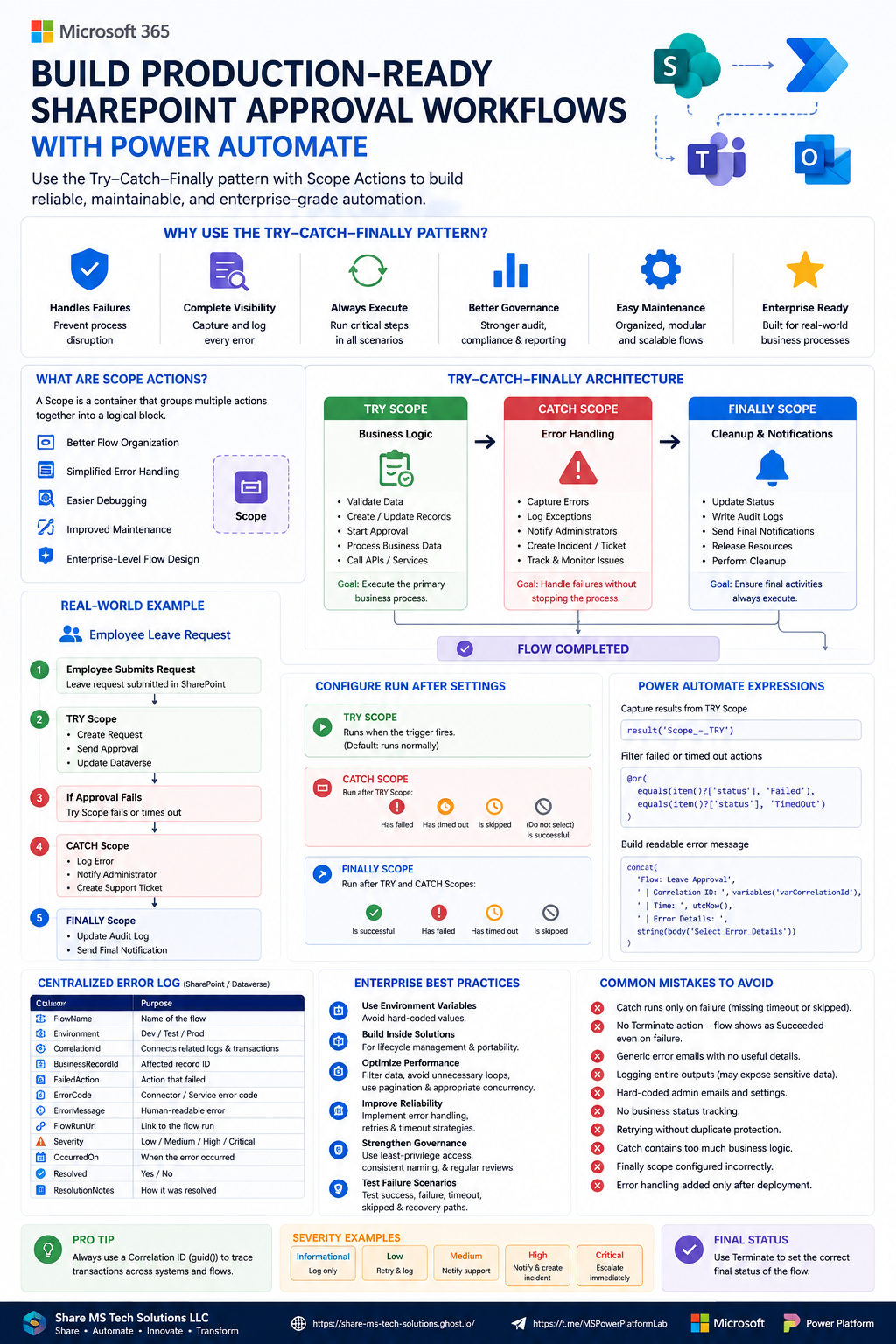
One of the most effective enterprise error-handling approaches in Microsoft Power Automate is the Try–Catch–Finally pattern implemented with Scope actions and Configure run after.
Microsoft recommends organizing related actions into scopes and using robust error-handling patterns so flows are easier to understand, troubleshoot, and maintain.
What Is a Scope Action?
A Scope is a Power Automate control action that acts as a container for other actions.
Instead of placing every flow action in one long sequence, developers can group related operations into logical sections such as:
- Validation
- Business processing
- Approval
- Error handling
- Logging
- Notifications
- Cleanup
Scopes create a clearer hierarchy inside a cloud flow and make complex workflows easier to manage. Microsoft specifically recommends grouping logically related actions and using scopes to divide workflows into manageable sections.
Benefits of Scope Actions
Better organization
Related actions stay together, making the flow easier to read.
Simplified error handling
Instead of configuring failure behavior for every individual action, you can configure subsequent actions based on the status of the entire Scope.
Easier debugging
When a Scope fails, you can expand it in the run history and inspect the actions inside it.
Improved maintenance
Developers can update one logical section without searching through a long, unstructured workflow.
Reusable enterprise architecture
The same Scope pattern can be applied across approval flows, integrations, onboarding processes, scheduled jobs, document processing, and API orchestration.
Why Use the Try–Catch–Finally Pattern?
The Try–Catch–Finally pattern separates the flow into three responsibilities:
TRY
Run the primary business process

CATCH
Capture and handle failures

FINALLY
Perform required closing activities
Power Automate supports this pattern through Configure run after, which lets an action or Scope run depending on whether the previous action:
- Succeeded
- Failed
- Timed out
- Was skipped
These execution statuses are part of the underlying workflow model used by Power Automate and Azure Logic Apps.
Recommended Flow Architecture
Trigger
   ↓
Initialize Variables
   ↓
TRY Scope
   ├── Validate Input
   ├── Create or Update Record
   ├── Start Approval
   ├── Call External Service
   └── Complete Business Processing
   ↓
CATCH Scope
   ├── Capture Failed Actions
   ├── Build Error Message
   ├── Write Error Log
   ├── Notify Support Team
   └── Create Incident if Required
   ↓
FINALLY Scope
   ├── Update Processing Status
   ├── Write Audit Entry
   ├── Send Final Notification
   └── Perform Cleanup
   ↓
Terminate Flow with Correct Status
Step 1: Initialize Tracking Variables
Before the Try Scope, initialize variables that will be used throughout the flow.
Recommended variables include:
| Variable | Type | Purpose |
|---|---|---|
varFlowStatus | String | Tracks the final business status |
varErrorMessage | String | Stores a readable error summary |
varCorrelationId | String | Connects related logs and transactions |
varStartTime | String | Captures the flow start time |
varBusinessRecordId | String | Stores the affected SharePoint or Dataverse record ID |
varErrorDetails | Array | Stores structured action failure information |
Example values:
varFlowStatus = Processing
varStartTime = utcNow()
For a correlation identifier, use:
guid()
Example:
varCorrelationId = guid()
A correlation ID is especially valuable when one business transaction involves multiple flows, APIs, child flows, or data systems.
Step 2: Build the TRY Scope
The Try Scope contains the primary business logic.
Typical actions include:
- Validate the trigger data
- Retrieve a SharePoint item
- Create or update a Dataverse record
- Start an approval
- Process business calculations
- Call an HTTP endpoint
- Generate a document
- Send a business notification
- Update the final transaction status
Example TRY Scope
Scope — TRY
   ├── Validate Request
   ├── Get SharePoint Item
   ├── Create Dataverse Record
   ├── Start and Wait for Approval
   ├── Update SharePoint Item
   └── Notify Requestor
Business status update
At the end of a successful Try Scope, set:
varFlowStatus = Succeeded
Do not rely only on the technical status of the flow. A flow can technically succeed while the business transaction remains incomplete.
For example:
- The approval action succeeds, but the approval is rejected.
- The notification succeeds, but the underlying record was not updated correctly.
- The API returns HTTP 200 but includes an application-level error in the response body.
Track both:
- Technical status
- Business status
Step 3: Configure the CATCH Scope
The Catch Scope should run only when the Try Scope does not complete successfully.
Select the Catch Scope, open Configure run after, and enable:
Has failed
Has timed out
Is skipped
Disable:
Is successful
This ensures that the Catch Scope runs only when the Try Scope encounters an abnormal condition. Configure run after supports these execution outcomes directly.
Why include “Is skipped”?
A Scope can be skipped because an earlier dependency failed or because the expected execution path was not reached.
Including Is skipped helps prevent silent failures where the Catch Scope never executes.
Capturing Error Details with result()
One of the most powerful expressions for enterprise error handling is:
result('Scope_-_TRY')
The result() function returns an array containing information about the first-level actions inside a Scope, including action status, start time, end time, inputs, outputs, and tracking information.
The internal name of the Scope must match the name used in the expression.
For example:
result('TRY')
or:
result('Scope_-_TRY')
depending on the Scope's internal action name.
Filter only failed or timed-out actions
Add a Filter array action inside Catch.
From
result('Scope_-_TRY')
Advanced mode condition
@or(
  equals(item()?['status'], 'Failed'),
  equals(item()?['status'], 'TimedOut')
)
This creates an array containing only the failed or timed-out actions.
Select useful error fields
Add a Select action.
Map these values:
ActionName
item()?['name']
Status
item()?['status']
ErrorCode
item()?['outputs']?['body']?['error']?['code']
ErrorMessage
item()?['outputs']?['body']?['error']?['message']
StartTime
item()?['startTime']
EndTime
item()?['endTime']
TrackingId
item()?['trackingId']
Because connector error payloads vary, use the safe-navigation operator ? so missing properties do not cause the error-handling logic itself to fail.
Build a Readable Error Message
Use a Compose action or string variable to create a support-friendly message.
Example:
concat(
  'Flow: Leave Request Approval',
  ' | Correlation ID: ', variables('varCorrelationId'),
  ' | Record ID: ', variables('varBusinessRecordId'),
  ' | Time: ', utcNow(),
  ' | Error Details: ',
  string(body('Select_Error_Details'))
)
Store this in:
varErrorMessage
A useful error notification should answer:
- Which flow failed?
- Which business record was affected?
- When did it fail?
- Which action failed?
- What was the connector response?
- Who should investigate?
- Where can the run be reviewed?
Avoid notifications that say only:
The flow failed.
That message provides almost no operational value.
Build a Centralized Error Log
For enterprise solutions, create a centralized SharePoint list or Dataverse table named something like:
Automation Error Log
Recommended columns:
| Column | Type |
|---|---|
| Title | Single line of text |
| FlowName | Single line of text |
| Environment | Choice |
| CorrelationId | Single line of text |
| BusinessRecordId | Single line of text |
| FailedAction | Single line of text |
| ErrorCode | Single line of text |
| ErrorMessage | Multiple lines of text |
| ErrorDetails | Multiple lines of text |
| RunStatus | Choice |
| Severity | Choice |
| FlowRunUrl | Hyperlink |
| OccurredOn | Date and time |
| Resolved | Yes/No |
| ResolutionNotes | Multiple lines of text |
Example log values
FlowName = Employee Leave Approval
Environment = Production
RunStatus = Failed
Severity = High
OccurredOn = utcNow()
A centralized log provides much better reporting than relying exclusively on the Power Automate run-history interface.
It also supports:
- Power BI dashboards
- Trend analysis
- Recurring-error detection
- SLA reporting
- Support-team ownership
- Audit evidence
- Incident management
Step 4: Notify the Support Team
The Catch Scope can send a notification through:
- Microsoft Teams
- Outlook
- ServiceNow
- Azure DevOps
- Planner
- A SharePoint support queue
- A Dataverse incident table
Recommended notification structure
Subject:
Power Automate Failure — Leave Request Approval
Environment:
Production
Correlation ID:
@{variables('varCorrelationId')}
Record ID:
@{variables('varBusinessRecordId')}
Failure Time:
@{utcNow()}
Error:
@{variables('varErrorMessage')}
Include the Flow Run URL when possible so the support team can open the failed run directly.
Avoid excessive alerts
Not every failure needs an immediate administrator email.
Consider severity levels:
| Severity | Example | Response |
|---|---|---|
| Informational | Optional notification failed | Log only |
| Low | Temporary noncritical connector issue | Retry and log |
| Medium | Business record not updated | Notify support |
| High | Approval or financial transaction failed | Notify and create incident |
| Critical | Security, compliance, or data-loss risk | Escalate immediately |
Without severity rules, teams can experience alert fatigue and begin ignoring important failure notifications.
Step 5: Build the FINALLY Scope
The Finally Scope should execute regardless of whether Try succeeds or Catch runs.
Configure its Run after settings based on the preceding Scope or Scopes.
Select:
Is successful
Has failed
Has timed out
Is skipped
Typical Finally activities include:
- Update a final processing status
- Write an audit record
- Record end time
- Calculate duration
- Release a processing lock
- Remove temporary files
- Send a final business notification
- Update a monitoring dashboard
- Close or finalize the transaction
Example final status expression
if(
  equals(variables('varFlowStatus'), 'Succeeded'),
  'Completed',
  'Completed with Errors'
)
Calculate duration
Power Automate does not provide a simple duration object for every scenario, but you can compare start and end ticks.
Example:
sub(
  ticks(utcNow()),
  ticks(variables('varStartTime'))
)
The result is returned in ticks and can be transformed if needed for reporting.
Important Design Decision: FINALLY Is Not Automatically “Always”
In traditional programming languages, a finally block automatically runs after try and catch.
In Power Automate, the behavior must be explicitly configured using Configure run after.
If the Run after settings are incomplete, the Finally Scope can be skipped.
Therefore, verify all four execution states when the intent is “always run”:
Succeeded
Failed
Timed out
Skipped
Step 6: Set the Correct Final Flow Status
One subtle problem with error handling is that a Catch Scope may successfully log and process an error. As a result, the entire flow can appear as Succeeded even though the main business process failed.
Microsoft recommends using the Terminate action when a flow should stop and report an appropriate final status. The Terminate action can explicitly mark the flow as failed and include a status message.
Recommended ending pattern
After Finally, add a Condition:
variables('varFlowStatus') is equal to 'Succeeded'
If yes
Terminate with:
Status: Succeeded
If no
Terminate with:
Status: Failed
Message:
concat(
  'Business process failed. Correlation ID: ',
  variables('varCorrelationId'),
  '. ',
  variables('varErrorMessage')
)
This keeps the run history honest and makes monitoring more reliable.
Real-World Example: Employee Leave Request
Business process
Employee submits leave request
   ↓
Manager receives approval
   ↓
Leave record is updated
   ↓
Employee receives final notification
TRY Scope
1. Validate employee information
2. Create leave request
3. Start manager approval
4. Update Dataverse
5. Send employee notification
Failure scenario
Suppose the approval action times out or the Dataverse update fails.
CATCH Scope
1. Capture result('Scope_-_TRY')
2. Filter failed actions
3. Build error details
4. Write to Automation Error Log
5. Notify support team
6. Create support ticket
7. Set varFlowStatus = Failed
FINALLY Scope
1. Update the leave request processing status
2. Write audit entry
3. Record completion time
4. Send final operational notification
Final business status
Possible statuses might include:
Submitted
Pending Approval
Approved
Rejected
Processing Failed
Completed with Errors
Using precise statuses is better than relying only on:
Pending
Approved
Rejected
The additional states make troubleshooting and reporting much easier.
Handling Approval Timeouts
Approval actions may remain active longer than expected.
For time-sensitive business processes, configure:
- Escalation rules
- Reminder notifications
- Timeout handling
- Reassignment logic
- Backup approvers
A timeout should not always be treated exactly like a system failure.
For example:
Approval timed out
may require a business escalation, while:
Dataverse connector authentication failed
requires technical support.
Use separate status and severity fields so business exceptions and technical exceptions are not mixed together.
Retry Policies
Many connector actions support retry policies.
Retries are useful for transient failures such as:
- Temporary service unavailability
- HTTP 429 throttling
- HTTP 500-level responses
- Short-lived network problems
Retries are usually not useful for permanent errors such as:
- Invalid record ID
- Missing required field
- Access denied
- Malformed request
- Business validation failure
A poor retry strategy can increase load, duplicate transactions, and delay error detection.
Practical recommendation
Use retry policies only when the action is:
- Safe to retry
- Idempotent, or protected against duplication
- Failing because of a temporary condition
For actions such as creating invoices, submitting payments, or generating external tickets, always consider whether a retry could create duplicates.
Prevent Duplicate Processing
Production flows should protect against repeated triggers and resubmissions.
Recommended approaches include:
- Add a
ProcessingStatuscolumn - Store a unique transaction ID
- Check whether the transaction already exists
- Use trigger conditions
- Use idempotency keys for supported APIs
- Avoid retrying non-idempotent operations without validation
Example trigger condition:
@equals(
  triggerBody()?['Status']?['Value'],
  'Pending'
)
For a SharePoint text column rather than a Choice field:
@equals(
  triggerBody()?['Status'],
  'Pending'
)
The exact expression depends on the actual column type and trigger payload.
Protect Sensitive Error Information
Error outputs can contain:
- Email addresses
- Document metadata
- Customer information
- API payloads
- Authentication details
- Internal URLs
- Personal data
Do not automatically write complete action inputs and outputs into a broadly accessible SharePoint list.
Recommended controls:
- Restrict access to the error log
- Store only required diagnostic details
- Mask sensitive values
- Use secure inputs and secure outputs where appropriate
- Avoid exposing tokens, secrets, or full authorization headers
- Apply retention rules to error records
Workflow inputs, outputs, and run history can contain sensitive data, so access and storage should be designed carefully.
Recommended Naming Convention
Use clear action names instead of leaving defaults such as:
Compose 2
Condition 4
Scope 3
Recommended names:
Scope - TRY - Process Leave Request
Scope - CATCH - Log and Notify
Scope - FINALLY - Audit and Cleanup
Compose - Build Error Summary
Filter Array - Failed TRY Actions
Create Item - Automation Error Log
Terminate - Mark Flow Failed
Good names improve:
- Readability
- Support handoff
- Expression maintenance
- Run-history analysis
- Documentation
Testing the Error-Handling Pattern
A flow is not production-ready until failure paths have been intentionally tested.
Test at least these scenarios:
Successful execution
Verify that:
- Try succeeds
- Catch is skipped
- Finally runs
- Flow ends as succeeded
Connector failure
Temporarily use an invalid record ID or test connection.
Verify that:
- Try fails
- Catch runs
- Error is logged
- Support is notified
- Finally runs
- Flow ends as failed
Timeout
Test a long-running or deliberately delayed action when practical.
Verify timeout routing.
Skipped action
Force an earlier dependency to fail and confirm skipped states are captured.
Missing input
Submit incomplete data and confirm validation behaves correctly.
Duplicate execution
Trigger the same business transaction twice and confirm duplicate records are not created.
Error inside Catch
Test what happens if the error-log list or notification connector is unavailable.
A strong design may include a secondary fallback notification method because the error-handling process itself can fail.
Common Mistakes
1. Catch runs only on failure
If timeout and skipped states are not selected, some exceptions may bypass Catch.
2. No Terminate action
The flow may show as succeeded even though the business process failed.
3. Generic error emails
Messages such as “Flow failed” provide no actionable detail.
4. Logging entire outputs
This can expose sensitive or oversized data.
5. Hard-coded administrator addresses
Use environment variables, a configuration table, or a security group.
6. No business status tracking
Technical success does not always mean business success.
7. Retry without duplicate protection
A repeated create operation can generate duplicate records or transactions.
8. Catch contains too much business logic
Catch should stabilize, log, notify, and route the exception—not recreate the entire primary process.
9. Finally is configured incorrectly
Unlike traditional code, Power Automate requires explicit Run after configuration.
10. Error handling is added only after deployment
The pattern should be part of the architecture from the beginning.
Advanced Enterprise Pattern
For larger organizations, standardize error handling as a reusable child flow.
Parent flow responsibilities
Run business process
Collect error details
Call central error-handling child flow
Child flow responsibilities
Create error log
Determine severity
Notify support
Create incident
Return logging result
This reduces duplicated logic and creates consistent monitoring across many automations.
A centralized error-handling component can accept:
FlowName
Environment
CorrelationId
BusinessRecordId
ErrorMessage
ErrorDetails
Severity
FlowRunUrl
However, the child flow should also have its own fallback strategy so failures in centralized logging do not hide the original error.
Final Architecture
Trigger
   ↓
Initialize Tracking Variables
   ↓
TRY Scope
   ├── Validate
   ├── Process
   ├── Approve
   ├── Update
   └── Notify
   ↓
CATCH Scope
   ├── result('TRY')
   ├── Filter Failed Actions
   ├── Build Error Summary
   ├── Log Exception
   ├── Notify Support
   └── Set Failure Status
   ↓
FINALLY Scope
   ├── Audit
   ├── Update Final Status
   ├── Cleanup
   └── Record Completion
   ↓
Condition on Final Status
   ├── Terminate: Succeeded
   └── Terminate: Failed
Conclusion
The Try–Catch–Finally pattern transforms a basic Power Automate flow into a more resilient enterprise solution.
The Try Scope executes the primary business process.
The Catch Scope captures failed or timed-out actions, records meaningful diagnostic information, and alerts the appropriate support team.
The Finally Scope performs required closing activities regardless of the outcome.
The most important architectural lesson is that error handling is not simply an email sent after a failed action. A complete production-ready strategy includes:
- Structured Scopes
- Configure run after
- Detailed error capture
- Centralized logging
- Correlation IDs
- Business status tracking
- Retry and duplicate protection
- Secure diagnostics
- Accurate final run status
- Intentional failure testing
When implemented correctly, this pattern improves reliability, supportability, governance, auditability, and long-term maintainability across Power Automate solutions.
Share MS Tech Solutions LLC
Share • Automate • Innovate • Transform