Power Automate Compose: The Most Useful Functions, Expressions, and Enterprise Best Practices
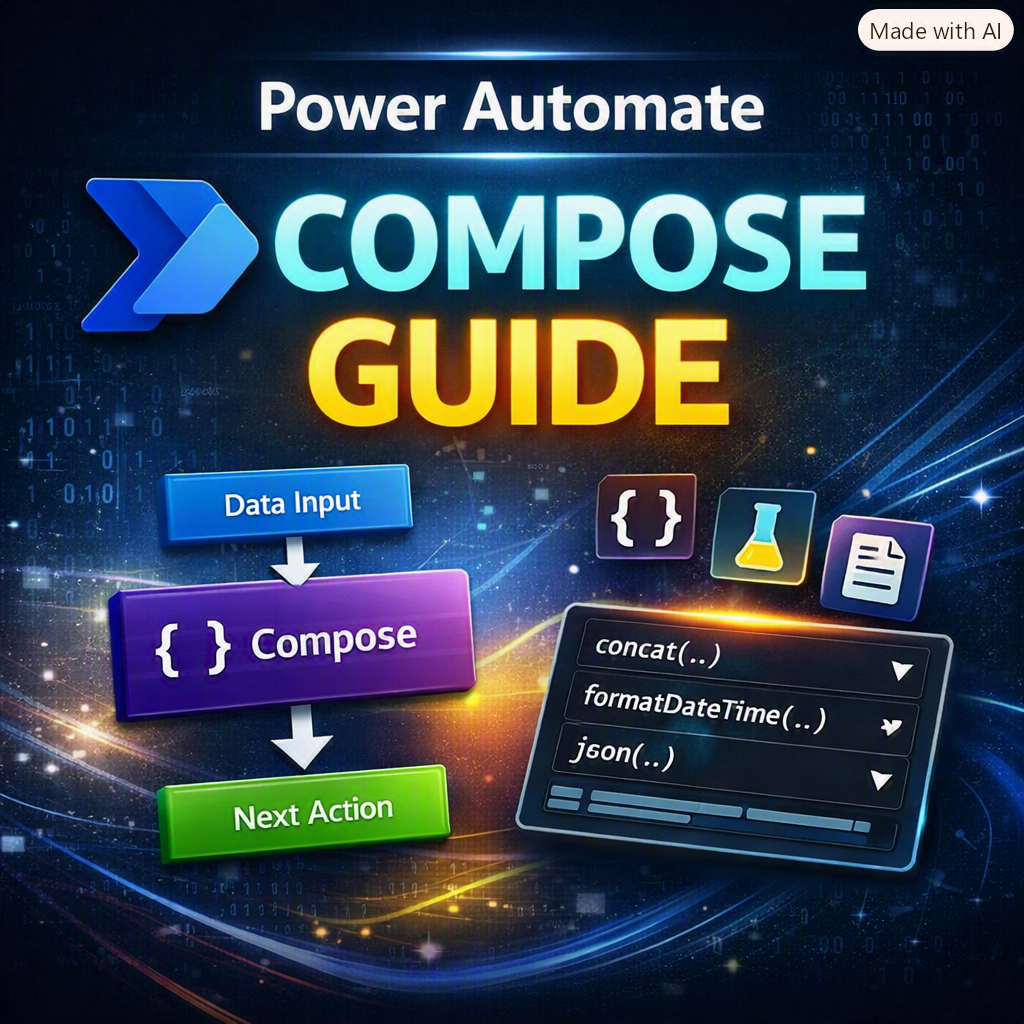
Power Automate’s Compose action may look simple, but it is one of the most useful tools for building clean, reliable, and maintainable cloud flows.
With Compose, you can transform text, calculate dates, process arrays, validate values, perform mathematical operations, construct JSON objects, and prepare data for SharePoint, Dataverse, Outlook, Teams, APIs, and other connected systems.
More importantly, Compose helps you avoid burying complex expressions inside connector fields. Instead, each calculation becomes a visible, named transformation that can be reviewed and tested from the flow’s run history.
In this guide, we will explore the most useful Power Automate functions, practical examples, common mistakes, and enterprise-level design practices.
What Is the Compose Action in Power Automate?
Compose is a built-in Data Operation that accepts an input, evaluates it, and returns a single reusable output.
The input can be:
- Text
- A number
- A Boolean value
- A date and time
- An array
- A JSON object
- Dynamic content
- A Power Automate expression
- The output of another action
For example:
concat('REQ-', string(triggerBody()?['ID']))
If the SharePoint item ID is 254, the expression returns:
REQ-254
You can then reuse that result in an email subject, approval title, filename, Dataverse record, Teams notification, or audit log.
Microsoft recommends Compose for intermediate values that do not need to change during the flow. It is lightweight, does not require initialization, and is easier to inspect than repeating the same expression across multiple actions.
Compose vs. Variables: Which One Should You Use?
Compose and variables are not interchangeable.
Use Compose when the value is calculated once and then reused. Use a variable when the value must change while the flow is running.
| Requirement | Recommended action |
|---|---|
| Calculate a value once | Compose |
| Normalize text for reuse | Compose |
| Build a JSON object | Compose |
| Store a value that will change | Variable |
| Increment a counter | Variable |
| Append values during a loop | Array or string variable |
| Transform every object in an array | Select |
| Reduce an array using conditions | Filter array |
| Generate typed fields from JSON | Parse JSON |
Compose is particularly useful in parallel branches because its output is immutable. Shared variables can create unpredictable results when several operations attempt to update them concurrently.
1. Collection and Array Functions
Connectors such as SharePoint, Dataverse, Excel, SQL Server, and Microsoft Graph frequently return arrays. These functions help inspect, combine, slice, sort, and validate those collections.
length()
Returns the number of items in an array or the number of characters in a string.
length(outputs('Get_items')?['body/value'])
This is useful for checking whether a SharePoint query returned any records.
greater(length(outputs('Get_items')?['body/value']), 0)
first() and last()
Return the first or last value in an array.
first(body('Filter_array'))
last(outputs('Approver_List'))
Never call first() on an array without considering whether the array could be empty.
A safer pattern is:
if(
    empty(body('Filter_array')),
    null,
    first(body('Filter_array'))?['Email']
)
take() and skip()
take() returns the first specified number of items.
take(outputs('Sorted_Requests'), 10)
skip() ignores the first specified number of items.
skip(outputs('All_Requests'), 10)
These functions are useful for batching, pagination, summaries, and limiting notification content.
join()
Converts an array into a single string using a separator.
join(outputs('Approver_Emails'), ';')
This can turn an array of email addresses into a semicolon-separated recipient list.
contains()
Checks whether a string, array, or object contains a particular value.
contains(outputs('Security_Roles'), 'Approver')
String comparisons are case-sensitive. Normalize the text when capitalization should not matter:
contains(toLower(outputs('Message')), 'error')
union()
Combines arrays and removes duplicate values.
union(variables('Array_A'), variables('Array_B'))
A popular method for removing duplicate primitive values from one array is:
union(outputs('Email_Array'), outputs('Email_Array'))
For arrays containing complex objects, duplicate detection evaluates the complete object. If the real business key is Email, Employee ID, or another property, use Select first to project that property.
intersection()
Returns values that appear in all supplied arrays.
intersection(variables('Required_Roles'), variables('User_Roles'))
This is useful for permission checks, category matching, and comparing selections.
sort() and reverse()
Sorts or reverses an array.
sort(outputs('Employee_Names'))
reverse(sort(outputs('Employee_Names')))
For complex objects, confirm that the sorting behavior and property selection match your environment and data structure.
2. String and Text Functions
Text functions are essential for filenames, email subjects, reference numbers, routing rules, URLs, reports, and integration payloads.
concat()
Combines two or more values into one string.
concat(
    'CASE-',
    string(triggerBody()?['ID']),
    '-',
    formatDateTime(utcNow(), 'yyyyMMdd')
)
Example result:
CASE-254-20260826
trim()
Removes spaces from the beginning and end of a string.
trim(coalesce(triggerBody()?['Title'], ''))
This is especially useful when values come from user-entered SharePoint, Power Apps, Excel, or Microsoft Forms data.
toLower() and toUpper()
Standardize capitalization before comparing, storing, or routing values.
toLower(trim(triggerBody()?['RequesterEmail']))
toUpper(triggerBody()?['DepartmentCode'])
Normalize email addresses and lookup keys once in Compose, then reuse the normalized result throughout the flow.
replace()
Replaces one text value with another.
replace(outputs('File_Name'), '/', '-')
Multiple replacements can be nested when generating SharePoint-safe filenames:
replace(
    replace(outputs('File_Name'), '/', '-'),
    ':',
    '-'
)
Be careful: replacing characters does not automatically guarantee that a filename is valid for every connected system.
split()
Converts delimited text into an array.
split(outputs('Tags'), ',')
You can combine split() with trim() and Select when individual values might contain extra spaces.
startsWith() and endsWith()
Check whether text begins or ends with a specific value.
startsWith(toUpper(outputs('Invoice_Number')), 'INV-')
endsWith(toLower(outputs('File_Name')), '.pdf')
indexOf()
Returns the starting position of a substring. When the value is not found, it returns -1.
indexOf(outputs('Requester_UPN'), '@')
substring()
Extracts part of a string.
substring(outputs('Department_Code'), 0, 3)
Important warning
substring() can fail when the requested length exceeds the available number of characters.
If the requirement is simply “return up to the first five characters,” consider:
take(outputs('Department_Code'), 5)
Always test short, blank, and null input.
3. Date and Time Functions
Date and time expressions are critical for approvals, reminders, escalations, renewals, service-level agreements, and scheduled processes.
utcNow()
Returns the current UTC timestamp.
utcNow()
For a date-only format:
formatDateTime(utcNow(), 'yyyy-MM-dd')
UTC should normally remain the internal standard for automation logic. Convert the value to a local time zone when presenting it to a user or applying a location-specific business rule.
formatDateTime()
Formats a timestamp.
formatDateTime(utcNow(), 'MMMM dd, yyyy')
Example result:
August 26, 2026
For filenames and sortable business keys, use a culture-independent format:
formatDateTime(utcNow(), 'yyyyMMdd-HHmmss')
addDays(), addHours(), and addMinutes()
Add or subtract time from a timestamp.
addDays(utcNow(), 7)
addHours(utcNow(), 4)
addMinutes(utcNow(), 30)
Use a negative number to subtract time:
addDays(utcNow(), -30)
startOfDay()
Returns the beginning of the day for a timestamp.
startOfDay(utcNow())
convertTimeZone()
Converts a timestamp between supported Windows time-zone identifiers.
convertTimeZone(
    utcNow(),
    'UTC',
    'Eastern Standard Time'
)
“Eastern Standard Time” is the Windows time-zone identifier used for the Eastern region and accounts for applicable daylight-saving rules.
The hidden SLA problem
This expression:
addHours(utcNow(), 8)
adds eight elapsed hours. It does not calculate eight working hours.
If the deadline must exclude evenings, weekends, company holidays, or shutdown periods, use:
- A SharePoint or Dataverse business-calendar table
- A reusable child flow
- A custom connector or API
- A carefully governed scheduling solution
Calling a basic elapsed-time calculation an “SLA calculation” can produce misleading deadlines.
4. Math and Number Functions
add(), sub(), mul(), and div()
add(5, 10)
sub(20, 5)
mul(5, 3)
div(20, 4)
Values returned by connectors may look numeric but still be stored as text. Convert them deliberately:
sub(
    int(outputs('Approved_Budget')),
    int(outputs('Actual_Cost'))
)
For decimal values:
mul(float(outputs('Unit_Price')), int(outputs('Quantity')))
mod()
Returns the remainder from a division operation.
mod(variables('Counter'), 50)
This is useful for batch processing or triggering an action after every specified number of records.
max() and min()
Return the highest or lowest value.
max(createArray(12, 20, 7))
min(createArray(12, 20, 7))
rand()
Returns a random integer. The minimum is inclusive, while the maximum is exclusive.
rand(1000, 10000)
This produces a value from 1000 through 9999.
Do not use rand() when uniqueness must be guaranteed. Random numbers can collide. Use a source-system record ID or guid() instead.
range()
Creates an array of sequential integers.
range(1, 10)
The first parameter is the starting number. The second parameter is the number of integers to return.
5. Logic, Validation, and Null Handling
Production flows normally fail at the edges—not during the happy path. Missing fields, empty arrays, changed connector output, invalid data types, and incorrect loop references are common causes.
if()
Returns one value when a condition is true and another when it is false.
if(
    equals(outputs('Priority'), 'High'),
    'Escalate',
    'Standard'
)
equals()
Checks whether two values are equal.
equals(triggerBody()?['Status'], 'Approved')
and() and or()
Combine multiple conditions.
and(
    not(empty(outputs('Requester_Email'))),
    contains(outputs('Requester_Email'), '@')
)
or(
    equals(outputs('Priority'), 'High'),
    equals(outputs('Priority'), 'Critical')
)
empty()
Checks whether a string, array, or object is empty.
empty(outputs('Approver_Array'))
A common validation pattern is:
if(
    empty(triggerBody()?['RequesterEmail']),
    'Email not supplied',
    triggerBody()?['RequesterEmail']
)
coalesce()
Returns the first value that is not null.
coalesce(triggerBody()?['Phone'], 'Not provided')
Critical distinction
An empty string is not the same as null.
If the Phone field contains '', coalesce() may return the empty string instead of the fallback value.
When a connector can return null or blank text, use:
if(
    empty(triggerBody()?['Phone']),
    'Not provided',
    triggerBody()?['Phone']
)
6. Conversion and Workflow Context Functions
string(), int(), and float()
Convert data into the required type.
string(triggerBody()?['ID'])
int(outputs('Quantity'))
float(outputs('Unit_Price'))
A conversion can still fail when the input is null, blank, or formatted incorrectly. Validate optional values before converting them.
json()
Converts valid JSON text into an object or array.
json(outputs('JSON_String'))
For complex payloads, prefer building a native JSON object in Compose rather than constructing a long escaped string.
array() and createArray()
Creates an array containing one value:
array(outputs('Approver'))
Creates an array containing multiple values:
createArray('Finance', 'HR', 'Legal')
triggerBody()
Returns the body produced by the trigger.
triggerBody()?['Title']
outputs()
Returns information produced by a previous action.
outputs('Compose_Normalized_Email')
body()
Returns the body of a previous action without requiring the complete output envelope.
body('Filter_array')
item() and items()
Inside an Apply to each loop, item() returns the current item.
item()?['Email']
When nested loops exist, use the named form to make the intended context clear:
items('Apply_to_each_Employee')?['Email']
Optional-property operator
The ? operator helps safely navigate optional properties.
triggerBody()?['Manager']?['Email']
It prevents a direct property-access failure when Manager is null. However, it does not guarantee that a later conversion, substring operation, or connector field will accept the resulting null value.
Five Real-World Compose Patterns
1. Normalize an email address
toLower(
    trim(
        coalesce(triggerBody()?['RequesterEmail'], '')
    )
)
Use the normalized value for comparisons, duplicate checks, routing, and storage.
2. Generate a readable request number
concat(
    'REQ-',
    formatDateTime(utcNow(), 'yyyyMMdd'),
    '-',
    string(triggerBody()?['ID'])
)
Example:
REQ-20260826-254
3. Safely retrieve the first matching record
if(
    empty(body('Filter_array')),
    null,
    first(body('Filter_array'))?['Email']
)
4. Produce a semicolon-separated approver list
join(outputs('Approver_Email_Array'), ';')
5. Create a local display timestamp
formatDateTime(
    convertTimeZone(
        utcNow(),
        'UTC',
        'Eastern Standard Time'
    ),
    'MMMM dd, yyyy h:mm tt'
)
Enterprise Best Practices for Compose Actions
1. Rename every Compose action
Avoid names such as:
Compose
Compose 2
Compose 3
Use names that communicate business intent:
Compose – Normalized Requester Email
Compose – Approval Deadline
Compose – Employee Folder Name
Compose – API Request Payload
A support engineer should understand the flow without opening every action.
2. Keep expressions readable
A single 500-character expression may technically work, but it can be difficult to test and maintain.
Break complicated transformations into logically named Compose actions when doing so improves traceability.
3. Validate data at the boundary
Immediately after receiving data from a trigger, connector, API, or child flow, validate:
- Null values
- Empty strings
- Data types
- Required properties
- Array size
- Expected formats
- Date and time zones
Do not wait until several downstream actions depend on the value.
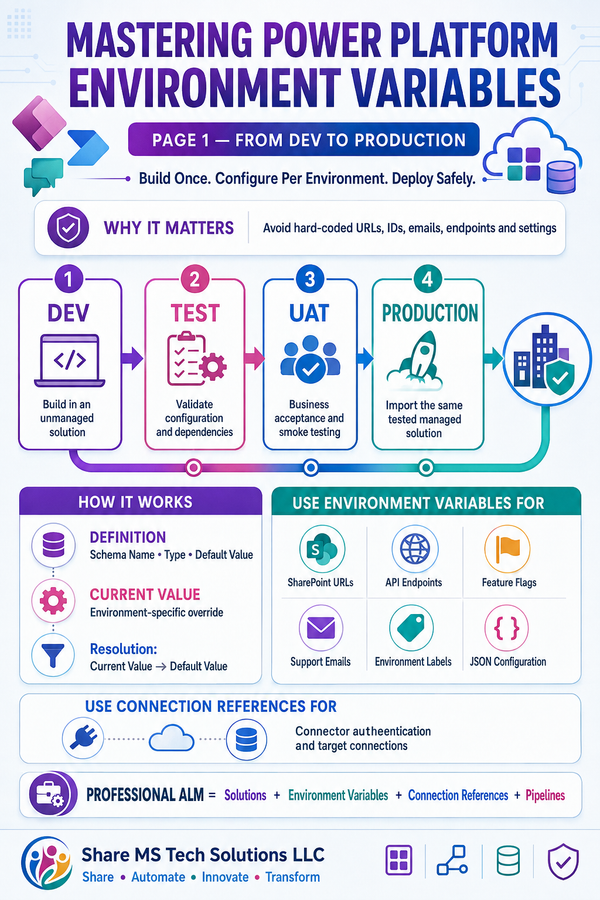
4. Avoid hard-coded environment values
Do not embed production URLs, email addresses, site paths, or configuration IDs directly inside expressions.
Use:
- Environment variables
- Solution connection references
- SharePoint configuration lists
- Dataverse configuration tables
- Child-flow parameters
5. Protect sensitive data
Compose inputs and outputs appear in flow run history unless secure inputs and outputs are enabled.
Protect:
- Access tokens
- API keys
- Personal information
- Financial information
- Health information
- Confidential employee data
Remember that securing one action does not automatically secure downstream actions that reuse its output.
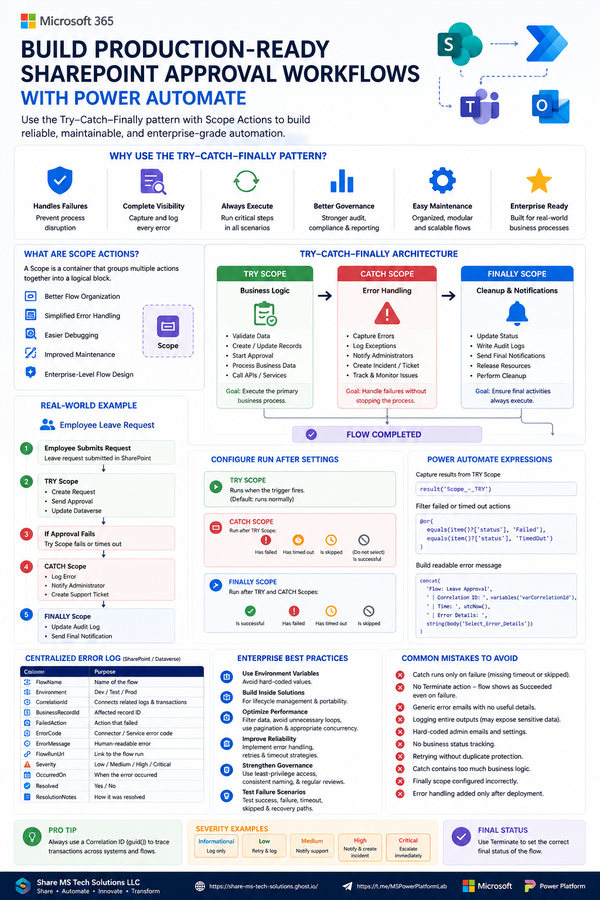
6. Design for failure
Place related actions inside Scopes and implement a Try–Catch–Finally pattern using Configure run after.
Your error-handling logic should record:
- Flow name
- Run ID
- Failed action
- Error message
- Business record ID
- Environment
- Timestamp
- Retry or escalation status
7. Treat concurrency carefully
Power Automate can process Apply to each iterations concurrently, but increasing concurrency is not automatically an optimization.
High concurrency can cause:
- Connector throttling
- API rate-limit errors
- Record-locking conflicts
- Out-of-order processing
- Inconsistent shared-variable updates
Compose outputs are immutable, making them safer than shared mutable variables in parallel operations. Still, concurrency should be increased gradually and tested against real connector limits.
Common Compose Mistakes
| Mistake | Better approach |
|---|---|
| Treating Compose as a mutable variable | Use a variable when the value must change |
| Assuming blank and null are identical | Validate with empty() |
Calling first() on an empty array | Check the array before calling first() |
Using rand() as a unique identifier | Use a record ID or guid() |
| Ignoring time zones | Keep UTC internally and convert at boundaries |
| Building large JSON payloads as strings | Use native objects, Select, or Parse JSON |
| Hiding long expressions inside connector fields | Move them into named Compose actions |
| Enabling maximum concurrency immediately | Tune incrementally and monitor throttling |
| Hard-coding site URLs and email addresses | Use environment-aware configuration |
| Exposing sensitive output in run history | Enable secure inputs and outputs |
Power Automate Expression Testing Checklist
Before moving a flow into production, verify the following:
- The expression receives the expected data type.
- Null and blank values are tested separately.
- Arrays are tested with zero, one, and multiple items.
- Special characters are tested in filenames, JSON, HTML, and URLs.
- Dates are tested around midnight and daylight-saving transitions.
item()references the intended Apply to each loop.- Connector throttling and retry behavior have been reviewed.
- Sensitive values do not appear in run history.
- Expressions use environment-aware configuration.
- The flow has been tested after deployment to the target environment.
- Error-handling Scopes capture meaningful operational information.
Final Thoughts
Compose is one of the smallest actions in Power Automate, but it can have an enormous effect on flow quality.
The best Power Automate developers treat Compose as a named transformation contract:
- The input is understood.
- The expression has one clear purpose.
- The output type is predictable.
- Nulls and empty values are handled.
- Time-zone behavior is explicit.
- The result can be inspected during troubleshooting.
- Another developer can safely maintain the flow.
That discipline transforms a collection of low-code actions into a production-ready automation solution.
The goal is not to use more Compose actions. The goal is to place important business transformations where they can be understood, tested, secured, and reused.
Official Microsoft Resources
- Use data operations in Power Automate
- Workflow expression functions reference
- Power Automate guidance for data operations
- Power Automate limits and configuration
- Use expressions in Power Automate conditions
About Share MS Tech Solutions LLC
Share MS Tech Solutions LLC provides practical Microsoft 365 and Power Platform guidance focused on SharePoint, Power Apps, Power Automate, Dataverse, Microsoft Teams, governance, and enterprise automation.
Share • Automate • Innovate • Transform
Follow Power Platform Lab for more tutorials, enterprise use cases, architecture guidance, and production-ready automation patterns.