Build Production-Ready SharePoint Approval Workflows with Power Automate
Author: Share MS Tech Solutions LLC
Introduction
Approval workflows are among the most common business processes in every organization. Whether you're approving purchase requests, leave applications, contracts, or change requests, an efficient approval system can significantly reduce manual effort while improving visibility and compliance.
Many approval workflows begin as simple automations but become difficult to maintain as organizations grow. Increased transaction volumes, additional approval levels, governance requirements, and integrations with Microsoft Teams or Microsoft 365 Copilot often expose architectural weaknesses.
This guide demonstrates how to design a scalable, production-ready approval solution using SharePoint Online and Power Automate that follows enterprise best practices.
Business Scenario
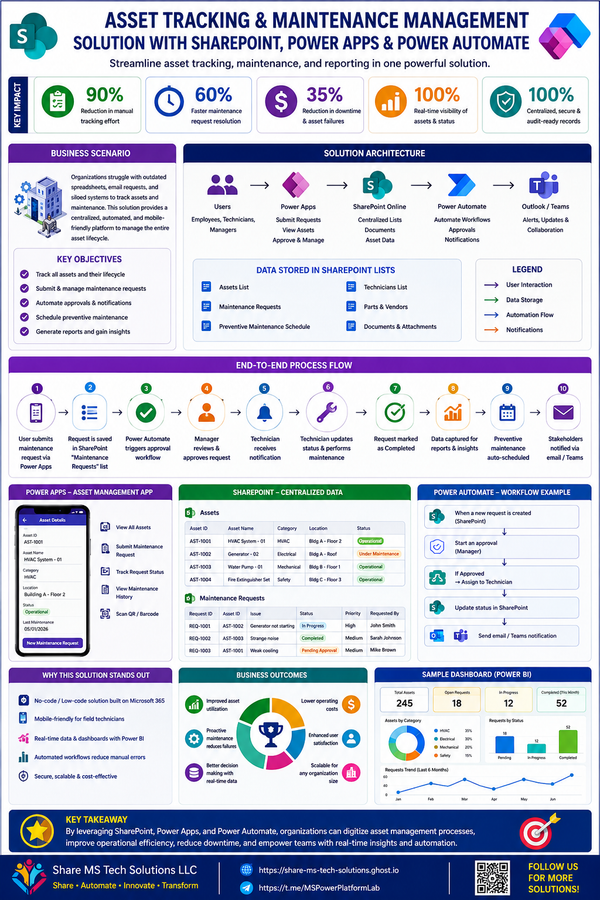
Imagine a company where employees submit purchase requests through SharePoint.
The existing process relies on email:
- Requests are easily overlooked.
- Approval history is scattered across mailboxes.
- Managers lack visibility into pending requests.
- Auditing requires manual effort.
- Reporting is inconsistent.
The objective is to create an automated workflow that centralizes requests, simplifies approvals, maintains a complete audit trail, and supports future Microsoft 365 enhancements.
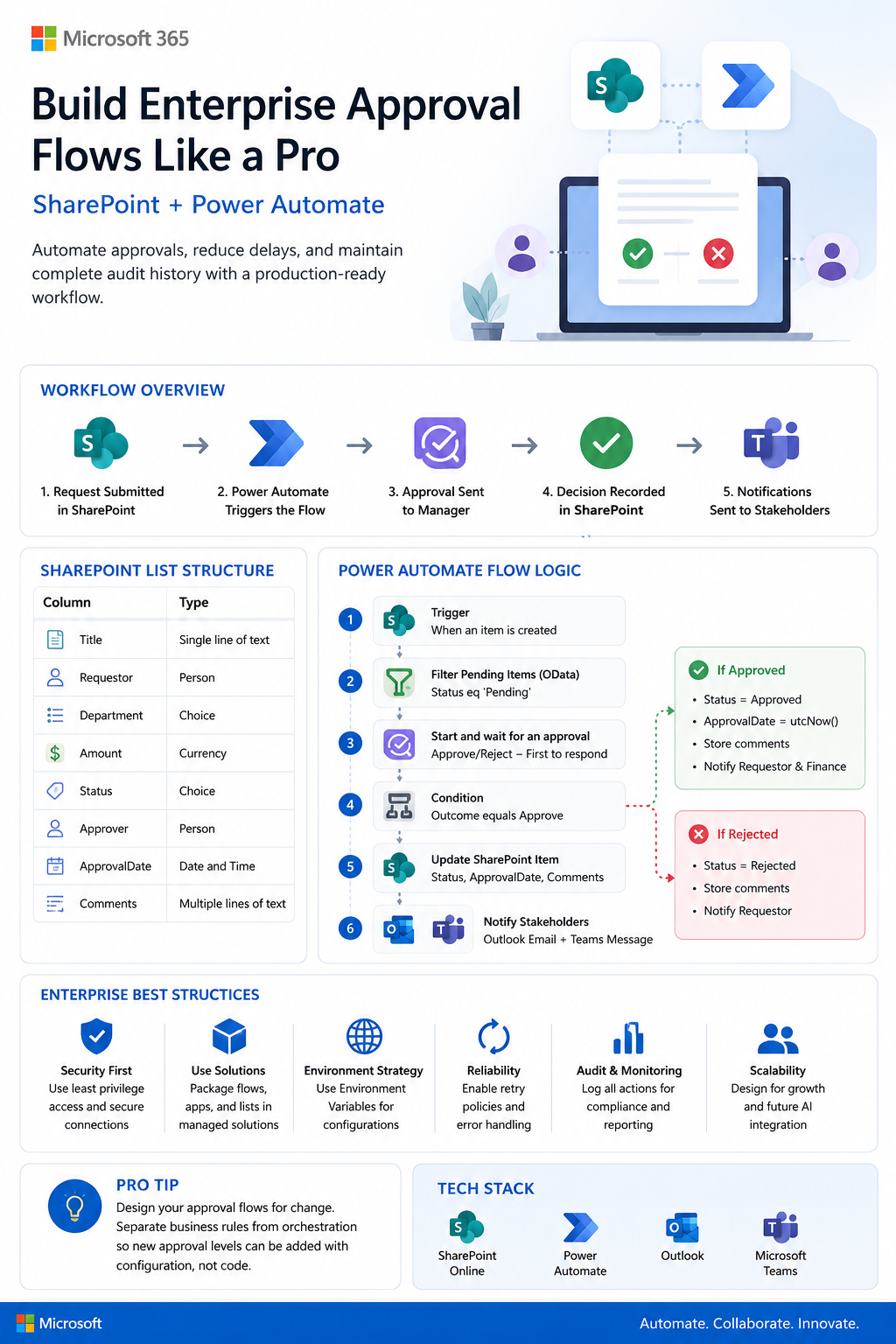
Solution Architecture
Employee

↓

SharePoint Online List

↓

Power Automate

↓

Approval Engine

↓

Decision Logic

↓

Update SharePoint

↓

Teams & Outlook Notifications

↓

Reporting / Power BI
Prerequisites
Before building the solution, ensure you have:
- Microsoft 365 tenant
- SharePoint Online
- Power Automate
- Microsoft Teams
- Appropriate permissions to create SharePoint lists and cloud flows
Step 1 – Create the SharePoint List
Create a SharePoint list named Approval Requests with the following columns:
| Column | Type |
|---|---|
| Title | Single line of text |
| Requestor | Person |
| Department | Choice |
| Amount | Currency |
| Status | Choice |
| Approver | Person |
| Approval Date | Date & Time |
| Comments | Multiple lines of text |
The SharePoint list becomes the system of record for the approval process.
Step 2 – Build the Flow
Create an automated cloud flow using the trigger:
When an item is created
This starts the approval process whenever a new request is submitted.
Step 3 – Retrieve Only Pending Requests
Avoid processing unnecessary records by filtering only pending items.
Example OData filter:
Status eq 'Pending'
Filtering data at the source improves performance, reduces API calls, and minimizes processing time.
Step 4 – Start the Approval
Use the Start and wait for an approval action.
Recommended approval type:
- Approve/Reject – First to respond
Populate the approval details dynamically using SharePoint columns:
- Request title
- Amount
- Department
- Requestor
- Link to the SharePoint item
Step 5 – Process the Outcome
If the request is approved:
- Update the Status to Approved
- Record the approval date
- Save the approver's comments
- Notify the requestor and relevant stakeholders
If rejected:
- Update the Status to Rejected
- Store the comments
- Notify the requestor
Maintaining approval comments provides valuable audit evidence and context for future reviews.
Step 6 – Notify Stakeholders
Use Outlook and Microsoft Teams to keep everyone informed.
Typical notifications include:
- Request submitted
- Approval required
- Request approved
- Request rejected
Providing timely notifications helps reduce delays and improves transparency across the organization.
Enterprise Best Practices
Use Environment Variables
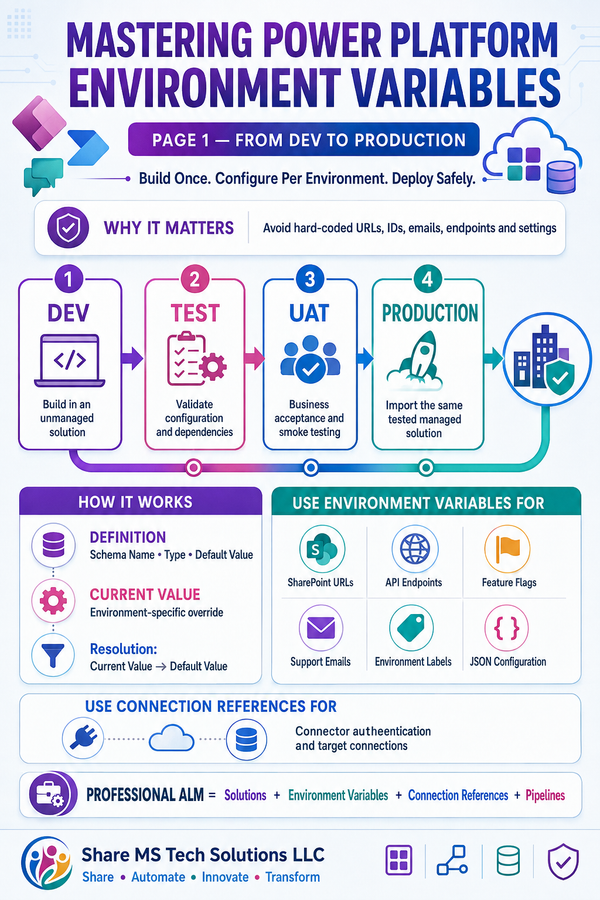
Store URLs, email addresses, and configuration values in environment variables rather than hard-coding them into flows. This simplifies deployment across Development, Test, and Production environments.
Build Inside Managed Solutions
Package SharePoint components and Power Automate flows into Solutions for better lifecycle management, versioning, and deployment.
Optimize Performance
- Filter data whenever possible.
- Avoid unnecessary nested Apply to each loops.
- Enable pagination only when required.
- Test concurrency settings before enabling parallel execution.
- Monitor run history for performance trends.
Improve Reliability
Implement error handling with Configure run after to capture failures and send alerts when exceptions occur.
Strengthen Governance
Adopt consistent naming conventions, least-privilege permissions, documented ownership, and regular solution reviews. These practices make enterprise environments easier to manage over time.
Common Mistakes to Avoid
- Retrieving every SharePoint item instead of filtering.
- Hard-coding email addresses.
- Building flows outside Solutions.
- Ignoring error handling.
- Updating records multiple times unnecessarily.
- Skipping testing with realistic production data.
Avoiding these pitfalls can significantly improve maintainability and reduce support effort.
Real-World Use Cases
The same architecture can support many business processes, including
- Employee onboarding
- Purchase approvals
- Expense reimbursement
- Contract approvals
- Change Request and CAB Management
- IT service requests
- Leave management
- Procurement workflows
- Vendor onboarding
- Document review and publishing
Extending the Solution
As your organization matures, consider extending the workflow with:
- Microsoft Teams Adaptive Cards
- Power BI dashboards
- Escalation paths
- Multi-stage approvals
- Role-based routing
- Dataverse integration
- Microsoft 365 Copilot experiences
- AI Builder document processing
These enhancements can improve user experience and enable more intelligent automation while preserving the core workflow.
Conclusion
Production-ready approval workflows are not just about automating a task—they are about creating a solution that is scalable, secure, maintainable, and aligned with enterprise governance.
By combining SharePoint Online with Power Automate and following architectural best practices, organizations can reduce manual work, improve compliance, and prepare their Microsoft 365 environment for future AI-powered experiences.
Whether you're building your first approval process or modernizing an existing one, investing in a solid architecture today will save time and reduce complexity as your business evolves.
Download the Complete Solution.
📥 Power Automate Template: Coming Soon on Gumroad
Stay Connected
🌐 Blog: https://share-ms-tech-solutions.ghost.io/
💬 Telegram Community: https://t.me/MSPowerPlatformLab
Please subscribe on the Youtube; https://www.youtube.com/@lemiroba6504
Follow Share MS Tech Solutions LLC for practical Microsoft 365, SharePoint Online, Power Apps, Power Automate, and Copilot Studio tutorials, enterprise case studies, and implementation guides.