Change Request and CAB Management with SharePoint + Power Automate

Case Study #11 — Change Request and CAB Management with SharePoint + Power Automate
Build a controlled, risk-based, and auditable change-management process using the Microsoft ecosystem
Technology changes are necessary for every modern organization. Applications must be updated, security vulnerabilities must be addressed, infrastructure must be maintained, and new business capabilities must be deployed.
The problem is that many organizations still manage these changes through disconnected emails, spreadsheets, Teams conversations, and recurring meetings.
A requester submits a change by email. Technical teams discuss the impact in Teams. Approvals are collected manually. Implementation evidence is stored in different folders. After the change is completed, no single record clearly shows what was approved, what occurred, or whether the expected outcome was achieved.
This creates more than an administrative inconvenience. It creates operational risk.
A poorly controlled change can cause:
- Unexpected service outages
- Security vulnerabilities
- Failed deployments
- Data loss
- Compliance findings
- Missed approvals
- Scheduling conflicts
- Incomplete rollback plans
- Weak accountability
- Limited management visibility
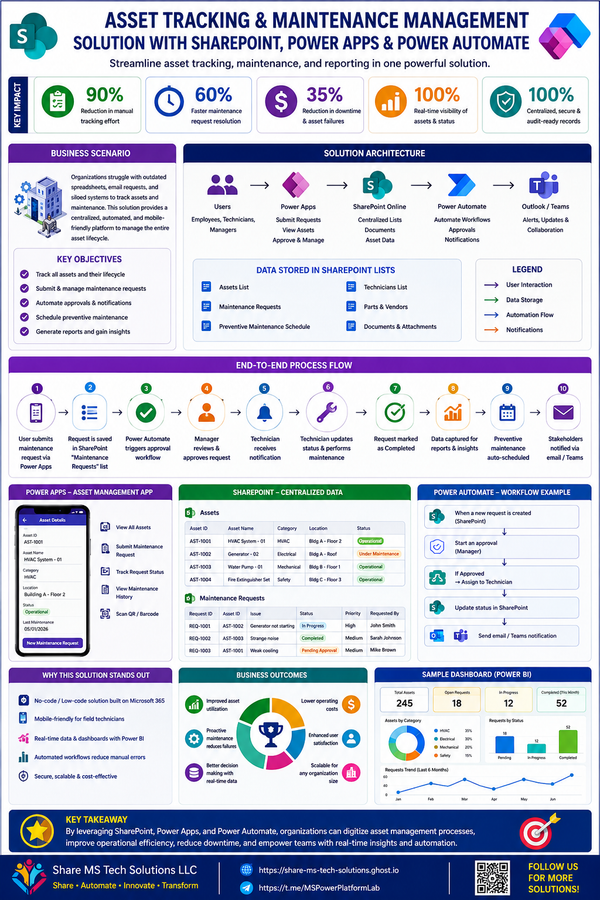
This case study demonstrates how SharePoint, Power Apps, Power Automate, Microsoft Approvals, Teams, Outlook, and Power BI can work together to create a structured Change Request and Change Advisory Board management solution.
The complete lifecycle is:
Request → Validation → Risk Assessment → Approval → CAB Review → Scheduling → Implementation → Verification → Closure
The business problem
Traditional change-management processes are often fragmented across several tools and communication channels.
A requester may complete a spreadsheet and email it to a manager. The manager forwards it to technical reviewers. CAB members discuss the request during a meeting, but their decisions may only exist in meeting notes. Implementation teams then coordinate through Teams messages, while testing evidence and rollback instructions are stored elsewhere.
This approach makes important questions difficult to answer:
- Who requested the change?
- What business problem does it solve?
- Which systems and users will be affected?
- What is the expected downtime?
- Has the change been tested?
- Is there a validated rollback plan?
- Who approved the change?
- Did the CAB apply any conditions?
- Was the implementation successful?
- Did the change create an incident?
- What lessons were learned?
The deeper issue is not simply the absence of automation. It is the absence of one standardized process and one reliable source of truth.
The proposed Microsoft 365 solution
The solution uses the Microsoft ecosystem to manage the entire change lifecycle.
Power Apps or SharePoint
Provides the user interface for submitting and updating change requests.
SharePoint Online
Stores the primary change record, approval history, activity log, supporting documentation, implementation evidence, and configuration data.
Power Automate
Validates requests, calculates risk, determines the approval path, creates approvals, sends reminders, records decisions, detects scheduling conflicts, manages implementation events, and triggers post-implementation reviews.
Microsoft Approvals
Provides structured approval requests for technical owners, business owners, security teams, CAB members, and executive approvers.
Microsoft Teams and Outlook
Deliver notifications, reminders, CAB review information, implementation alerts, and escalation messages.
Microsoft Word
Generates standardized change-approval or closure summaries when a formal document is required.
Power BI
Provides dashboards for risk, change volume, approval delays, implementation outcomes, rollback rates, and overall change success.
Solution architecture
A practical architecture looks like this:
Power Apps or SharePoint Form
↓
SharePoint Change Requests List
↓
Power Automate Workflow Layer
↓
Approvals, Teams Notifications, Outlook Reminders, CAB Review, Evidence Library, Activity Log, and Power BI
This architecture separates the user experience, data layer, automation layer, and reporting layer.
That separation is important because an enterprise solution should remain maintainable as requirements grow.
Step 1: Create the SharePoint data model
The foundation of the solution is not the approval flow. It is the data model.
Poor list design creates complicated automation. A well-designed SharePoint structure makes validation, routing, reporting, and auditing much easier.
Change Requests list
This is the primary record for every change.
Recommended columns include:
Request information
- Change ID
- Change title
- Change description
- Requested by
- Requesting department
- Change owner
- Technical owner
- Business owner
- Date submitted
Classification
- Change type
- Change category
- Affected service
- Affected application
- Environment
- Business priority
- Security impact
- Compliance impact
Planning
- Business justification
- Implementation plan
- Rollback plan
- Testing plan
- Validation plan
- Expected outage
- Planned start date
- Planned end date
- Maintenance window
Risk
- Impact score
- Likelihood score
- Risk score
- Risk level
- Number of affected users
- Data sensitivity
- System criticality
- Dependency risk
Workflow
- CAB required
- Current stage
- Change status
- Approval request ID
- Escalation status
- Implementation outcome
- Post-implementation review required
Actual implementation information
- Actual start time
- Actual completion time
- Actual outage
- Implementation notes
- Validation outcome
- Closure comments
Change Approval History list
Approvals should not be stored only as columns on the primary change record.
A separate history list provides a complete record of each approval stage.
Recommended fields include:
- Change ID
- Approval stage
- Approver
- Approver role
- Assigned date
- Response date
- Decision
- Comments
- Delegated approver
- Escalation level
- Approval duration
This design supports multiple approval stages and makes Power BI reporting much easier.
Change Activity Log
The activity log records meaningful events throughout the lifecycle.
Examples include:
- Change submitted
- Validation completed
- Risk calculated
- Approval assigned
- Approval completed
- CAB review initiated
- Change scheduled
- Implementation started
- Implementation completed
- Validation failed
- Rollback initiated
- Post-implementation review opened
- Change closed
Each activity should include the Change ID, timestamp, stage, action, user, previous status, new status, and supporting details.
Implementation Evidence library
This library stores evidence associated with the change, such as:
- Technical designs
- Architecture diagrams
- Test results
- Deployment screenshots
- Communication plans
- Backup confirmation
- Validation evidence
- Rollback evidence
- Post-implementation reports
Metadata should connect every file to its related Change ID.
Change Configuration list
Do not hard-code all business rules inside Power Automate.
A configuration list can store:
- CAB members
- Executive approvers
- Security reviewers
- Risk thresholds
- Escalation periods
- Maintenance windows
- Blackout dates
- Approval deadlines
- Notification recipients
- Standard-change templates
This makes the solution easier to maintain without editing every flow.
Step 2: Design the change-request form
The request form can be built using a customized SharePoint form or Power Apps.
A clean form should divide the information into logical sections:
- Request details
- Business justification
- Risk and impact
- Implementation plan
- Testing and rollback
- Approval status
- Implementation results
- Closure and review
Conditional visibility can simplify the experience.
For example:
- Emergency justification appears only for emergency changes.
- CAB information appears only when CAB review is required.
- Rollback results appear only when the change fails.
- Post-implementation review fields appear only when a review is required.
- Approval fields remain read-only for requesters.
- Implementation buttons appear only for authorized implementers.
The form should support at least three actions:
Save Draft, Submit Change, and Cancel.
Authorized users may also see buttons such as Start Implementation, Complete Implementation, or Submit Validation.
Step 3: Classify the change type
Not every change should follow the same process.
Standard change
A low-risk, repeatable change with a documented and preapproved implementation procedure.
Examples include:
- Routine patching
- Standard workstation deployment
- Approved certificate renewal
- Repeating maintenance tasks
- Predefined configuration updates
A standard change may follow a shortened path, but it should still be recorded and monitored.
Normal change
A change requiring formal assessment and approval before implementation.
Examples include:
- Production application releases
- SharePoint architecture modifications
- Power Platform deployments
- Network changes
- Database updates
- Security policy changes
Emergency change
An urgent change required to resolve or prevent a major incident, outage, or security threat.
Examples include:
- Critical vulnerability remediation
- Expired authentication certificates
- Production service failures
- Active cyber threats
- Data corruption
- Business-critical outages
Emergency changes require faster authorization, but they should not bypass accountability. A retrospective review should be mandatory after implementation.
Step 4: Validate the request automatically
When the requester submits a change, Power Automate checks whether the request is complete.
The validation process can confirm that:
- A change owner is assigned
- The affected service is identified
- The implementation plan is complete
- A rollback plan exists
- Testing evidence is attached
- The planned date is entered
- Risk information is complete
- Required documentation is available
When information is missing, the workflow should not enter the approval process.
Instead:
- Change the status to More Information Required.
- Notify the requester.
- Identify the missing information.
- Add an activity-log entry.
- Restart validation after resubmission.
This prevents incomplete requests from reaching approvers and CAB members.
Step 5: Generate the Change ID
Power Automate can generate a unique identifier after the request passes validation.
A practical format is:
CHG-2026-00125
The identifier can combine:
- A fixed prefix such as CHG
- The current year
- The SharePoint item ID
The same Change ID should be used across:
- The primary request
- Approval-history records
- Activity-log entries
- Evidence documents
- Word summaries
- Power BI reports
Step 6: Calculate risk and impact
A simple starting model is:
Risk Score = Impact × Likelihood
For example:
- 1–4: Low
- 5–9: Medium
- 10–16: High
- 17–25: Critical
However, organizations should not treat this formula as universally sufficient.
Risk may also need to consider:
- Production versus test environment
- Number of affected users
- Data sensitivity
- Business criticality
- Expected downtime
- Cross-system dependencies
- Security exposure
- Compliance impact
- Rollback readiness
- Timing restrictions
The risk model should be agreed upon by change management, security, operations, and business leadership.
Step 7: Route approvals based on risk
The strongest design is not a single approval process. It is a risk-based approval matrix.
Low-risk standard change
Change Owner → Standard Validation
Low- or medium-risk normal change
Technical Owner → Business Owner → Change Manager
High-risk change
Technical Owner → Business Owner → Security or Compliance → CAB
Critical change
Technical Owner → Business Owner → Security → CAB → Executive Change Authority
Emergency change
Emergency Change Authority → Implementation → Mandatory Retrospective Review
Every approval result should be written to the Change Approval History list.
Capture:
- Approver
- Approval role
- Decision
- Comments
- Date and time
- Delegation
- Escalation
- Response duration
This creates a durable business record rather than relying only on email messages.
Step 8: Prepare the CAB review package
CAB stands for Change Advisory Board.
The CAB evaluates changes that require cross-functional coordination, significant business decisions, or elevated risk.
The CAB review package should include:
- Change ID
- Business justification
- Affected service
- Risk level
- Expected impact
- Planned implementation date
- Expected outage
- Implementation plan
- Rollback plan
- Test results
- Previous approval decisions
- Supporting-document links
- Scheduling conflicts
- Known dependencies
The CAB should be able to select:
- Approve
- Approve with conditions
- Reject
- Request more information
- Reschedule
- Refer to another authority
When approval includes conditions, those conditions should be stored in SharePoint and acknowledged before scheduling.
The CAB should not become a meeting that reviews every routine activity. Standard and low-risk changes should follow approved procedures so CAB members can focus on the changes that genuinely require advisory review.
Step 9: Check schedules and blackout dates
An approved change is not automatically ready for implementation.
Power Automate should check:
- Other approved changes
- Overlapping implementation windows
- Maintenance schedules
- Financial closing periods
- Business blackout dates
- Major organizational events
- Dependent-system deployments
- Resource availability
When a conflict exists:
- Set the status to Scheduling Conflict.
- Notify the Change Manager.
- Request a new implementation date.
- Record the conflict.
- Revalidate approvals when the schedule changes materially.
When no conflict exists, the flow can:
- Set the change to Scheduled
- Create a shared Outlook calendar event
- Notify the implementation team
- Send a Teams message
- Schedule reminders
Step 10: Send implementation reminders
Recommended reminders include:
- Seven days before implementation
- Three days before implementation
- One day before implementation
- One hour before implementation
For a high-risk change, the notification can include:
- Change ID
- System affected
- Implementation window
- Expected outage
- Change owner
- Technical implementer
- Rollback-plan link
- CAB conditions
- Escalation contact
Reminder schedules should be configurable rather than embedded permanently inside the flow.
Step 11: Track implementation
When implementation begins, the authorized implementer selects Start Implementation.
Power Automate then:
- Records the actual start time
- Changes the status to In Progress
- Notifies stakeholders
- Creates an activity-log entry
At completion, the implementer records an outcome:
- Implemented successfully
- Implemented with issues
- Partially implemented
- Failed
- Rolled back
The implementer should also provide:
- Actual completion time
- Actual outage
- Implementation notes
- Unexpected issues
- Evidence links
- Rollback details when applicable
Step 12: Validate the outcome
Implementation completion is not the same as successful change closure.
A validator should confirm:
- The service is operational
- Expected functionality works
- Monitoring is normal
- Data integrity is intact
- Users can access the service
- No unexpected incident was introduced
- Business requirements were met
When validation succeeds, the change can proceed to closure.
When validation fails, the workflow can:
- Notify the Change Manager
- Initiate rollback
- Create an incident when appropriate
- Mark the change as failed
- Require a post-implementation review
Step 13: Conduct the post-implementation review
A post-implementation review should be required for:
- Emergency changes
- Failed changes
- Rolled-back changes
- High-risk changes
- Changes causing incidents
- Changes exceeding the approved window
- Changes producing unexpected downtime
The review should answer:
- What was planned?
- What actually happened?
- Was the objective achieved?
- What caused the failure or issue?
- How effective was the rollback plan?
- What was the business impact?
- What lessons were learned?
- What corrective actions are required?
- Should the standard process be updated?
The results should remain linked to the original Change ID.
Power Automate architecture
A common mistake is building the entire lifecycle as one very large flow.
That design becomes difficult to monitor, troubleshoot, modify, and support.
A better architecture uses multiple state-driven flows.
Flow 1: Intake and validation
Responsibilities:
- Validate submission
- Generate Change ID
- Calculate risk
- Assign risk level
- Determine CAB requirement
- Update status
- Create activity-log records
Flow 2: Approval orchestration
Responsibilities:
- Select the approval route
- Create approvals
- Record decisions
- Manage rejection
- Escalate overdue responses
- Prevent duplicate approvals
Flow 3: CAB management
Responsibilities:
- Prepare the CAB package
- Notify CAB members
- Capture the CAB decision
- Record approval conditions
- Update the request
Flow 4: Scheduling and reminders
Responsibilities:
- Check blackout dates
- Detect conflicts
- Create calendar events
- Send implementation reminders
- Escalate scheduling problems
Flow 5: Implementation tracking
Responsibilities:
- Record start and completion
- Process implementation outcomes
- Notify stakeholders
- Trigger validation or rollback
Flow 6: Closure and post-implementation review
Responsibilities:
- Request validation
- Generate closure documentation
- Open post-implementation reviews
- Record lessons learned
- Close the change
Enterprise controls
A production-ready solution should include more than business actions.
Trigger conditions
Run flows only when the required status or stage is reached.
Duplicate prevention
Check whether an active approval or workflow record already exists before creating another one.
Escalation
Send reminders and escalate overdue approvals to the appropriate manager or backup approver.
Delegated approvers
Allow an authorized substitute to respond when the assigned approver is unavailable.
Error handling
Use structured Try, Catch, and Finally scopes.
The Catch scope should:
- Record the error
- Notify administrators
- Update the automation status
- Preserve the business record
- Identify whether manual intervention is required
Role-based access
Restrict sensitive security, financial, or production changes to authorized users.
Configuration management
Store business rules in a configuration list or environment variables instead of hard-coding them.
Audit history
Record business events in dedicated SharePoint lists rather than relying only on flow-run history or email messages.
Power BI reporting
The data generated by the workflow becomes valuable operational intelligence.
A Power BI dashboard can display:
- Changes by status
- Changes by type
- Changes by risk
- Pending approvals
- Overdue approvals
- Upcoming implementations
- Emergency changes
- Failed changes
- Rolled-back changes
- Average approval duration
- Average implementation time
- Changes causing incidents
- Change success rate
- Frequent failure categories
- Trends by department or system
Leadership can use this information to identify process bottlenecks, risky systems, recurring implementation problems, and opportunities for improvement.
Business outcomes
A well-designed Change Request and CAB Management solution can provide:
Standardized change processes
Every request follows the same controlled lifecycle.
Better risk management
Approval paths change according to business impact and technical risk.
Faster CAB preparation
The review package is generated from structured information instead of being assembled manually.
Stronger auditability
Every decision, status transition, implementation event, and supporting document is recorded.
Reduced service disruption
Testing, scheduling, approval, and rollback controls reduce avoidable implementation failures.
Improved accountability
Requesters, owners, approvers, implementers, and validators have clearly defined responsibilities.
Better operational visibility
Power BI turns change records into actionable information.
Important implementation considerations
This Microsoft 365 solution can be highly effective, but it should not be presented as a universal replacement for every enterprise IT service-management platform.
Organizations should evaluate:
- Number of monthly changes
- Workflow complexity
- Regulatory requirements
- Audit requirements
- Integration needs
- Data sensitivity
- Microsoft licensing
- Retention policies
- Environment strategy
- Support model
- Disaster-recovery requirements
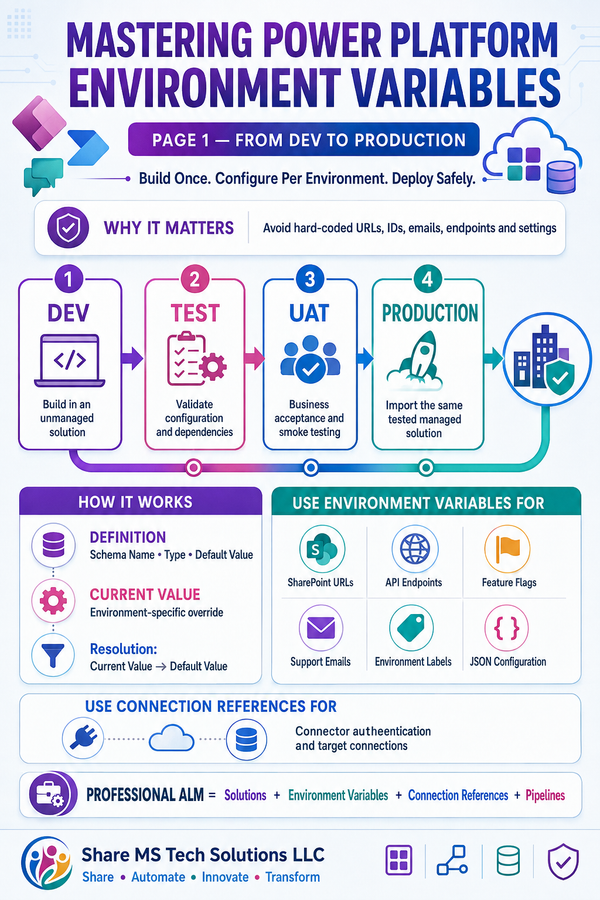
The solution should also be packaged inside Power Platform Solutions and use:
- Environment variables
- Connection references
- Development, test, and production environments
- Approved service accounts
- Data-loss-prevention policies
- Documented ownership
- Monitoring and support procedures
Final thoughts
The real value of this case study is not simply automating a CAB approval.
A basic approval flow may collect a yes-or-no decision, but an enterprise change-management process must do much more.
It must validate information, assess risk, select the appropriate approval path, coordinate schedules, prepare implementation teams, record evidence, manage failure, support rollback, verify the result, preserve history, and provide management reporting.
By combining SharePoint, Power Apps, Power Automate, Microsoft Approvals, Teams, Outlook, Word, and Power BI, organizations can transform disconnected change-management activities into one controlled and scalable Microsoft 365 solution.
The complete process becomes the following:
Structured intake → Validation → Risk assessment → Approval → CAB review → Scheduling → Implementation → Verification → Closure → Reporting
That is how Power Automate moves beyond task automation and becomes part of a governed enterprise business process.
Watch the related video
For a visual walkthrough of this case study, watch the related video on YouTube:
Learn Microsoft Power App :https://link.amazon/A03d7AeFF
Share MS Tech Solutions LLC
Share • Automate • Innovate • Transform