Employee Onboarding Automation Blueprint
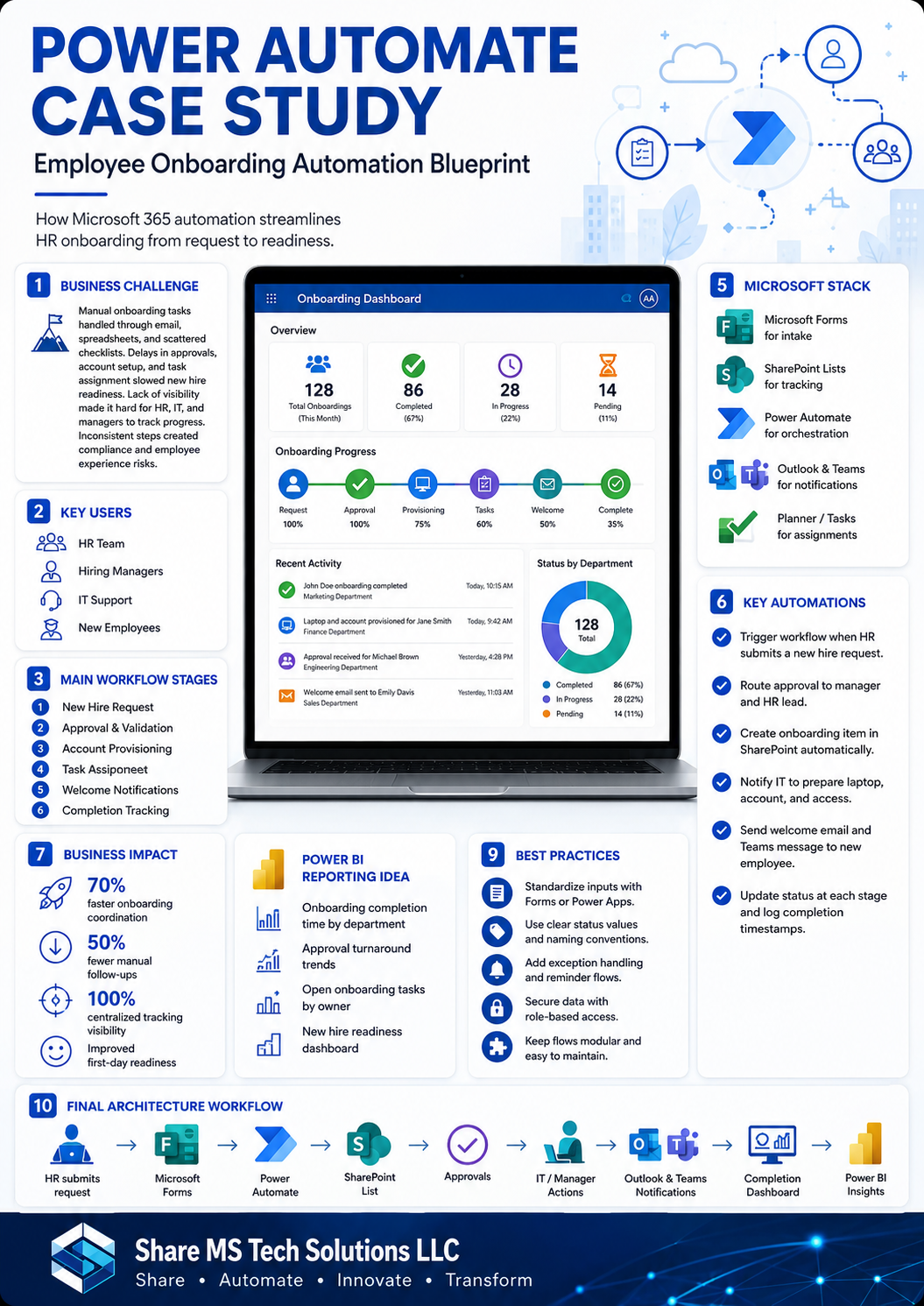
Employee onboarding is one of the most important business processes in any organization. It shapes the first impression for new employees, but it also requires coordination across HR, hiring managers, IT support, and operations.
When onboarding is handled through manual emails, spreadsheets, and scattered checklists, the process quickly becomes slow, inconsistent, and difficult to track.
This case study shows how Power Automate can streamline employee onboarding by connecting Microsoft Forms, SharePoint Lists, Outlook, Teams, Planner, approvals, and Power BI into one automated Microsoft 365 workflow.
The goal is simple: reduce manual follow-ups, improve visibility, and help new employees become productive faster.
Business Challenge
Many organizations still manage onboarding manually.
HR may collect new hire details through email. Managers may approve requests separately. IT may receive account and laptop requests late. Tasks may be tracked in spreadsheets or informal messages.
This creates several business problems:
Manual onboarding tasks are handled through email, spreadsheets, and scattered checklists.
Delays in approvals, account setup, and task assignment slow down new hire readiness.
HR, IT, and managers lack visibility into onboarding progress.
Inconsistent steps create compliance risks and a poor employee experience.
The real issue is not only the number of tasks. The bigger problem is the lack of a centralized, automated workflow.
Key Users
A strong onboarding automation solution must support every group involved in the process.
HR Team
HR starts the onboarding process by submitting the new hire request, confirming required information, and tracking the overall process.
Hiring Managers
Hiring managers approve the request, confirm role-specific needs, and ensure the new employee has the right access and resources.
IT Support
IT prepares accounts, devices, applications, permissions, and technical access before the employee starts.
New Employees
New employees receive welcome notifications, instructions, and readiness information before their first day.
Main Workflow Stages
The onboarding process can be organized into six main stages.
1. New Hire Request
HR submits the onboarding request with the new employee’s details.
This may include:
Employee name
Department
Job title
Start date
Manager
Device needs
Software access
Location or remote status
2. Approval and Validation
The request is routed to the correct manager or HR lead for approval.
This ensures the onboarding process does not move forward until the request is reviewed and validated.
3. Account Provisioning
Once approved, the workflow can trigger IT tasks for account setup.
This may include Microsoft 365 account creation, group membership, application access, and security permissions.
4. Task Assignment
Power Automate can create tasks for HR, IT, facilities, or managers.
These tasks may be assigned in Microsoft Planner or another task management system.
5. Welcome Notifications
The new employee can receive a welcome email or Teams message with important information.
This helps the employee know what to expect before the first day.
6. Completion Tracking
Each step is tracked so HR and managers can see whether onboarding is pending, in progress, or complete.
This creates accountability and reduces manual follow-up.
Microsoft Stack Used
This case study uses a practical Microsoft 365 stack.
Microsoft Forms
Microsoft Forms can be used as the intake form for new hire requests.
HR can submit required onboarding details in a structured way instead of sending information through email.
SharePoint Lists
SharePoint Lists store onboarding records and track request status.
A SharePoint list can include columns such as:
Employee Name
Department
Manager
Start Date
Status
Device Required
Account Created
Welcome Email Sent
Assigned Tasks
Completion Date
Power Automate
Power Automate acts as the workflow engine.
It connects the intake form, approval process, SharePoint tracking, notifications, task assignments, and reporting updates.
Outlook and Teams
Outlook and Teams can be used for notifications.
Examples include:
Approval request emails
IT task notifications
Manager reminders
Welcome messages
Completion updates
Planner or Tasks
Planner can be used to assign and track onboarding activities.
For example:
Prepare laptop
Create Microsoft 365 account
Assign licenses
Grant application access
Schedule orientation
Confirm first-day readiness
Key Automations
The value of this solution comes from automating the repetitive handoffs between departments.
Trigger Workflow When HR Submits a Request
The process starts when HR submits a new hire request.
Power Automate captures the form response and starts the onboarding workflow automatically.
Route Approval to Manager and HR Lead
The workflow sends the request to the appropriate approver.
This avoids manual email chains and keeps the approval process consistent.
Create Onboarding Item in SharePoint
A SharePoint item is created automatically to track the onboarding case.
This gives HR, IT, and managers one place to review status and progress.
Notify IT to Prepare Laptop, Account, and Access
Once the request is approved, IT receives a notification with the required setup details.
This reduces delays and helps IT prepare before the employee starts.
Send Welcome Email and Teams Message
The system can send a welcome message to the new employee with first-day instructions, helpful links, and contact information.
Update Status at Each Stage
Power Automate updates the SharePoint record as each stage is completed.
This creates visibility across the entire onboarding process.
Business Impact
A well-designed onboarding automation can create measurable improvements.
70% Faster Onboarding Coordination
Automated routing, notifications, and task creation reduce the time spent manually coordinating between HR, IT, and managers.
50% Fewer Manual Follow-Ups
Because status updates and reminders are automated, HR does not need to chase every stakeholder manually.
100% Centralized Tracking Visibility
All onboarding records can be tracked in SharePoint, giving teams one source of truth.
Improved First-Day Readiness
New employees are more likely to have their accounts, devices, and instructions ready before their first day.
Power BI Reporting Ideas
Power BI can turn onboarding data into useful business insight.
Useful dashboard ideas include:
Onboarding completion time by department
Approval turnaround trends
Open onboarding tasks by owner
New hire readiness dashboard
Pending versus completed onboarding cases
Average time from request to completion
This helps HR leaders identify bottlenecks and improve the onboarding process over time.
Best Practices
Standardize Inputs
Use Microsoft Forms or Power Apps to collect consistent information from HR.
Avoid free-form email requests because they often miss important details.
Use Clear Status Values
Keep the workflow status simple and reportable.
Examples:
Submitted
Pending Approval
Approved
In Progress
Waiting on IT
Completed
Rejected
Add Exception Handling
Every workflow should include failure handling.
For example, notify HR if an approval is overdue, if IT task creation fails, or if required information is missing.
Secure Data With Role-Based Access
Employee onboarding data can include sensitive information.
Use appropriate SharePoint permissions, Microsoft 365 groups, and role-based access.
Keep Flows Modular
Instead of building one large flow that does everything, separate the process into manageable parts when needed.
For example:
Intake flow
Approval flow
IT provisioning task flow
Notification flow
Reporting update flow
This makes the solution easier to maintain and troubleshoot.
Final Architecture Workflow
The final automation workflow can be summarized like this:
HR submits request
Microsoft Forms captures intake details
Power Automate starts the workflow
SharePoint List stores the onboarding record
Approvals are routed to the right people
IT and managers complete required actions
Outlook and Teams send notifications
Completion dashboard tracks progress
Power BI provides insights
This is a strong example of how Microsoft 365 tools can work together to solve a real business problem.
Why This Is a Strong Power Automate Case Study
Employee onboarding is a great Power Automate case study because it includes many real-world automation patterns:
Form intake
Approval routing
SharePoint tracking
Conditional logic
Task assignment
Email and Teams notifications
Status updates
Reporting integration
Cross-department collaboration
It is also easy for business users to understand because every organization has some version of an onboarding process.
This makes it a powerful portfolio project for anyone learning Power Automate or building Microsoft 365 business solutions.
Final Thoughts
Employee onboarding should not depend on scattered emails, spreadsheets, and manual follow-ups.
With Power Automate, organizations can turn onboarding into a structured, trackable, and automated process.
By combining Microsoft Forms, SharePoint Lists, Power Automate, Outlook, Teams, Planner, and Power BI, businesses can improve onboarding speed, reduce manual work, and create a better first-day experience for new employees.
This is more than an automation flow.
It is a complete Microsoft 365 business process improvement solution.
Share MS Tech Solutions LLC
Share • Automate • Innovate • Transform