Enterprise Multi-Department Employee Onboarding with SharePoint, Power Automate, and Microsoft Teams

From 50+ variables to one enterprise object: Build onboarding solutions that are scalable, reusable, and ready for Microsoft Copilot.
Introduction
Employee onboarding is one of the most common automation scenarios in Microsoft 365.
Nearly every organization needs to coordinate multiple departments—including Human Resources, Information Technology, Security, Facilities, Finance, and Hiring Managers—to ensure a new employee is productive on day one.
While many onboarding flows begin as simple approval processes, they often evolve into complex automations with dozens of variables, conditions, and parallel branches.
One of the most common design mistakes is managing every piece of information as an individual variable.
Instead of creating maintainable architecture, the flow gradually becomes difficult to troubleshoot, extend, and govern.
This article demonstrates a production-ready architecture using SharePoint Online, Power Automate, Dataverse, Microsoft Teams, and structured JSON objects to build scalable onboarding workflows.
Business Challenge
Imagine onboarding 500 employees every month.
Each employee requires work from several departments.
| Department | Responsibilities |
|---|---|
| Human Resources | Employee profile, documents, payroll |
| IT | Laptop, Microsoft 365 account, licenses |
| Facilities | Office, badge, workspace |
| Security | Background check, security training |
| Finance | Cost center, purchasing approvals |
| Hiring Manager | Orientation and first-week schedule |
Each department maintains:
- Status
- Owner
- Due date
- Completion date
- Comments
- Escalation
- Attachments
- Notifications
Many developers create individual variables for each field.
varHRStatus

varHRCompleted

varITStatus

varITLaptop

varITLicense

varFacilitiesDesk

varFacilitiesBadge

varSecurityTraining

...

50+ variables
Although functional, this design becomes increasingly difficult to maintain.
Problems with Traditional Variable-Based Design
As onboarding processes grow, so do the risks.
Common issues include:
- Hundreds of initialization actions
- Difficult debugging
- Copy-and-paste logic
- Poor readability
- Incorrect variable references
- Limited scalability
- Complex parallel processing
- Difficult handoff to new developers
Enterprise automation should simplify complexity—not increase it.
Enterprise Solution
Instead of dozens of variables, create one structured onboarding object.
{
  "Employee": {
    "EmployeeId": "",
    "DisplayName": "",
    "Department": "",
    "ManagerEmail": "",
    "StartDate": ""
  },
  "HR": {
    "Status": "Not Started",
    "CompletedDate": null,
    "Owner": ""
  },
  "IT": {
    "Status": "Not Started",
    "LaptopRequested": false,
    "AccountCreated": false,
    "LicenseAssigned": false
  },
  "Facilities": {
    "Status": "Not Started",
    "BuildingAccess": false,
    "WorkspaceAssigned": false
  },
  "Security": {
    "Status": "Not Started",
    "BackgroundCheck": false,
    "TrainingCompleted": false
  }
}
Now every department works with a shared onboarding context instead of independent variables.
Enterprise Architecture
Employee Request
        │
        ▼
SharePoint Online / Dataverse
        │
        ▼
Validate Employee
        │
        ▼
Initialize Onboarding Context
        │
        ▼
Parallel Child Flows
 ├── HR
 ├── IT
 ├── Facilities
 ├── Security
        │
        ▼
Collect Responses
        │
        ▼
Calculate Overall Status
        │
        ▼
Update Master Record
        │
        ▼
Microsoft Teams Notification
        │
        ▼
Power BI Dashboard
Each department owns its own automation while the parent flow orchestrates the overall process.
Why Child Flows Matter
Instead of building one massive flow, each department has its own child flow.
HR Child Flow
Responsible for:
- Employee record
- Payroll setup
- Benefits enrollment
- Policy acknowledgment
Returns
{
  "Department":"HR",
  "Status":"Completed",
  "Owner":"hr@contoso.com"
}
IT Child Flow
Handles
- Laptop provisioning
- Microsoft 365 licenses
- Azure AD account
- Teams access
- SharePoint permissions
Facilities Child Flow
Handles
- Badge creation
- Workspace assignment
- Parking
- Building access
Security Child Flow
Responsible for
- Background check
- Security awareness training
- Compliance approvals
Each child flow returns exactly the same contract.
That consistency makes aggregation and reporting straightforward.
SharePoint Design
Recommended Lists
Employee Requests
- Employee ID
- Name
- Department
- Manager
- Start Date
- Status
Department Tasks
- Employee Lookup
- Department
- Owner
- Status
- Due Date
- Completed Date
Audit History
- Flow Name
- Department
- Timestamp
- Action
- Performed By
Configuration
Store
- Notification emails
- SLA days
- Escalation thresholds
- Department owners
Business users can update these settings without editing the flow.
Power Automate Parent Flow
Step 1
Trigger
When an item is created
Step 2
Validate
- Duplicate employees
- Required fields
- Start date
Step 3
Initialize Context
Create one onboarding object.
Step 4
Parallel Processing
Run
- HR
- IT
- Facilities
- Security
simultaneously.
Step 5
Collect Results
Merge department responses.
Step 6
Calculate Overall Status
Possible values
- Not Started
- In Progress
- Completed
- Blocked
Step 7
Update SharePoint
Save
- Overall Status
- Completion %
- Last Updated
Step 8
Notify Teams
Adaptive Card
Employee:
John Doe

HR
Completed

IT
In Progress

Facilities
Completed

Security
Pending
Managers immediately see onboarding progress.
Power Automate Expressions
Overall Status
if(
contains(
string(outputs('DepartmentResults')),
'"Status":"Failed"'
),
'Attention Required',
if(
contains(
string(outputs('DepartmentResults')),
'"Status":"Not Started"'
),
'In Progress',
'Completed'
))
For production systems, prefer Filter array or structured object evaluation over string matching.
Microsoft Teams Integration
Adaptive Cards allow hiring managers to monitor onboarding without opening SharePoint.
Example actions
- View employee profile
- Open onboarding request
- Approve exceptions
- Contact department owner
Governance Best Practices
Enterprise environments should always include:
✅ Solutions
✅ Connection References
✅ Environment Variables
✅ Service Accounts
✅ Retry Policies
✅ Correlation IDs
✅ Audit Logging
✅ Version Control
✅ Managed Solutions
✅ DLP Policies
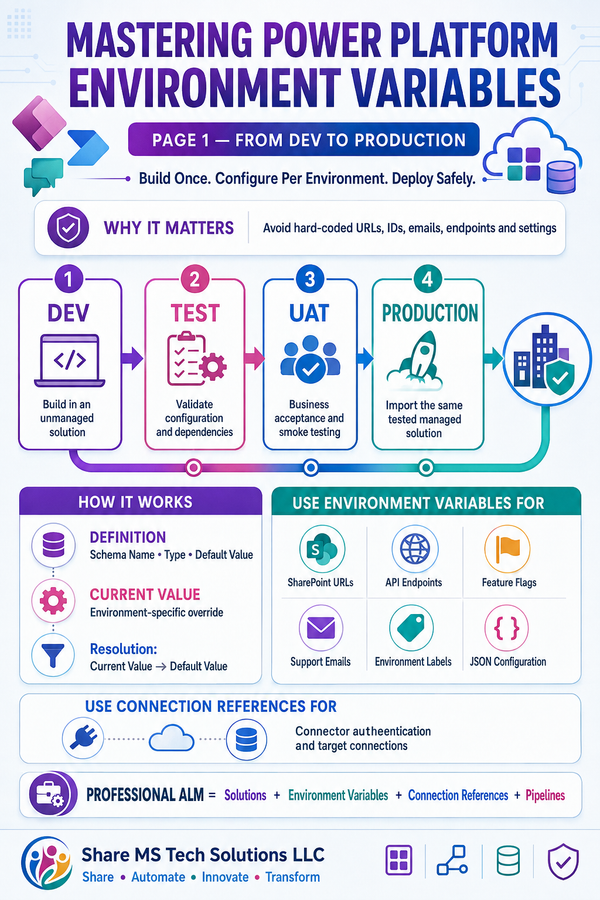
These practices improve maintainability, security, and deployment across Development, Test, and Production environments.
Performance Optimization
Instead of sequential processing:
HR

↓

IT

↓

Facilities

↓

Security
Use parallel branches.
Benefits include:
- Faster execution
- Reduced latency
- Better scalability
- Independent retries
- Easier troubleshooting
Common Mistakes
Avoid these anti-patterns:
❌ 50+ individual variables
❌ Copying the same actions across departments
❌ Hard-coded email addresses
❌ Large nested Conditions
❌ One massive monolithic flow
❌ No centralized logging
❌ No configuration list
❌ Personal user connections
Production Checklist
Before deploying:
- Validate all required fields
- Store configuration externally
- Use child flows
- Log every department response
- Capture exceptions
- Enable retry policies
- Test parallel execution
- Secure sensitive HR information
- Use managed solutions
- Document the architecture
Business Benefits
Organizations adopting this architecture typically achieve:
- Faster onboarding cycles
- Reduced administrative effort
- Lower maintenance costs
- Consistent governance
- Better reporting
- Easier troubleshooting
- Improved employee experience
- Greater scalability
- Reduced human error
- Microsoft Copilot readiness
Preparing for Microsoft 365 Copilot
Structured data models are easier for AI to interpret than dozens of unrelated variables.
By organizing onboarding information into reusable objects, organizations create a strong foundation for:
- Microsoft 365 Copilot
- Copilot Studio agents
- AI-generated summaries
- Intelligent approvals
- Predictive reporting
- Automated recommendations
Today's well-designed onboarding object becomes tomorrow's AI-ready business process.
Final Thoughts
As Power Platform solutions mature, success is no longer measured by how many actions a flow contains—it is measured by how well the solution can evolve.
A structured onboarding object combined with modular child flows transforms employee onboarding from a collection of disconnected variables into a governed, scalable enterprise solution.
Whether you're supporting 50 employees or 50,000, this architecture provides the flexibility, maintainability, and reliability required for modern Microsoft 365 environments.
Key Takeaways
- Replace dozens of variables with a structured onboarding object.
- Use child flows to isolate departmental responsibilities.
- Store configuration in SharePoint or Dataverse instead of hardcoding values.
- Build reusable response contracts for easier reporting and maintenance.
- Leverage Microsoft Teams Adaptive Cards for real-time visibility.
- Design with governance, scalability, and Copilot readiness from the start.
Share MS Tech Solutions LLC
Share • Automate • Innovate • Transform
If you found this guide helpful, follow Share MS Tech Solutions LLC for more enterprise Power Platform case studies, Microsoft 365 architecture guides, SharePoint solutions, and production-ready Power Automate patterns.