Enterprise SharePoint Permission Reporting with Power Automate
Transforming Manual Permission Reviews into Automated Access Intelligence
Managing permissions across multiple SharePoint sites, document libraries, folders, and files can quickly become difficult. Administrators often need to open each site, navigate to library settings, review permission inheritance, inspect SharePoint groups, and manually consolidate the results.
That approach is slow, inconsistent, and difficult to repeat at enterprise scale.
This case study presents an automated SharePoint permission-reporting solution built with:
- Microsoft Power Automate
- SharePoint Online
- SharePoint REST API
- Microsoft Graph, where group expansion is required
- Excel Online or a SharePoint reporting list
- Microsoft 365
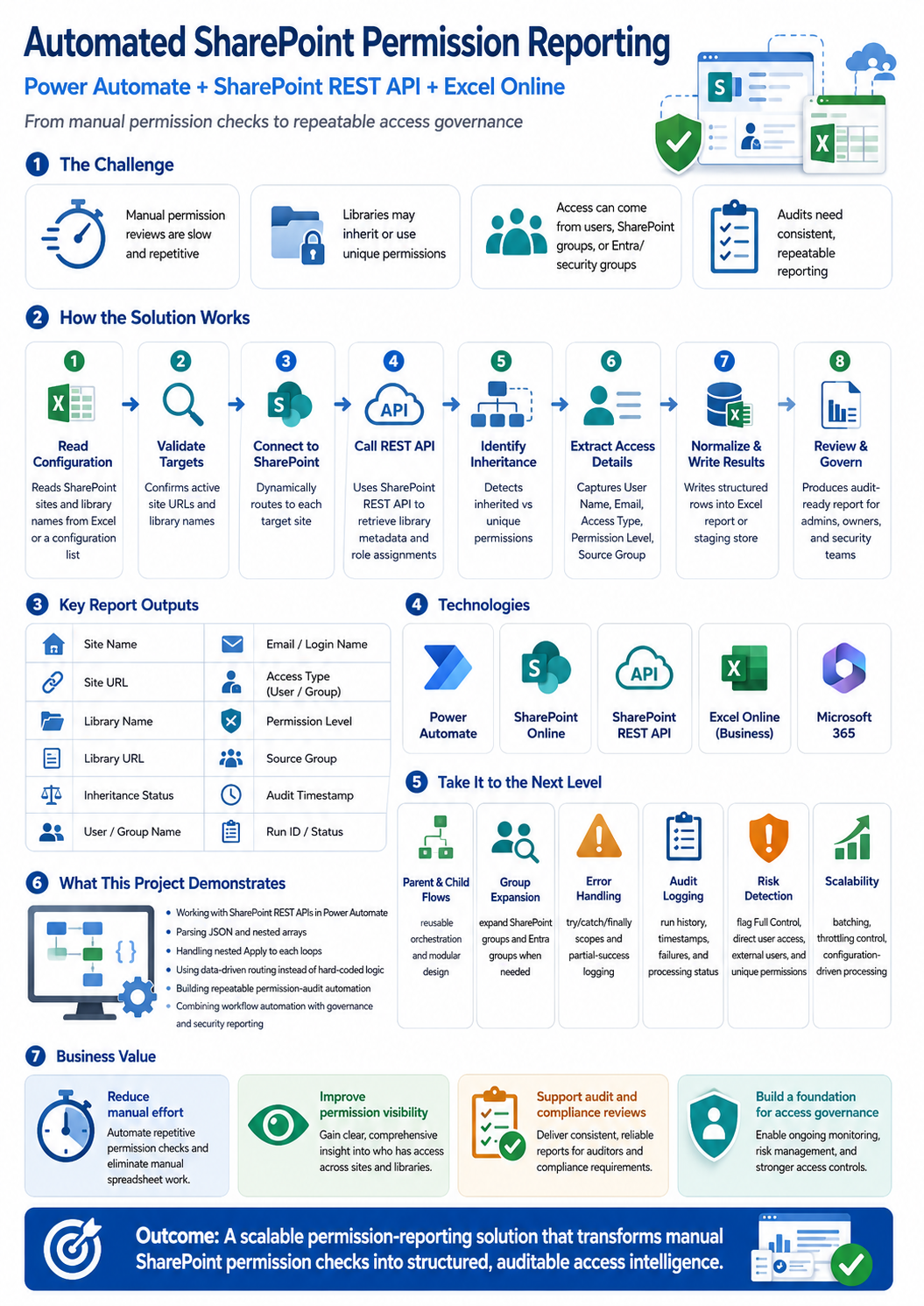
The solution retrieves permission assignments from multiple SharePoint sites and libraries, transforms the results into a consistent reporting format, and produces an auditable report for administrators, security teams, site owners, and compliance reviewers.
1. Executive Summary
The purpose of this solution is to replace repetitive manual permission reviews with a centralized and repeatable reporting process.
A configuration source identifies the SharePoint sites and document libraries that should be scanned. A Power Automate orchestration flow reads that configuration, connects to each target site, calls the SharePoint REST API, retrieves the relevant permission assignments, normalizes the data, and writes the results to a structured report.
The solution can capture:
- Site name and URL
- Library name and URL
- Whether the library inherits permissions
- User or group name
- Email address or login name
- Principal type
- Permission level
- Direct or group-based access
- SharePoint group membership
- External-user indicators
- Audit date and run identifier
- Processing status and errors
The result is not merely an exported spreadsheet. When designed correctly, it becomes a reusable access-governance capability.
2. Business Problem
SharePoint permissions can be assigned at several levels:
- Site
- Subsite, where subsites are still used
- List or document library
- Folder
- File or list item
By default, content inherits permissions from its parent. However, inheritance can be broken at the site, library, folder, or item level. Sharing an individual file with someone who does not already have access can also create a separate permission scope. citeturn925557view3
This creates several administrative challenges:
- Administrators may not know which libraries have unique permissions.
- Users can receive access directly or through multiple groups.
- A user’s displayed access may not reveal where the permission originated.
- “Limited Access” entries are frequently misunderstood.
- External users and sharing links may be overlooked.
- Permission reports become outdated soon after being created.
- Large reports are difficult to assemble manually.
- Different administrators may interpret permission data differently.
The business requirement is therefore not simply:
“Export SharePoint permissions.”
A stronger requirement is:
“Create a repeatable, traceable, and scalable process that identifies assigned access, inheritance status, access sources, exceptions, and potential governance risks across selected SharePoint resources.”
3. Solution Objectives
The solution should:
- Read target sites and libraries from a configuration source.
- Process multiple SharePoint sites without duplicating flow logic.
- Retrieve library metadata and permission assignments.
- identify whether each library uses inherited or unique permissions.
- Distinguish users, SharePoint groups, security groups, and distribution lists.
- Retrieve all permission levels assigned to each principal.
- Optionally expand SharePoint and Microsoft Entra groups.
- Record errors without stopping the entire report.
- Generate a unique audit-run identifier.
- Produce a report suitable for filtering, review, and remediation.
- Maintain an execution log for operational support.
- Support development, test, and production deployment.
4. High-Level Architecture
Scheduled or Manual Trigger
          │
          ▼
Configuration Source
SharePoint List or Excel Table
          │
          ▼
Parent Orchestration Flow
Validate → Filter → Route → Track Run
          │
          ▼
Permission Collection Child Flow
Library Metadata → REST API → Parse JSON
          │
          ▼
Principal and Permission Normalization
Users → SharePoint Groups → Entra Groups
          │
          ▼
Staging and Reporting Layer
SharePoint List / Dataverse / CSV / Excel
          │
          ▼
Excel Report, Power BI Dashboard,
Notifications and Remediation Workflow
For a proof of concept, a single Power Automate flow and Excel workbook may be sufficient.
For a production implementation, the preferred design is:
- SharePoint list for configuration
- Parent flow for orchestration
- Child flow for permission collection
- Separate child flow for group expansion
- SharePoint list or Dataverse for staging
- Excel, CSV, or Power BI as the presentation layer
- Dedicated audit log for run status and errors
Microsoft recommends child flows for reusable logic, and parent and child flows should be built as solution-aware flows when they are intended for governed deployment. citeturn902984search1turn902984search5turn902984search25
5. Configuration Data Model
The original design reads site and library names from Excel. That is suitable for learning and smaller implementations.
For an enterprise solution, a SharePoint configuration list is usually easier to govern, filter, update, secure, and audit.
Suggested configuration columns
| Column | Purpose |
|---|---|
| SiteName | Friendly site name |
| SiteURL | Complete SharePoint site URL |
| LibraryName | Display name of the target library |
| LibraryGUID | Optional stable library identifier |
| IsActive | Determines whether the target is processed |
| IncludeInherited | Include libraries that inherit permissions |
| ExpandSharePointGroups | Expand SharePoint group members |
| ExpandEntraGroups | Expand Microsoft Entra group members |
| IncludeLimitedAccess | Include or separately classify Limited Access |
| IncludeItemLevelScan | Enable folder/file scanning where required |
| BusinessOwner | Person responsible for reviewing access |
| Sensitivity | Business classification of the content |
| LastSuccessfulRun | Date of the most recent completed audit |
| LastRunStatus | Success, Partial Success, Failed or Skipped |
Using the library GUID is safer than depending exclusively on a library’s display name because display names can be changed.
6. Recommended Report Columns
A reliable permission report needs more than a user name and permission level.
Audit information
- Run ID
- Audit timestamp
- Flow environment
- Flow version
- Processed by
- Processing status
- Error message
SharePoint resource information
- Site name
- Site URL
- Library name
- Library GUID
- Library URL
- Object type
- Object title
- Object URL
- Object ID
- Parent object
- Inheritance status
- Permission scope
Principal information
- Principal ID
- Principal display name
- Login name
- Principal type
- External-user indicator
- Direct or group-based access
- Source group
- Group expansion status
Permission information
- Permission level
- Permission level ID
- Limited Access indicator
- Custom permission-level indicator
- Assignment source
- Risk classification
- Review decision
- Reviewer
- Review date
- Remediation status
A single permission assignment can contain more than one role-definition binding. Therefore, permission levels should either be stored as separate rows or joined into a semicolon-separated value.
7. Detailed Power Automate Implementation
Step 1: Create the trigger
The flow can use one of the following triggers:
- Manually trigger a flow
- Scheduled cloud flow
- Power Apps trigger
- HTTP request trigger for controlled integration
A scheduled audit could run weekly, monthly, or quarterly, depending on the sensitivity of the content.
Create a unique run ID at the beginning of every execution:
guid()
Also capture the audit timestamp:
utcNow()
Step 2: Initialize control variables
Suggested variables include:
varRunId
varAuditTimestamp
varSiteUrl
varLibraryName
varLibraryId
varPermissionLevels
varSuccessfulTargets
varFailedTargets
varReportRows
varCurrentObjectUrl
Avoid unnecessary variables where Compose actions or direct expressions provide the same result. Too many mutable variables make parallel processing harder to control.
Step 3: Read active configuration records
When using Excel:
- Use List rows present in a table.
- Filter the returned records to active sites.
- Confirm that the workbook and table exist before the audit begins.
When using a SharePoint list:
- Use Get items.
- Apply an OData filter such as:
IsActive eq 1
The configuration validation stage should identify:
- Missing site URLs
- Missing library names
- Duplicate configuration records
- Unsupported URLs
- Deactivated targets
- Invalid characters
- Sites to which the connection identity has no access
Invalid records should be logged and skipped rather than causing the entire flow to fail.
Step 4: Process each site and library
Add an Apply to each action over the validated configuration records.
For each target:
- Set the current site URL.
- Set the current library name.
- Validate that the library exists.
- Retrieve library metadata.
- Determine the inheritance status.
- Retrieve role assignments.
- Normalize principals and permission levels.
- Write output rows.
- Record the target status.
Concurrency guidance
High concurrency can improve speed, but it can also cause:
- SharePoint throttling
- Excel throttling
- Workbook locks
- Rows written in an unexpected order
- Duplicate writes after automatic retries
For an Excel-based report, begin with concurrency disabled or set to a very low number.
8. Retrieve Library Metadata with SharePoint REST
Power Automate’s Send an HTTP request to SharePoint action supports SharePoint REST queries and is useful where standard SharePoint connector actions do not expose the required capability. Microsoft describes it as a developer-focused action that requires an understanding of SharePoint REST and JSON parsing. citeturn925557view2
Sample metadata request
Method
GET
URI
_api/web/lists/GetByTitle('@{variables('varLibraryName')}')?
$select=Id,Title,BaseTemplate,Hidden,HasUniqueRoleAssignments,
RootFolder/ServerRelativeUrl&
$expand=RootFolder
The URI should be entered as one continuous line in the action.
Header
Accept: application/json;odata=nometadata
Microsoft recommends the no-metadata response format because it reduces unnecessary metadata and simplifies JSON parsing. citeturn925557view2
Important metadata fields
IdTitleBaseTemplateHiddenHasUniqueRoleAssignmentsRootFolder.ServerRelativeUrl
HasUniqueRoleAssignments is essential because it tells the report whether the library has broken permission inheritance.
9. Retrieve Library Role Assignments
After retrieving the library ID, call its role-assignment collection.
Sample request
_api/web/lists(guid'@{variables('varLibraryId')}')/roleassignments?
$select=PrincipalId,
Member/Id,
Member/Title,
Member/Email,
Member/LoginName,
Member/PrincipalType,
RoleDefinitionBindings/Id,
RoleDefinitionBindings/Name&
$expand=Member,RoleDefinitionBindings
This request retrieves:
- The assigned principal
- Principal identity information
- Principal type
- One or more associated permission levels
The response array can be accessed with:
body('Send_HTTP_-_Get_Role_Assignments')?['value']
Microsoft documents this body(...)?['value'] pattern for processing array responses returned by SharePoint REST calls. citeturn925557view2
10. Classify the Principal Type
SharePoint returns numeric principal-type values.
| Value | Type |
|---|---|
| 0 | None |
| 1 | User |
| 2 | Distribution List |
| 4 | Security Group |
| 8 | SharePoint Group |
| 15 | All |
The values are flags, which means combinations are technically possible. citeturn925557view0
A Switch action can translate the numeric value into readable text.
However, avoid using a Switch to route every SharePoint site. Site routing should be data-driven. Power Automate currently limits a Switch scope to 25 cases, a single flow definition to 500 actions, and action nesting to eight levels. Child flows are the cleaner alternative when the design becomes deeply nested. citeturn925557view4
11. Extract Permission Levels
Each role assignment can contain one or more values inside:
RoleDefinitionBindings
Inside the role-assignment loop:
- Initialize or reset an array for the current principal.
- Loop through
RoleDefinitionBindings. - Append each permission name.
- Join the results.
Example final expression:
join(variables('varPermissionLevels'), '; ')
Typical permission levels include:
- Full Control
- Design
- Edit
- Contribute
- Read
- View Only
- Restricted Read
- Limited Access
- Custom permission levels
Do not automatically delete Limited Access from the report.
Limited Access does not independently grant access to all content. SharePoint uses it to allow a person to reach a specific item, file, folder, or required location for which they have separate permission. It should therefore be classified rather than incorrectly treated as normal library access. citeturn925557view3
Recommended reporting logic:
IsLimitedAccess = Yes
RiskClassification = Informational
ReviewNote = Supporting access path; inspect lower-level object permissions
12. Expand SharePoint Groups
A library role assignment often points to a SharePoint group rather than directly to individual users.
For a SharePoint group, use the principal ID to retrieve its members.
Sample endpoint
_api/web/sitegroups/getbyid(@{variables('varPrincipalId')})/users?
$select=Id,Title,Email,LoginName,PrincipalType
For each returned member, write a report row containing:
- Individual user name
- Individual email
- Source SharePoint group
- Permission inherited from the group
- Library permission level
- Expansion status
Example:
| User | Source Group | Permission |
|---|---|---|
| Alex Johnson | Finance Members | Edit |
| Maria Green | Finance Members | Edit |
Preserve the original group-level assignment as well as the expanded member rows. Otherwise, the report loses the reason the user received access.
13. Expand Microsoft Entra Groups
SharePoint REST can identify that a security or Microsoft 365 group has been assigned, but a complete user-level report may require Microsoft Graph to expand its membership.
Microsoft Graph’s direct-members endpoint is not transitive. For nested-group expansion, use the transitive-members operation. The least-privileged permission documented for many work or school scenarios is GroupMember.Read.All, although the correct permission model must be reviewed for the chosen authentication method. citeturn811685search0turn811685search1
Important design considerations include:
- Direct versus nested membership
- Dynamic Microsoft Entra groups
- Group membership pagination
- Service principals and devices appearing in groups
- Disabled user accounts
- Guest users
- Application versus delegated permissions
- Administrative consent requirements
- National or sovereign cloud differences
Group expansion should be optional because it can significantly increase the number of API requests and report rows.
14. Error Handling and Operational Logging
An enterprise flow should not terminate because one site is unavailable.
Use three Scopes:
TRY
CATCH
FINALLY
TRY scope
- Validate site and library
- Call REST endpoints
- Parse results
- Normalize report rows
- Write the output
CATCH scope
Configure Run after for:
- Has failed
- Has timed out
- Has been skipped
Capture:
- Run ID
- Site URL
- Library name
- Failed action
- HTTP status code
- Error message
- Timestamp
- Retry count
FINALLY scope
- Update the run log
- Update configuration status
- Increment success or failure counters
- Continue to the next target
At the end of the audit, classify the overall result:
- Success
- Partial Success
- Failed
- Completed with Warnings
A partial-success status is important. Reporting “Success” when five of fifty libraries failed creates false confidence.
15. Throttling and Retry Strategy
Large permission audits can generate many SharePoint, Microsoft Graph, and reporting-layer requests.
When SharePoint returns HTTP 429 or 503 responses, the process should respect the Retry-After response header. Aggressive retries can increase throttling because the failed requests still consume service resources. citeturn902984search3
Recommended controls include:
- Limit loop concurrency.
- Reduce unnecessary REST properties with
$select. - Expand only required navigation properties.
- Avoid repeatedly requesting the same group membership.
- Cache group-expansion results during the current run.
- Add delays around repeatedly throttled actions.
- Process large tenants in controlled batches.
- Run broad audits during lower-usage periods.
- Use retry policies and record every retry.
- Separate collection from report generation.
Power Automate request capacity also depends on the flow’s licensing and performance profile. This should be evaluated before scheduling high-volume tenant-wide audits. citeturn951841search28turn925557view4
16. Excel Reporting: Appropriate Use and Limitations
Excel is an excellent output format when:
- The report is relatively small.
- Reviewers need familiar filtering and sorting.
- Only one process writes to the workbook.
- The workbook is not acting as the system of record.
- The report is generated periodically rather than continuously.
However, Excel Online should not automatically be treated as an enterprise database.
Microsoft documents several important Excel Online connector limitations:
- Maximum supported workbook size is 25 MB.
- A workbook can remain locked for several minutes.
- Concurrent modifications from flows or users are not supported.
- Excessive requests can produce HTTP 429 errors.
- Backend delays can cause writes not to appear immediately.
- Retried inserts can potentially create duplicate rows. citeturn925557view1turn925557view5
Better enterprise pattern
- Write normalized results to a SharePoint list, Dataverse table, SQL database, or structured files.
- Complete all data collection.
- Generate a CSV or Excel report after collection finishes.
- Use Power BI for dashboards and trend analysis.
- Archive each completed audit by run ID and date.
This separates the transaction layer from the presentation layer.
17. Security and Governance
Dedicated automation identity
Use a governed automation account, service principal, or approved connection identity rather than depending on an employee’s personal account.
The identity should:
- Have only the access required to read the targeted permission data.
- Be excluded from unnecessary business processes.
- Be documented as the solution owner.
- Have monitored credentials and connections.
- Have more than one operational owner where appropriate.
A permission report can only retrieve what its connection identity is authorized to read. A successful flow does not prove that every SharePoint resource in the tenant was audited.
Solution-aware deployment
Package the flows inside a Power Platform solution and use:
- Connection references
- Environment variables
- Child flows
- Managed solutions for controlled production deployment
- Versioning
- Deployment pipelines
- Documented rollback procedures
Solution-aware flows improve deployment and operational management, and Microsoft’s automation tooling provides additional run-history capabilities for these flows. citeturn902984search17turn902984search25turn902984search36
Protect the report
The report itself contains sensitive security information.
Restrict access to:
- SharePoint administrators
- Security and compliance personnel
- Approved auditors
- Designated business owners
Apply:
- Appropriate sensitivity labels
- Retention policies
- Version history
- Audit logging
- Restricted sharing
- Expiration or archival controls
18. The Most Important Accuracy Limitation
A library role-assignment report is not automatically the same thing as a complete effective-access report.
A basic implementation may miss or incompletely represent:
- Users inside SharePoint groups
- Users inside Microsoft Entra security groups
- Nested group membership
- Microsoft 365 group membership
- Site collection administrators
- Individual folder permissions
- Individual file permissions
- Sharing links
- External-user access
- Organization-wide links
- “Specific people” links
- Access granted through Teams-connected groups
- Access granted after the report started
- Conditional Access restrictions
- Sensitivity-label restrictions
Therefore, describe the report honestly.
A good description is:
“The report captures configured role assignments for the selected SharePoint scopes and optionally expands supported group memberships.”
Avoid claiming:
“The report shows every person who can access every SharePoint file.”
That stronger claim is only defensible when the solution evaluates all relevant scopes, groups, sharing mechanisms, administrative access paths, and effective permissions.
19. Risk Detection Rules
The report becomes more valuable when it identifies conditions that require review.
Suggested rules
High risk
- Everyone Except External Users has Edit or Full Control.
- An external user has Edit or Full Control.
- A library containing sensitive content has anonymous links.
- An individual user has Full Control.
- A group has Full Control but no documented owner.
- A business-critical library has unique permissions with no review date.
- A permission scan failed for a sensitive library.
Medium risk
- Direct user permissions are used instead of groups.
- A library has many unique assignments.
- A custom permission level is present.
- A disabled account still appears in a group.
- A guest account has not been reviewed recently.
- The library owner field is empty.
Informational
- Limited Access exists.
- The library inherits from the site.
- A SharePoint group was expanded successfully.
- A group could not be expanded because additional Graph permissions are required.
20. Optional Folder and File-Level Scanning
Library-level reporting is a good first stage, but it will not identify every file or folder with unique permissions.
An advanced mode can:
- Retrieve only items with unique permission scopes.
- Identify whether the object is a folder or file.
- Retrieve the object’s role assignments.
- Expand groups where required.
- append the results to the same normalized report.
File and folder scanning should be configurable because it can dramatically increase:
- REST requests
- Report size
- Run duration
- Throttling risk
- Review complexity
SharePoint supports a large number of unique permission scopes, but Microsoft recommends avoiding excessive unique permissions because they increase management and performance complexity. The documented supported limit is 50,000 unique scopes in a list or library, while 5,000 is the general recommended limit. citeturn951841search20
21. Performance Enhancements
Cache group membership
Do not retrieve the same group membership every time the group appears.
Create an in-memory or persistent cache using:
Group ID + Site URL
Before calling the group-members endpoint:
- Check whether the group was already expanded.
- Reuse the cached membership if found.
- Call the API only when the group is new.
Separate collection from output
Instead of adding one Excel row inside every nested loop:
- Collect report objects in an array.
- Write to a staging list or file in batches.
- Generate the final report after collection.
Use incremental reporting
Store a hash or comparison key such as:
SiteURL + LibraryID + ObjectID +
PrincipalID + PermissionLevel
On the next run, compare the new snapshot against the previous one to identify:
- Added permissions
- Removed permissions
- Changed permission levels
- Newly broken inheritance
- Newly created external access
This turns a static report into a permission-change monitoring solution.
22. Testing Strategy
Functional tests
- Library with inherited permissions
- Library with unique permissions
- Direct user assignment
- SharePoint group assignment
- Security-group assignment
- Multiple permission levels
- Custom permission level
- Limited Access assignment
- External user
- Empty group
- Missing library
- Invalid site URL
- Unauthorized site
- Deleted user
- Duplicate configuration record
Performance tests
- 10 libraries
- 100 libraries
- Large SharePoint groups
- Nested Microsoft Entra groups
- Multiple large reports
- Excel nearing its file-size limit
- Low and high loop concurrency
- Simulated 429 responses
Recovery tests
- One site fails while others succeed.
- A REST request times out.
- The report file is locked.
- The flow connection expires.
- A child flow fails.
- The run is manually cancelled.
- The same run is restarted.
23. Success Metrics
The value of the solution should be measured.
Suggested metrics include:
- Number of sites audited
- Number of libraries audited
- Percentage of configured targets successfully processed
- Number of unique permission scopes
- Number of direct user assignments
- Number of external users
- Number of Full Control assignments
- Number of high-risk findings
- Number of failed or inaccessible targets
- Average report-generation time
- Manual hours saved
- Number of permissions removed after review
- Percentage of findings remediated by the due date
24. Business Value
This solution provides several benefits.
Operational efficiency
Administrators no longer need to inspect each library manually.
Consistent reporting
Every site and library is evaluated using the same rules and output schema.
Improved visibility
Security teams can identify direct permissions, unusual permission levels, external users, and broken inheritance.
Audit readiness
Each execution has a run ID, timestamp, status, and archived output.
Better governance
Site owners can receive targeted reports for the resources they own.
Scalable remediation
High-risk findings can automatically create:
- Microsoft Planner tasks
- SharePoint remediation records
- Approval requests
- Teams notifications
- Email notifications
- Access-review workflows
25. Future Roadmap
Phase 1: Foundation
- Read sites and libraries from configuration
- Retrieve library role assignments
- Export results
- Log failures
Phase 2: Group Intelligence
- Expand SharePoint groups
- Expand supported Microsoft Entra groups
- Identify external users
- Preserve access-source information
Phase 3: Advanced Governance
- Detect unique folder and file permissions
- Identify risky sharing configurations
- Assign risk scores
- Route reports to business owners
- Track review and remediation decisions
Phase 4: Access Analytics
- Store historical snapshots
- Compare permission changes
- Build Power BI dashboards
- Identify permission growth trends
- Measure remediation performance
Phase 5: Continuous Access Governance
- Trigger alerts for high-risk changes
- Integrate with Microsoft Entra access reviews
- Connect findings to a governance workflow
- Apply policy-based remediation with human approval
- Produce executive compliance scorecards
26. Key Technical Learnings
This project demonstrates practical experience in:
- SharePoint permission architecture
- Permission inheritance
- SharePoint REST APIs
- JSON response parsing
- Nested array processing
- Power Automate parent and child flows
- Dynamic configuration
- Group membership expansion
- Error handling and retry design
- Throttling management
- Excel Online limitations
- Reporting-data normalization
- Power Platform ALM
- Audit logging
- Security governance
- Access-risk identification
27. Portfolio Summary
Automated SharePoint Permission Reporting and Access-Governance Solution
Designed an automated SharePoint permission-reporting solution using Power Automate, SharePoint REST API, Microsoft 365, and Excel Online. The solution reads configurable SharePoint sites and document libraries, retrieves permission assignments, identifies inheritance status, classifies users and groups, extracts permission levels, and generates a structured audit report.
The architecture includes configuration-driven processing, reusable child flows, SharePoint and Microsoft Entra group-expansion options, centralized exception handling, audit-run logging, throttling controls, risk classification, and historical reporting. The solution reduces manual administrative effort and provides a foundation for SharePoint access reviews, external-sharing oversight, permission-change monitoring, and automated remediation workflows.
Conclusion
Automating a SharePoint permission report is a valuable technical project, but the real opportunity is larger than generating an Excel file.
A mature solution should explain:
- What scope was inspected
- Whether permissions are inherited or unique
- Who or what received the assignment
- How users receive access through groups
- Which permission levels were granted
- Which results could not be collected
- Which conditions create governance risk
- What action should be taken next
With that architecture, Power Automate becomes more than a workflow engine. It becomes the orchestration layer for a practical SharePoint access-governance system.
The most important improvement is the distinction between assigned permissions and complete effective access. That distinction makes the resource technically credible rather than overstating what the first version can prove.