Function in Power Apps: Write Cleaner Formulas and Avoid Unnecessary Global Variables
When building Power Apps Canvas Apps, one of the most common mistakes makers make is using too many global variables.
Global variables can be useful, but they are often overused. Many formulas become harder to read, harder to debug, and harder to maintain because app makers store temporary values with Set() when they only need those values inside one formula.
This is where the With function becomes very powerful.
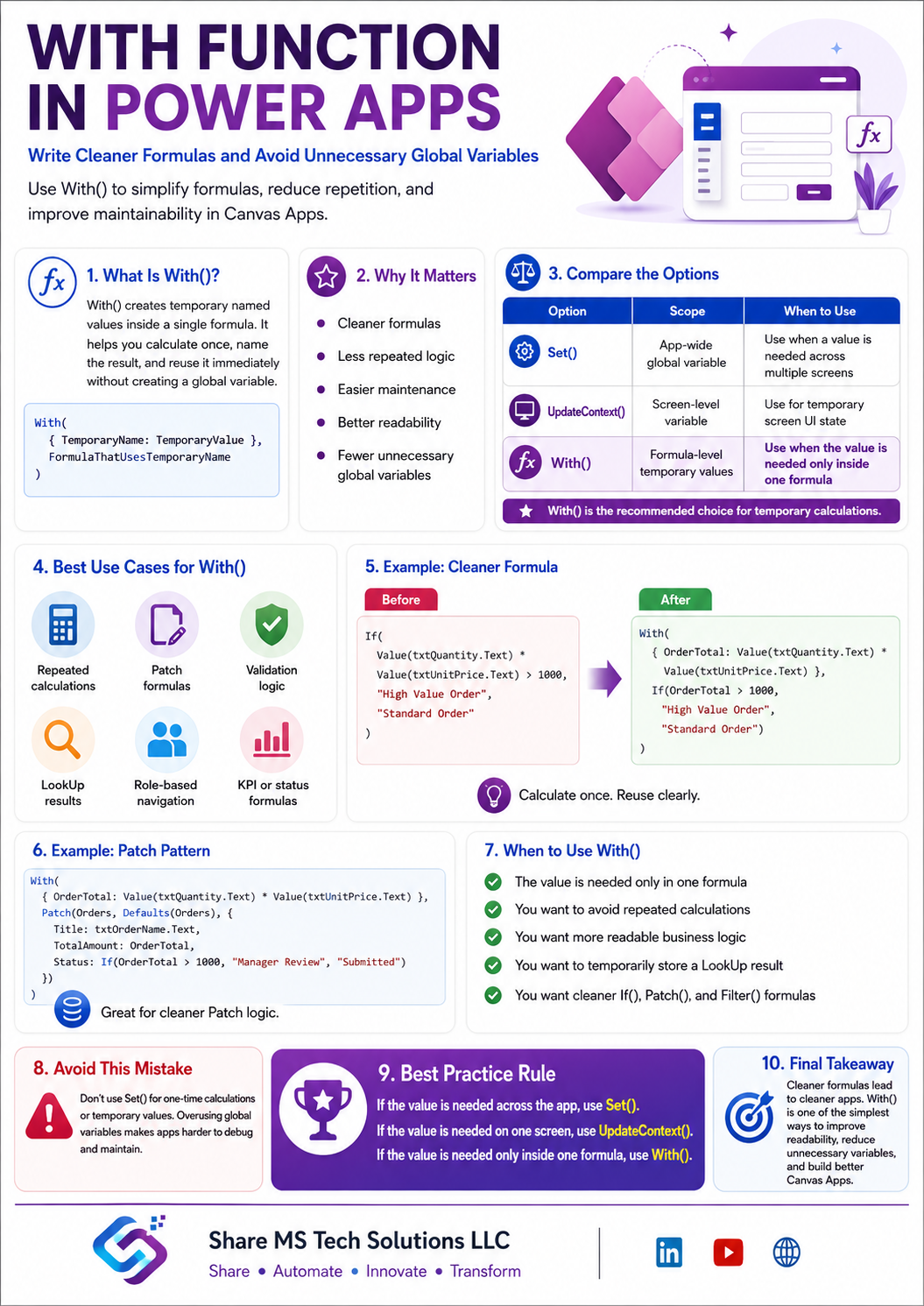
The With function in Power Apps helps you write cleaner formulas by creating temporary named values inside a formula. Instead of creating unnecessary global variables, you can use With() to simplify calculations, reduce repetition, and make your Power Fx easier to understand.
What Is the With Function in Power Apps?
The With function evaluates a formula for a single record. It allows you to define temporary values and then use those values inside the same formula. Microsoft’s documentation describes With as a function that evaluates a formula for a single record and can calculate values or perform actions.
Basic structure:
With(
    {
        TemporaryName: TemporaryValue
    },
    FormulaThatUsesTemporaryName
)
Think of With() as a clean way to say:
“Let me calculate this value once, give it a name, and use it inside this formula.”
The important point is this: the value created inside With() does not become a global variable. It only exists inside that formula.
Why This Matters
Power Apps formulas are designed to recalculate automatically as the user interacts with the app. Microsoft explains that variables do not always behave like normal formulas because a variable will not automatically update if the formula used to set it changes; the maker must manually update the variable.
That is why unnecessary variables can create problems.
When you overuse global variables, you may create:
Harder-to-read formulas
Hidden dependencies across screens
Outdated values
Manual reset problems
More debugging work
Confusing app behavior
Performance and maintenance issues
The unspoken truth: many Power Apps apps become messy not because the app is complex, but because the formulas are not organized well.
With() helps reduce that mess.
Global Variables vs Context Variables vs With Function
Before using With(), it helps to understand the difference.
Global Variables: Set()
Set() creates a global variable that can be used throughout the app. Microsoft describes Set as the function used to set the value of a global variable.
Example:
Set(varTotalCost, Value(txtQuantity.Text) * Value(txtUnitPrice.Text))
This creates varTotalCost, which can be referenced across the app.
Use global variables when the value truly needs to be shared across screens or reused across the entire app.
Good uses:
Current user role
Logged-in user profile
Selected record used across screens
App-level configuration
Navigation state
Bad uses:
One-time calculations
Temporary formatting logic
Values only needed inside one formula
Repeated lookup results inside one control
Local validation logic
Context Variables: UpdateContext()
UpdateContext() creates a screen-level variable. Microsoft explains that context variables are limited to a single screen and cannot be referenced from another screen.
Example:
UpdateContext({ locShowError: true })
Use context variables for temporary screen-level UI behavior.
Good uses:
Show or hide a popup
Track selected tab on one screen
Display screen-level messages
Control one-screen UI state
But even context variables can be overused when the value only needs to exist inside one formula.
With Function: Temporary Formula Scope
With() is best when you need a temporary named value inside one formula.
Example:
With(
    {
        TotalCost: Value(txtQuantity.Text) * Value(txtUnitPrice.Text)
    },
    TotalCost * 1.06
)
This calculates TotalCost and uses it immediately without creating a global variable.
Use With() when:
The value is only needed inside one formula
You want to avoid repeating the same calculation
You want to make a long formula easier to read
You want to store a lookup result temporarily
You want cleaner Patch, If, Filter, and Submit logic
Example 1: Avoid Repeating the Same Calculation
Not Clean
If(
    Value(txtQuantity.Text) * Value(txtUnitPrice.Text) > 1000,
    "High Value Order",
    "Standard Order"
)
This works, but if the calculation is used multiple times, the formula gets messy.
Cleaner With Function
With(
    {
        OrderTotal: Value(txtQuantity.Text) * Value(txtUnitPrice.Text)
    },
    If(
        OrderTotal > 1000,
        "High Value Order",
        "Standard Order"
    )
)
This version is easier to read because the calculation has a meaningful name: OrderTotal.
Example 2: Cleaner Patch Formula
Not Clean
Patch(
    Orders,
    Defaults(Orders),
    {
        Title: txtOrderName.Text,
        Quantity: Value(txtQuantity.Text),
        UnitPrice: Value(txtUnitPrice.Text),
        TotalAmount: Value(txtQuantity.Text) * Value(txtUnitPrice.Text),
        Status: If(
            Value(txtQuantity.Text) * Value(txtUnitPrice.Text) > 1000,
            "Manager Review",
            "Submitted"
        )
    }
)
The same calculation is repeated twice.
Cleaner With Function
With(
    {
        OrderTotal: Value(txtQuantity.Text) * Value(txtUnitPrice.Text)
    },
    Patch(
        Orders,
        Defaults(Orders),
        {
            Title: txtOrderName.Text,
            Quantity: Value(txtQuantity.Text),
            UnitPrice: Value(txtUnitPrice.Text),
            TotalAmount: OrderTotal,
            Status: If(
                OrderTotal > 1000,
                "Manager Review",
                "Submitted"
            )
        }
    )
)
This is much cleaner. The formula is easier to understand, and the calculation is only written once.
Example 3: Store a Lookup Result Without a Global Variable
A common mistake is using Set() for a lookup result that is only needed once.
Not Ideal
Set(
    varEmployee,
    LookUp(Employees, Email = User().Email)
);

If(
    varEmployee.Role = "Manager",
    Navigate(scrManagerDashboard),
    Navigate(scrEmployeeDashboard)
)
This works, but varEmployee becomes a global variable even though it may only be needed for this one action.
Cleaner With Function
With(
    {
        CurrentEmployee: LookUp(
            Employees,
            Email = User().Email
        )
    },
    If(
        CurrentEmployee.Role = "Manager",
        Navigate(scrManagerDashboard),
        Navigate(scrEmployeeDashboard)
    )
)
This is cleaner because CurrentEmployee only exists inside this formula.
Example 4: Cleaner Validation Logic
Without With
If(
    IsBlank(txtStartDate.SelectedDate) ||
    IsBlank(txtEndDate.SelectedDate) ||
    txtEndDate.SelectedDate < txtStartDate.SelectedDate,
    Notify("Please enter valid dates.", NotificationType.Error),
    SubmitForm(frmLeaveRequest)
)
This is acceptable, but it can become harder to read as validation grows.
With Function Version
With(
    {
        StartDate: txtStartDate.SelectedDate,
        EndDate: txtEndDate.SelectedDate,
        HasInvalidDates:
            IsBlank(txtStartDate.SelectedDate) ||
            IsBlank(txtEndDate.SelectedDate) ||
            txtEndDate.SelectedDate < txtStartDate.SelectedDate
    },
    If(
        HasInvalidDates,
        Notify("Please enter valid dates.", NotificationType.Error),
        SubmitForm(frmLeaveRequest)
    )
)
This makes the business logic easier to understand.
You can quickly see what the formula is checking.
Example 5: Leave Management System Formula
For a Leave Management System, you may need to calculate the number of leave days.
Cleaner Formula Using With
With(
    {
        StartDate: dpStartDate.SelectedDate,
        EndDate: dpEndDate.SelectedDate,
        LeaveDays: DateDiff(
            dpStartDate.SelectedDate,
            dpEndDate.SelectedDate
        ) + 1
    },
    If(
        LeaveDays <= 0,
        Notify("End date must be after start date.", NotificationType.Error),
        Patch(
            LeaveRequests,
            Defaults(LeaveRequests),
            {
                Title: User().FullName & " - Leave Request",
                EmployeeName: User().FullName,
                EmployeeEmail: User().Email,
                StartDate: StartDate,
                EndDate: EndDate,
                TotalDays: LeaveDays,
                Status: "Pending"
            }
        )
    )
)
This is a strong example because the formula is business-readable.
Instead of repeating date logic inside the Patch, you define:
StartDate
EndDate
LeaveDays
Then you use them clearly.
When to Use With()
Use With() when you want to:
Create cleaner formulas
Avoid repeated calculations
Make Patch formulas easier to read
Temporarily store lookup results
Improve validation logic
Reduce unnecessary global variables
Keep values scoped to one formula
Make formulas easier for other makers to understand
When Not to Use With()
Do not use With() for everything.
Avoid With() when:
The value must be reused across multiple screens
The value controls long-term app state
The value must be changed by several controls
The value needs to persist during the app session
A simple direct formula is already clear
For example, if a selected employee record must be used on multiple screens, a global variable may be appropriate:
Set(varSelectedEmployee, ThisItem);
Navigate(scrEmployeeDetails)
That is a reasonable use of Set().
The goal is not to eliminate variables completely. The goal is to stop using them when they are unnecessary.
Best Practice Rule
Use this simple rule:
If the value is needed across the app, use Set().
If the value is needed only on one screen, use UpdateContext().
If the value is needed only inside one formula, use With().
This one rule can make your Power Apps formulas much cleaner.
Common Mistake: Using Set() for Everything
Many app makers write formulas like this:
Set(varStartDate, dpStartDate.SelectedDate);
Set(varEndDate, dpEndDate.SelectedDate);
Set(varLeaveDays, DateDiff(varStartDate, varEndDate) + 1);
Set(varStatus, "Pending");
Patch(
    LeaveRequests,
    Defaults(LeaveRequests),
    {
        StartDate: varStartDate,
        EndDate: varEndDate,
        TotalDays: varLeaveDays,
        Status: varStatus
    }
)
This works, but it creates multiple global variables that are not needed.
A cleaner version is:
With(
    {
        StartDate: dpStartDate.SelectedDate,
        EndDate: dpEndDate.SelectedDate,
        LeaveDays: DateDiff(dpStartDate.SelectedDate, dpEndDate.SelectedDate) + 1,
        RequestStatus: "Pending"
    },
    Patch(
        LeaveRequests,
        Defaults(LeaveRequests),
        {
            StartDate: StartDate,
            EndDate: EndDate,
            TotalDays: LeaveDays,
            Status: RequestStatus
        }
    )
)
The second version is cleaner, safer, and easier to maintain.
Practical Use Cases for With Function
You can use With() in many Power Apps scenarios.
1. Forms
Use With() to simplify submit logic, validation, and calculated fields.
2. Galleries
Use With() inside labels to calculate display values without creating variables.
Example:
With(
    {
        DaysRemaining: DateDiff(Today(), ThisItem.DueDate)
    },
    If(
        DaysRemaining < 0,
        "Overdue",
        DaysRemaining & " days left"
    )
)
3. Role-Based Navigation
Use With() to look up the current user’s role and navigate accordingly.
4. Approval Apps
Use With() to calculate status, approver, and notification text before patching a record.
5. Dashboards
Use With() to create readable formulas for KPI cards and conditional formatting.
6. Search and Filtering
Use With() to simplify filter logic when combining search text, dropdown selections, and status filters.
Formula Readability Example
Harder to Read
If(
    CountRows(Filter(LeaveRequests, EmployeeEmail = User().Email && Status = "Pending")) > 0,
    "You have pending requests",
    "No pending requests"
)
Easier to Read
With(
    {
        PendingRequests: Filter(
            LeaveRequests,
            EmployeeEmail = User().Email && Status = "Pending"
        )
    },
    If(
        CountRows(PendingRequests) > 0,
        "You have pending requests",
        "No pending requests"
    )
)
The second formula reads more like business logic.
Clean Formula Mindset
Good Power Apps development is not only about making the app work.
It is about making the app easy to maintain.
A formula should answer three questions quickly:
What is being calculated?
Why is it being calculated?
Where is the value being used?
The With() function helps answer these questions because it gives temporary values meaningful names.
Recommended Naming Style
Use readable temporary names inside With().
Good examples:
With(
    {
        CurrentUser: User(),
        SelectedRequest: galRequests.Selected,
        LeaveDays: DateDiff(dpStartDate.SelectedDate, dpEndDate.SelectedDate) + 1,
        IsManager: varUserRole = "Manager"
    },
    ...
)
Avoid unclear names like:
With(
    {
        x: User(),
        y: galRequests.Selected,
        z: DateDiff(dpStartDate.SelectedDate, dpEndDate.SelectedDate)
    },
    ...
)
Clean naming makes formulas easier for future developers, admins, and business users to understand.
Best Practices for With Function
Use meaningful temporary names.
Use With() to reduce repeated calculations.
Use it inside Patch, If, Filter, LookUp, and validation formulas.
Avoid using global variables for temporary values.
Keep each formula readable and focused.
Do not create deeply nested With() formulas unless necessary.
Use comments or clear control names when formulas become complex.
Combine With() with strong naming conventions.
Final Thoughts
The With function in Power Apps is one of the best tools for writing cleaner formulas.
It helps you reduce unnecessary global variables, simplify complex formulas, and make your app logic easier to understand.
Use global variables when the value truly belongs to the whole app.
Use context variables when the value belongs to one screen.
Use With() when the value only belongs inside one formula.
That simple decision can improve the quality of your Canvas Apps immediately.
Cleaner formulas lead to cleaner apps.
Cleaner apps are easier to support, easier to scale, and easier for other makers to understand.
Share MS Tech Solutions LLC
Share • Automate • Innovate • Transform