How to Build an Inventory Management Canvas App Using Power Apps and SharePoint Online
1. Project Overview
An Inventory Management Canvas App helps businesses track products, stock levels, suppliers, reorder points, and item movement in one centralized system.
Instead of managing inventory through spreadsheets, emails, or manual updates, the business can use Power Apps to create a simple front-end app, SharePoint Online to store inventory data, Power Automate to send low-stock alerts, and Power BI to analyze stock performance.
This solution is practical for:
Small businesses
Warehouses
IT asset teams
Office supply tracking
Retail teams
Field service teams
Nonprofits
Enterprise departments
The app gives users a clear view of what products are available, which items are running low, who supplies each item, and when stock is added or removed.
2. Business Problem
Many businesses still manage inventory manually using spreadsheets or disconnected systems.
That creates common problems:
Stock levels are not updated in real time
Employees do not know which products are available
Managers miss reorder points
Suppliers are tracked separately
Stock movement history is unclear
Manual updates create errors
Low-stock items are discovered too late
Reporting is difficult
The biggest issue is visibility.
If inventory staff, managers, and admins do not have one reliable source of truth, the business can easily over-order, under-order, lose items, or delay operations.
3. Solution Summary
The Inventory Management Canvas App will allow users to:
View all products
Search and filter inventory
Add new products
Edit product details
Record stock-in transactions
Record stock-out transactions
Track supplier information
Monitor low-stock products
Send low-stock alerts automatically
View inventory reports
Scan product barcodes using mobile devices
The solution uses:
Power Apps Canvas App for the user interface
SharePoint Online Lists for data storage
Power Automate for low-stock notifications
Power BI for reporting and insights
4. Target Users
Inventory Staff
Inventory staff use the app daily to update stock movement.
They can:
Search products
Check stock levels
Record stock in
Record stock out
Scan barcodes
View low-stock items
Managers
Managers use the app to monitor inventory health.
They can:
Review stock levels
Approve reorder actions
View low-stock alerts
Track item movement
Analyze inventory trends
Admins
Admins manage the system setup.
They can:
Add product categories
Manage suppliers
Update reorder points
Maintain user access
Correct inventory records
Review reporting data
5. SharePoint List Structure
This app uses three main SharePoint lists:
- Products List
- Stock Transactions List
- Suppliers List
You can build the first version entirely with SharePoint Online. For larger enterprise-grade apps, Dataverse may be better, but SharePoint is a practical starting point.
6. SharePoint List 1: Products List
The Products List is the master inventory list.
Each row represents one product.
Recommended Columns
| Column Name | Data Type | Purpose |
|---|---|---|
| Title | Single line of text | Product name |
| ProductID | Single line of text | Unique product code |
| SKU | Single line of text | Stock keeping unit |
| Barcode | Single line of text | Barcode value |
| Category | Choice | Product category |
| Description | Multiple lines of text | Product description |
| Supplier | Lookup to Suppliers List | Main supplier |
| UnitCost | Currency | Cost per unit |
| UnitPrice | Currency | Selling price if needed |
| CurrentStock | Number | Current available quantity |
| ReorderPoint | Number | Minimum stock level before alert |
| ReorderQuantity | Number | Suggested reorder quantity |
| UnitOfMeasure | Choice | Each, Box, Case, Pack, Pallet |
| Location | Single line of text | Warehouse, room, shelf, bin |
| ProductImage | Image or Hyperlink | Product image |
| Status | Choice | Active, Inactive, Discontinued |
| LastStockUpdate | Date and time | Last stock movement date |
| Notes | Multiple lines of text | Additional notes |
Recommended Choice Values
Category examples:
Office Supplies
IT Equipment
Retail Products
Cleaning Supplies
Tools
Parts
Consumables
Status values:
Active
Inactive
Discontinued
UnitOfMeasure values:
Each
Box
Case
Pack
Pallet
7. SharePoint List 2: Stock Transactions List
The Stock Transactions List stores every inventory movement.
Each row represents a stock-in or stock-out transaction.
Recommended Columns
| Column Name | Data Type | Purpose |
|---|---|---|
| Title | Single line of text | Transaction title |
| TransactionID | Single line of text | Unique transaction number |
| Product | Lookup to Products List | Related product |
| ProductID | Single line of text | Product code for easier reporting |
| TransactionType | Choice | Stock In, Stock Out, Adjustment |
| Quantity | Number | Quantity moved |
| TransactionDate | Date and time | Date of movement |
| PreviousStock | Number | Stock before transaction |
| NewStock | Number | Stock after transaction |
| Reason | Choice | Purchase, Sale, Damage, Return, Correction |
| RequestedBy | Person | User who requested movement |
| ProcessedBy | Person | User who processed movement |
| Department | Choice | Department using the item |
| ReferenceNumber | Single line of text | PO, invoice, ticket, or request number |
| Notes | Multiple lines of text | Transaction notes |
Recommended TransactionType Values
Stock In
Stock Out
Adjustment
Recommended Reason Values
Purchase
Sale
Return
Damage
Lost
Correction
Transfer
Initial Stock
8. SharePoint List 3: Suppliers List
The Suppliers List stores vendor and supplier information.
Recommended Columns
| Column Name | Data Type | Purpose |
|---|---|---|
| Title | Single line of text | Supplier name |
| SupplierID | Single line of text | Unique supplier code |
| ContactName | Single line of text | Main contact person |
| ContactEmail | Single line of text | Supplier email |
| Phone | Single line of text | Supplier phone |
| Website | Hyperlink | Supplier website |
| Address | Multiple lines of text | Supplier address |
| City | Single line of text | City |
| State | Single line of text | State |
| Country | Single line of text | Country |
| PaymentTerms | Choice | Net 15, Net 30, Net 60 |
| LeadTimeDays | Number | Average delivery lead time |
| SupplierRating | Number | Internal rating |
| Status | Choice | Active, Inactive |
| Notes | Multiple lines of text | Supplier notes |
9. App Screen Design
The app should include seven main screens.
Screen 1: Inventory Dashboard
The dashboard is the landing page.
It should show:
Total products
Total stock value
Low-stock items
Out-of-stock items
Recent stock transactions
Top categories
Quick buttons for Stock In and Stock Out
Recommended controls:
KPI cards
Gallery for low-stock items
Gallery for recent transactions
Navigation buttons
Search box
Category filter
Screen 2: Product Catalog
The Product Catalog screen displays all active products.
It should include:
Search box
Category dropdown
Supplier dropdown
Status filter
Product gallery
Stock status indicator
View details button
Edit button
Gallery should show:
Product name
SKU
Category
Current stock
Reorder point
Supplier
Location
Stock status
Screen 3: Add/Edit Product
This screen allows authorized users to create or update product records.
Fields:
Product name
Product ID
SKU
Barcode
Category
Supplier
Unit cost
Current stock
Reorder point
Reorder quantity
Unit of measure
Location
Status
Notes
Use an Edit Form for simple builds or Patch formulas for more customized builds.
Screen 4: Stock In / Stock Out
This is the most important operational screen.
Users can:
Select product
Enter transaction type
Enter quantity
Enter reason
Add notes
Submit transaction
Update stock level automatically
The screen should prevent users from removing more stock than is available.
Screen 5: Low Stock Alerts
This screen shows all products where current stock is less than or equal to the reorder point.
It should show:
Product name
Current stock
Reorder point
Suggested reorder quantity
Supplier
Supplier email
Lead time
Reorder button or notification button
Screen 6: Supplier Details
This screen shows supplier records and supplier-related products.
It should include:
Supplier name
Contact person
Email
Phone
Lead time
Supplier rating
Products supplied
Active/inactive status
Screen 7: Reports Screen
The Reports screen gives managers a quick summary.
It can include:
Stock value by category
Low-stock count
Stock movement by month
Top moving products
Products by supplier
Inventory aging idea
Link to Power BI dashboard
10. Power Fx Formulas
A. Search and Filter Formula
Use this formula for the Product Catalog gallery Items property.
SortByColumns(
    Filter(
        Products,
        Status.Value = "Active" &&
        (
            IsBlank(txtSearchProduct.Text) ||
            StartsWith(Title, txtSearchProduct.Text) ||
            StartsWith(SKU, txtSearchProduct.Text) ||
            StartsWith(ProductID, txtSearchProduct.Text)
        ) &&
        (
            IsBlank(ddCategory.Selected.Value) ||
            Category.Value = ddCategory.Selected.Value
        )
    ),
    "Title",
    SortOrder.Ascending
)
B. Low Stock Warning Formula
Use this for a label Text property.
If(
    ThisItem.CurrentStock <= ThisItem.ReorderPoint,
    "Low Stock",
    "In Stock"
)
C. Low Stock Label Color
Use this for a label Color property.
If(
    ThisItem.CurrentStock <= ThisItem.ReorderPoint,
    Color.Red,
    Color.Green
)
D. Low Stock Card Fill Color
Use this for a gallery template Fill property.
If(
    ThisItem.CurrentStock <= ThisItem.ReorderPoint,
    RGBA(255, 235, 235, 1),
    RGBA(255, 255, 255, 1)
)
E. Gallery Filtering for Low Stock Screen
Use this for the Low Stock gallery Items property.
SortByColumns(
    Filter(
        Products,
        Status.Value = "Active" &&
        CurrentStock <= ReorderPoint
    ),
    "CurrentStock",
    SortOrder.Ascending
)
F. Product Details Lookup
Use this to show the selected product details.
LookUp(
    Products,
    ID = galProducts.Selected.ID
)
G. Stock In Patch Formula
Use this when adding inventory.
With(
    {
        SelectedProduct: galProducts.Selected,
        Qty: Value(txtQuantity.Text),
        NewStock: galProducts.Selected.CurrentStock + Value(txtQuantity.Text)
    },
    If(
        Qty <= 0,
        Notify("Please enter a valid quantity.", NotificationType.Error),
        Patch(
            Products,
            SelectedProduct,
            {
                CurrentStock: NewStock,
                LastStockUpdate: Now()
            }
        );

        Patch(
            StockTransactions,
            Defaults(StockTransactions),
            {
                Title: "Stock In - " & SelectedProduct.Title,
                Product: {
                    Id: SelectedProduct.ID,
                    Value: SelectedProduct.Title
                },
                ProductID: SelectedProduct.ProductID,
                TransactionType: {Value: "Stock In"},
                Quantity: Qty,
                PreviousStock: SelectedProduct.CurrentStock,
                NewStock: NewStock,
                TransactionDate: Now(),
                Reason: {Value: ddReason.Selected.Value},
                ProcessedBy: User(),
                Notes: txtTransactionNotes.Text
            }
        );

        Notify("Stock added successfully.", NotificationType.Success);
        Reset(txtQuantity);
        Reset(txtTransactionNotes)
    )
)
H. Stock Out Patch Formula
Use this when removing inventory.
With(
    {
        SelectedProduct: galProducts.Selected,
        Qty: Value(txtQuantity.Text),
        NewStock: galProducts.Selected.CurrentStock - Value(txtQuantity.Text)
    },
    If(
        Qty <= 0,
        Notify("Please enter a valid quantity.", NotificationType.Error),

        Qty > SelectedProduct.CurrentStock,
        Notify("You cannot remove more stock than available.", NotificationType.Error),

        Patch(
            Products,
            SelectedProduct,
            {
                CurrentStock: NewStock,
                LastStockUpdate: Now()
            }
        );

        Patch(
            StockTransactions,
            Defaults(StockTransactions),
            {
                Title: "Stock Out - " & SelectedProduct.Title,
                Product: {
                    Id: SelectedProduct.ID,
                    Value: SelectedProduct.Title
                },
                ProductID: SelectedProduct.ProductID,
                TransactionType: {Value: "Stock Out"},
                Quantity: Qty,
                PreviousStock: SelectedProduct.CurrentStock,
                NewStock: NewStock,
                TransactionDate: Now(),
                Reason: {Value: ddReason.Selected.Value},
                ProcessedBy: User(),
                Notes: txtTransactionNotes.Text
            }
        );

        Notify("Stock removed successfully.", NotificationType.Success);
        Reset(txtQuantity);
        Reset(txtTransactionNotes)
    )
)
I. Conditional Formatting for Stock Status Icon
Use this for an icon Color property.
Switch(
    true,
    ThisItem.CurrentStock <= 0,
    Color.Red,
    ThisItem.CurrentStock <= ThisItem.ReorderPoint,
    Color.Orange,
    Color.Green
)
J. Stock Status Text
Use this for a label Text property.
Switch(
    true,
    ThisItem.CurrentStock <= 0,
    "Out of Stock",
    ThisItem.CurrentStock <= ThisItem.ReorderPoint,
    "Low Stock",
    "In Stock"
)
11. Barcode Scanner Option
A barcode scanner can make the app much easier to use on mobile devices.
Use cases:
Scan product barcode
Find product instantly
Record stock in
Record stock out
Verify item before movement
Reduce manual typing errors
Basic Barcode Scanner Logic
When barcode is scanned, store the barcode value and find the product.
Set(
    varScannedBarcode,
    First(BarcodeReader1.Barcodes).Value
);

Set(
    varScannedProduct,
    LookUp(
        Products,
        Barcode = varScannedBarcode
    )
);

If(
    IsBlank(varScannedProduct),
    Notify("Product not found.", NotificationType.Error),
    Navigate(scrProductDetails)
)
Product Details Screen Item Property
varScannedProduct
Practical Note
Barcode scanning works best when each product has a clean and unique barcode value in the Products List.
12. Power Automate Flow for Low-Stock Email Alerts
You can build a Power Automate flow that sends email alerts when products reach the reorder point.
Option 1: Scheduled Low-Stock Alert Flow
This is usually the safest option.
Flow Name
Inventory Low Stock Daily Alert
Trigger
Recurrence
Run once per day, for example 7:00 AM
Flow Steps
- Trigger: Recurrence
- Action: Get items from Products SharePoint List
- Filter Query: CurrentStock le ReorderPoint and Status eq 'Active'
- Condition: If low-stock products exist
- Create HTML table
- Send email to inventory manager
- Optional: Post message in Teams
Email Subject
Low Stock Inventory Alert
Email Body
Include:
Product name
SKU
Current stock
Reorder point
Supplier
Suggested reorder quantity
Location
Option 2: Instant Alert After Stock Update
Trigger the flow when an item is modified in the Products List.
Then check:
CurrentStock is less than or equal to ReorderPoint
Status equals Active
LowStockAlertSent is not Yes
This avoids repeated emails.
For this approach, add a Yes/No column to Products:
LowStockAlertSent
When the alert is sent, update this column to Yes.
When stock is replenished above reorder point, reset it to No.
13. Role-Based Access
A good inventory app should not give every user the same permissions.
Recommended Roles
Inventory Staff
Can:
View products
Record stock in
Record stock out
View suppliers
Cannot:
Delete products
Change reorder point
Change supplier master data
Manager
Can:
View all records
Approve adjustments
View reports
Receive alerts
Edit reorder points
Admin
Can:
Manage product records
Manage suppliers
Manage user access
Correct transactions
Edit app settings
Simple Role List
Create a SharePoint list called AppUsers.
Columns:
UserEmail — Single line of text
Role — Choice: Staff, Manager, Admin
Status — Choice: Active, Inactive
OnStart or App Start Formula
Set(
    varCurrentUserRole,
    LookUp(
        AppUsers,
        UserEmail = User().Email && Status.Value = "Active",
        Role.Value
    )
)
Show Admin Button Only to Admins
varCurrentUserRole = "Admin"
Manager or Admin Access
varCurrentUserRole in ["Manager", "Admin"]
14. Power BI Reporting Idea
Power BI can connect to the SharePoint lists and create an inventory dashboard.
Recommended Power BI Dashboard Pages
Page 1: Inventory Overview
KPIs:
Total products
Total stock value
Low-stock count
Out-of-stock count
Total suppliers
Monthly stock movement
Page 2: Stock Movement
Visuals:
Stock in vs stock out trend
Top moving products
Transactions by reason
Inventory movement by department
Stock adjustment history
Page 3: Supplier Performance
Visuals:
Products by supplier
Average lead time
Low-stock products by supplier
Supplier rating
Reorder value by supplier
Page 4: Low Stock and Reorder Planning
Visuals:
Items below reorder point
Suggested reorder quantities
Reorder value estimate
Days since last update
Critical products
Useful Power BI Measures
Total Stock Value:
Total Stock Value =
SUMX(
    Products,
    Products[CurrentStock] * Products[UnitCost]
)
Low Stock Count:
Low Stock Count =
COUNTROWS(
    FILTER(
        Products,
        Products[CurrentStock] <= Products[ReorderPoint]
    )
)
Out of Stock Count:
Out of Stock Count =
COUNTROWS(
    FILTER(
        Products,
        Products[CurrentStock] <= 0
    )
)
15. Delegation and Performance Best Practices
Inventory apps can grow quickly. Plan for performance early.
Best Practices
Use indexed SharePoint columns for common filters
Filter by delegable columns when possible
Avoid loading all records into collections unnecessarily
Use StartsWith instead of complex Search when working with larger SharePoint lists
Limit galleries to active records first
Use simple filters before complex conditions
Archive old stock transactions if the list grows very large
Use separate transaction history list instead of storing history inside one product field
Avoid too many lookup columns if performance becomes slow
Use Dataverse for larger enterprise-grade requirements
Columns to Index in SharePoint
Products List:
ProductID
SKU
Barcode
Category
Status
Supplier
CurrentStock
ReorderPoint
Stock Transactions List:
ProductID
TransactionType
TransactionDate
ProcessedBy
Reason
Suppliers List:
SupplierID
Status
Country
16. Common Mistakes to Avoid
Mistake 1: Using One SharePoint List for Everything
Do not put products, suppliers, and transactions into one list.
Use separate lists for cleaner structure and better reporting.
Mistake 2: Updating Product Stock Without Transaction History
Every stock movement should create a transaction record.
Without history, managers cannot audit changes.
Mistake 3: Allowing Negative Stock
The app should prevent users from removing more stock than available unless a manager or admin allows controlled adjustments.
Mistake 4: No Reorder Point
Every important product should have a reorder point.
Without reorder points, low-stock alerts are not useful.
Mistake 5: No Role-Based Access
Inventory apps often need controls around who can update product data and who can only record movement.
Mistake 6: Ignoring Delegation
A formula may work with 200 records but fail or become unreliable with thousands of records.
Design with delegation in mind.
Mistake 7: Not Planning Reporting Early
Power BI reporting becomes easier when the data model is clean from the beginning.
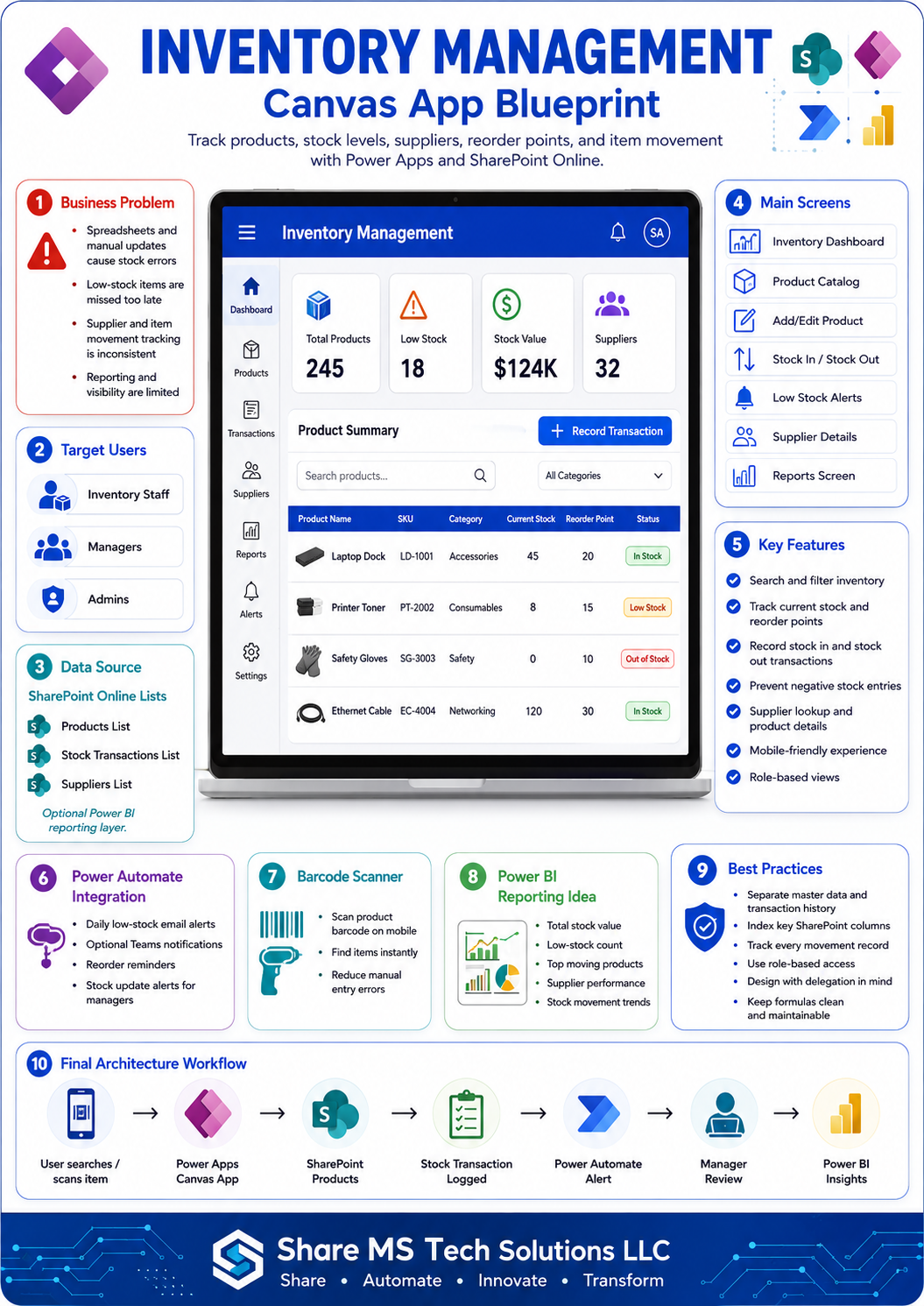
17. One-Page Infographic Content
Infographic Title
Inventory Management Canvas App Blueprint
Subtitle
Track products, stock levels, suppliers, reorder points, and item movement using Power Apps and SharePoint Online.
Sections
1. Business Problem
Manual inventory tracking causes stock errors, missed reorder points, and poor visibility.
2. Target Users
Inventory Staff
Managers
Admins
3. Data Sources
Products List
Stock Transactions List
Suppliers List
4. Main Screens
Inventory Dashboard
Product Catalog
Add/Edit Product
Stock In / Stock Out
Low Stock Alerts
Supplier Details
Reports Screen
5. Key Features
Search and filter products
Track current stock
Record stock movement
Prevent negative stock
Low-stock alerts
Barcode scanning
Supplier lookup
Power BI reporting
6. Power Automate Integration
Daily low-stock email alert
Teams notification
Reorder reminder
Stock update notification
7. Power BI Reporting
Stock value
Low-stock count
Stock movement trend
Supplier performance
Reorder planning
8. Best Practices
Use separate lists
Index key columns
Track every transaction
Use role-based access
Avoid delegation issues
Keep formulas clean
9. Final Workflow
Product added → Stock updated → Transaction recorded → Low stock checked → Alert sent → Manager reviews → Power BI dashboard updated
Branding
Share MS Tech Solutions LLC
Share • Automate • Innovate • Transform
18. YouTube Title and Script Outline
YouTube Title
How to Build an Inventory Management App in Power Apps and SharePoint
Alternative Titles
Build an Inventory Tracker with Power Apps
Power Apps Inventory Management System Step-by-Step
Create a Stock Management App with Power Apps and SharePoint
Power Apps Canvas App Project: Inventory Management System
YouTube Script Outline
Intro
In this video, we are building a practical Inventory Management Canvas App using Power Apps and SharePoint Online.
This app will help users track products, stock levels, suppliers, reorder points, and stock movement.
Section 1: Business Problem
Explain why spreadsheets are not enough for growing inventory needs.
Section 2: Solution Architecture
Show the architecture:
Power Apps
SharePoint Lists
Power Automate
Power BI
Section 3: SharePoint List Setup
Create:
Products List
Stock Transactions List
Suppliers List
Explain the important columns.
Section 4: Build the Power Apps Screens
Build:
Dashboard
Product Catalog
Add/Edit Product
Stock In / Stock Out
Low Stock Alerts
Supplier Details
Reports Screen
Section 5: Add Power Fx Logic
Cover:
Search and filter
Low-stock labels
Stock in Patch
Stock out Patch
Conditional formatting
Section 6: Add Barcode Scanner
Show how barcode scanning can locate products quickly.
Section 7: Add Power Automate Low-Stock Alert
Create a daily low-stock notification flow.
Section 8: Reporting with Power BI
Show reporting ideas for managers.
Section 9: Best Practices
Discuss delegation, role-based access, and transaction history.
Closing
This project is a strong beginner-to-intermediate Canvas App because it combines real business logic, SharePoint data, Power Fx formulas, automation, and reporting.
19. Blog Article Outline
Blog Title
How to Build an Inventory Management Canvas App Using Power Apps and SharePoint Online
SEO Title
Power Apps Inventory Management System: Step-by-Step Canvas App Guide
Blog Sections
- Introduction
- Business Problem
- Solution Overview
- Target Users
- SharePoint List Architecture
- Products List Design
- Stock Transactions List Design
- Suppliers List Design
- App Screens
- Power Fx Formulas
- Barcode Scanner Option
- Power Automate Low-Stock Alerts
- Role-Based Access
- Power BI Reporting Ideas
- Delegation and Performance Best Practices
- Common Mistakes to Avoid
- Final Architecture Workflow
- Final Thoughts
Blog Opening Paragraph
Inventory management becomes difficult when stock levels, product details, supplier information, and item movement are tracked in spreadsheets or disconnected tools. A Power Apps Canvas App connected to SharePoint Online can give businesses a simple, modern, and mobile-friendly way to manage inventory from one place.
Blog Closing Paragraph
An Inventory Management Canvas App is one of the best practical Power Apps projects because it solves a real business problem. By combining Power Apps, SharePoint Online, Power Automate, and Power BI, businesses can improve stock visibility, reduce manual errors, and make better inventory decisions.
20. Final Architecture Workflow
The final solution works like this:
User opens Power Apps
User searches or scans product
User records stock in or stock out
Power Apps updates Products List
Power Apps creates Stock Transaction record
Power Automate checks low-stock items
Email or Teams alert is sent
Managers review stock levels
Power BI dashboard shows inventory trends
Final Thoughts
An Inventory Management Canvas App is a strong real-world Power Apps project because it combines business process design, SharePoint data modeling, Power Fx formulas, automation, barcode scanning, role-based access, and reporting.
For small businesses, it can replace spreadsheets and manual tracking.
For enterprise teams, it can become a department-level inventory solution that improves visibility, accountability, and decision-making.
The key is to design the data model first, then build the app around the business process.
Share MS Tech Solutions LLC
Share • Automate • Innovate • Transform