How to Build an Attendance Tracker Using Power Apps, SharePoint, and Power Automate
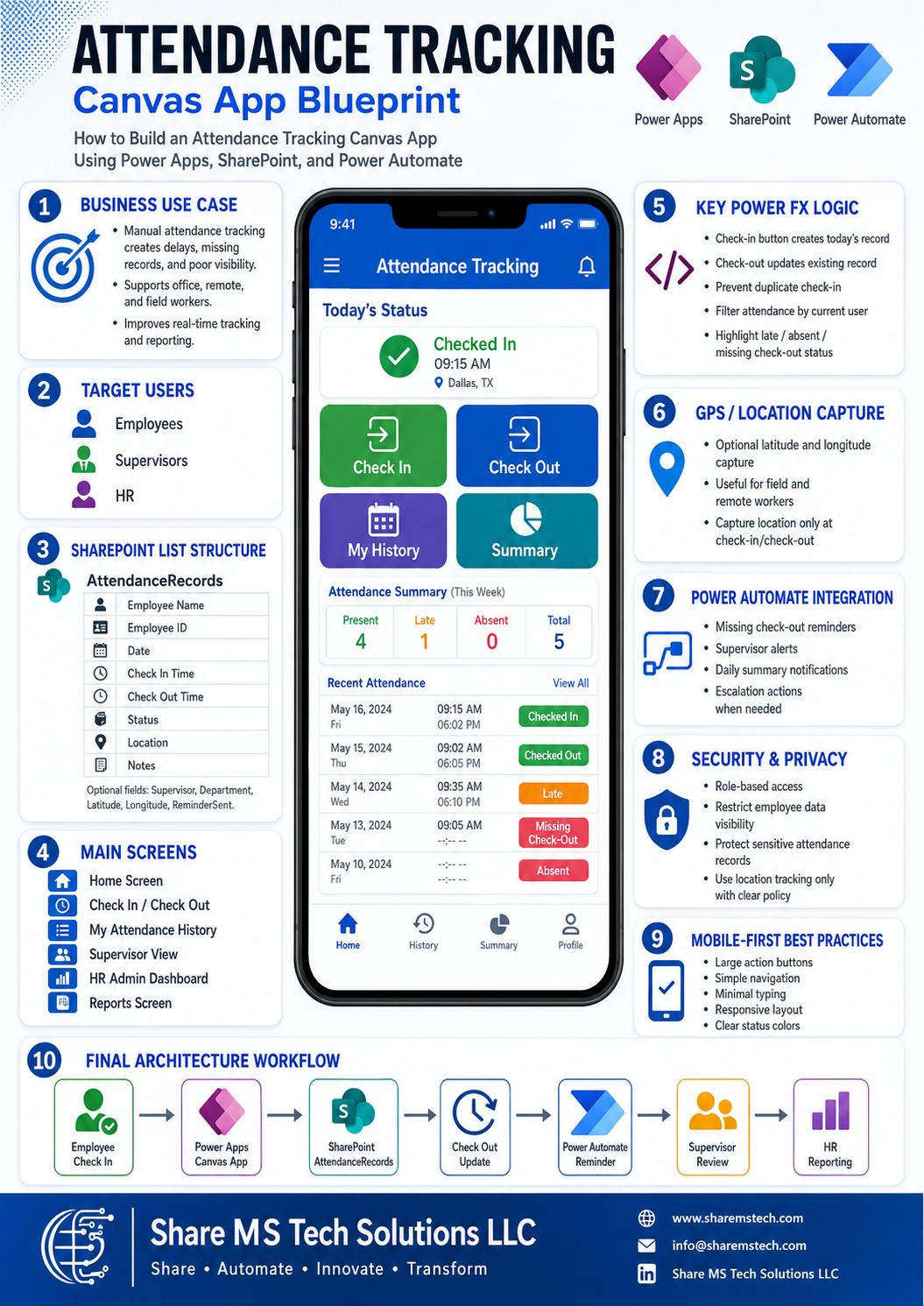
How to Build an Attendance Tracking Canvas App Using Power Apps, SharePoint, and Power Automate
Attendance tracking sounds simple until the organization grows.
At first, a spreadsheet, paper sign-in sheet, or email update may feel enough. But once employees work from different locations — office, remote, hybrid, and field sites — manual attendance tracking becomes difficult to manage.
Supervisors lose visibility. HR spends time cleaning records. Employees forget to check out. Missing attendance entries create reporting issues. Field workers may need location-based check-ins. Managers need a faster way to know who is present, late, absent, or missing check-out.
This is where Microsoft Power Platform can make a real business impact.
In this guide, we will walk through how to build an Attendance Tracking Canvas App using Power Apps, SharePoint, and Power Automate.
The app will allow employees or supervisors to check in, check out, record attendance status, capture location when needed, view attendance history, and send automated reminders for missing check-outs.
Why Build an Attendance Tracking App?
Many businesses still manage attendance using disconnected methods such as:
Spreadsheets
Paper sign-in sheets
Email updates
Teams messages
Manual supervisor reports
Shared documents
These methods may work for a small team, but they become risky when the business needs accurate records, real-time visibility, and HR reporting.
A modern attendance app can help answer important questions:
Who checked in today?
Who checked out?
Who is late?
Who is absent?
Who forgot to check out?
Which employees are working remotely?
Which field workers checked in from a job site?
What is the attendance history for each employee?
Can HR report attendance by department, location, or status?
A Power Apps Canvas App gives the business a simple mobile-friendly solution, while SharePoint stores the records and Power Automate handles reminders and notifications.
Business Use Case
The main business use case is to create a centralized attendance tracking system for office, remote, and field workers.
The app should allow:
Employees to check in and check out
Supervisors to monitor team attendance
HR to review attendance records
Power Automate to send missing check-out reminders
SharePoint to store all attendance history
Optional GPS capture for field or remote work scenarios
This type of app is useful for:
Office teams
Hybrid employees
Remote workers
Field service teams
Contractors
Training programs
Retail teams
Healthcare support staff
Construction or job-site workers
School or program attendance tracking
The goal is not only to record time. The real goal is to improve visibility, reduce manual work, and create reliable attendance data.
Solution Overview
The solution uses three main Microsoft 365 tools:
Power Apps
Power Apps provides the front-end Canvas App that employees, supervisors, and HR users interact with.
The app includes screens for check-in, check-out, history, supervisor review, HR dashboard, and reports.
SharePoint Online
SharePoint Online stores the attendance records.
Every check-in creates a SharePoint item, and every check-out updates the same item.
Power Automate
Power Automate sends reminders when employees forget to check out.
It can also send supervisor alerts, daily attendance summaries, or escalation notifications.
The basic architecture looks like this:
Employee checks in
Power Apps creates a SharePoint record
Employee checks out
Power Apps updates the SharePoint record
Power Automate checks for missing check-outs
Supervisor and HR review attendance data
Target Users
A realistic attendance tracking app should support three main user groups.
1. Employees
Employees use the app to:
Check in
Check out
View today’s status
View attendance history
Add notes
Select work location
Capture GPS location if required
For employees, the app should be very simple. The main actions should be large, clear, and mobile-friendly.
2. Supervisors
Supervisors use the app to:
View team attendance
See who is present, late, absent, or missing check-out
Review attendance by date
Follow up with employees
Receive missing check-out alerts
Supervisors do not need to see every employee in the company. They should mainly see their own team.
3. HR
HR users need broader visibility.
HR can use the app to:
Review all attendance records
Filter by department
Filter by location
Review attendance status
Identify repeated late or missing check-out patterns
Export or report attendance data
Open Power BI reports if available
HR access must be controlled because attendance data can be sensitive.
SharePoint List Structure
Create a SharePoint list named:
AttendanceRecords
This list stores all check-in and check-out records.
Each row represents one employee attendance record for one day.
Required Columns
| Column Name | Data Type | Purpose |
|---|---|---|
| Title | Single line of text | Record title |
| EmployeeName | Single line of text | Employee full name |
| EmployeeEmail | Single line of text | Employee email |
| EmployeeID | Single line of text | Employee ID |
| AttendanceDate | Date only | Work date |
| CheckInTime | Date and time | Check-in timestamp |
| CheckOutTime | Date and time | Check-out timestamp |
| Status | Choice | Attendance status |
| Location | Choice or text | Office, Remote, Field, Client Site |
| Notes | Multiple lines of text | Employee or supervisor notes |
Recommended Additional Columns
| Column Name | Data Type | Purpose |
|---|---|---|
| Department | Choice | Employee department |
| SupervisorEmail | Single line of text | Supervisor email |
| WorkMode | Choice | Office, Remote, Field, Hybrid |
| Latitude | Number | Optional GPS latitude |
| Longitude | Number | Optional GPS longitude |
| LocationAddress | Multiple lines of text | Optional readable address |
| ReminderSent | Yes/No | Tracks missing check-out reminder |
| CreatedByApp | Yes/No | Identifies records created from Power Apps |
Recommended Status Values
Use clean and consistent status values:
Checked In
Checked Out
Late
Absent
Missing Check-Out
Pending Review
Manual Adjustment
Do not create too many variations of the same status. For example, avoid using “Check In,” “Checked-in,” “Clocked In,” and “Present Today” at the same time. That will make filtering and reporting messy.
Optional Employee Directory List
For a more realistic app, create another SharePoint list named:
EmployeeDirectory
This list helps with role-based access and supervisor filtering.
Recommended columns:
EmployeeName
EmployeeEmail
EmployeeID
Department
SupervisorName
SupervisorEmail
Role
WorkMode
Status
Recommended Role values:
Employee
Supervisor
HR
Admin
This list allows the app to know who the current user is and what screens they should access.
App Screens
The app should include six main screens.
1. Home Screen
The Home Screen is the first screen users see.
It should show:
Welcome message
Current date
Today’s attendance status
Check-in time
Check-out time
Location
Quick action buttons
Recommended buttons:
Check In
Check Out
My History
Supervisor View
HR Dashboard
Reports
The Home Screen should immediately answer one question:
“What is my attendance status today?”
If the employee has not checked in, show the Check In button.
If the employee has checked in but not checked out, show the Check Out button.
If the employee already checked out, show a message such as:
“Attendance completed for today.”
2. Check In / Check Out Screen
This is the main working screen.
It should include:
Employee name
Employee ID
Today’s date
Location dropdown
Work mode dropdown
Notes field
Check In button
Check Out button
Optional GPS capture
Status message
Business rules:
An employee can check in only once per day.
An employee cannot check out before checking in.
An employee cannot check out twice.
The app should update the same SharePoint record during check-out.
The app should show a confirmation message after each action.
This screen should be designed for mobile use. The buttons should be large and easy to tap.
3. My Attendance History
This screen allows employees to view their own attendance records.
It should include:
Date filter
Status filter
Attendance gallery
Check-in time
Check-out time
Location
Status
Notes
Employees should only see their own attendance history, not everyone else’s records.
Example gallery fields:
Date
Check In Time
Check Out Time
Status
Location
Notes
4. Supervisor View
This screen allows supervisors to view team attendance.
It should include:
Date picker
Employee search
Status filter
Team attendance gallery
Late employees count
Missing check-out count
Absent employees count
Supervisors should be able to quickly answer:
Who checked in today?
Who is late?
Who forgot to check out?
Who is absent?
Supervisor filtering should be based on the supervisor email or manager relationship stored in the EmployeeDirectory list.
5. HR Admin Dashboard
The HR Admin Dashboard gives HR a full view of attendance records.
It should include filters for:
Date range
Department
Employee
Status
Location
Work mode
HR should be able to review:
All attendance records
Missing check-out records
Late records
Absent records
Remote and field attendance
Department-level patterns
HR may also need a manual adjustment option, but that should be restricted to authorized users only.
6. Reports Screen
The Reports Screen gives managers and HR a quick visual summary inside Power Apps.
Recommended report cards:
Total present today
Total late today
Total absent today
Missing check-outs
Remote check-ins
Field check-ins
For more advanced reporting, connect SharePoint data to Power BI.
Power BI can show:
Attendance trends by month
Attendance by department
Late count by employee
Missing check-out patterns
Remote vs office attendance
Field worker attendance summary
Power Fx Formula Examples
The following formulas are examples. You may need to adjust column names and control names based on your app.
App Start Formula
Use the App OnStart property to store the current user and role.
Set(varCurrentUser, User());

Set(
    varEmployeeProfile,
    LookUp(
        EmployeeDirectory,
        EmployeeEmail = varCurrentUser.Email && Status.Value = "Active"
    )
);

Set(
    varUserRole,
    Coalesce(varEmployeeProfile.Role.Value, "Employee")
);
This formula looks up the current user from the EmployeeDirectory list and stores their role.
Check-In Button Formula
Use this on the Check In button OnSelect.
With(
    {
        ExistingRecord: LookUp(
            AttendanceRecords,
            EmployeeEmail = User().Email &&
            AttendanceDate = Today()
        ),
        CurrentTime: Now(),
        LateCutoff: DateTimeValue(
            Text(Today(), "[$-en-US]yyyy-mm-dd") & " 09:00 AM"
        )
    },
    If(
        !IsBlank(ExistingRecord),
        Notify(
            "You have already checked in today.",
            NotificationType.Warning
        ),
        Patch(
            AttendanceRecords,
            Defaults(AttendanceRecords),
            {
                Title: User().FullName & " - " & Text(Today(), "[$-en-US]yyyy-mm-dd"),
                EmployeeName: User().FullName,
                EmployeeEmail: User().Email,
                EmployeeID: varEmployeeProfile.EmployeeID,
                AttendanceDate: Today(),
                CheckInTime: CurrentTime,
                Status: {
                    Value: If(
                        CurrentTime > LateCutoff,
                        "Late",
                        "Checked In"
                    )
                },
                Location: ddLocation.Selected.Value,
                WorkMode: {Value: ddWorkMode.Selected.Value},
                Notes: txtNotes.Text,
                Latitude: Location.Latitude,
                Longitude: Location.Longitude,
                CreatedByApp: true
            }
        );
        Notify(
            "Check-in recorded successfully.",
            NotificationType.Success
        );
        Reset(txtNotes)
    )
)
What this formula does:
It checks whether the employee already has a record for today.
If a record already exists, it prevents duplicate check-in.
If no record exists, it creates a new SharePoint item.
It captures employee name, email, employee ID, date, check-in time, status, location, notes, and optional GPS coordinates.
It marks the employee as Late if check-in happens after the cutoff time.
Prevent Duplicate Check-In
Use this formula on the Check In button DisplayMode.
If(
    IsBlank(
        LookUp(
            AttendanceRecords,
            EmployeeEmail = User().Email &&
            AttendanceDate = Today()
        )
    ),
    DisplayMode.Edit,
    DisplayMode.Disabled
)
This disables the Check In button after the employee has already checked in for the day.
Check-Out Button Formula
Use this on the Check Out button OnSelect.
With(
    {
        TodayRecord: LookUp(
            AttendanceRecords,
            EmployeeEmail = User().Email &&
            AttendanceDate = Today()
        ),
        CurrentTime: Now()
    },
    If(
        IsBlank(TodayRecord),
        Notify(
            "You must check in before checking out.",
            NotificationType.Error
        ),

        !IsBlank(TodayRecord.CheckOutTime),
        Notify(
            "You have already checked out today.",
            NotificationType.Warning
        ),

        Patch(
            AttendanceRecords,
            TodayRecord,
            {
                CheckOutTime: CurrentTime,
                Status: {Value: "Checked Out"},
                Notes: If(
                    IsBlank(txtNotes.Text),
                    TodayRecord.Notes,
                    TodayRecord.Notes & Char(10) & "Check-out note: " & txtNotes.Text
                )
            }
        );
        Notify(
            "Check-out recorded successfully.",
            NotificationType.Success
        );
        Reset(txtNotes)
    )
)
What this formula does:
It finds today’s attendance record.
If no check-in record exists, it tells the user to check in first.
If check-out already exists, it prevents duplicate check-out.
If the record is valid, it updates the existing SharePoint item with the check-out time and status.
Filter Attendance by Current User
Use this formula for the My Attendance History gallery Items.
SortByColumns(
    Filter(
        AttendanceRecords,
        EmployeeEmail = User().Email
    ),
    "AttendanceDate",
    SortOrder.Descending
)
This ensures employees only see their own attendance history.
Show Late, Absent, and Missing Check-Out Status
Use this formula for a status label Text.
Switch(
    ThisItem.Status.Value,
    "Late",
    "Late",
    "Missing Check-Out",
    "Missing Check-Out",
    "Checked Out",
    "Present",
    "Checked In",
    "Checked In",
    "Absent",
    "Absent",
    "Pending Review"
)
Use this formula for a status label Color.
Switch(
    ThisItem.Status.Value,
    "Checked Out",
    Color.Green,
    "Checked In",
    Color.Blue,
    "Late",
    Color.Orange,
    "Missing Check-Out",
    Color.Red,
    "Absent",
    Color.Red,
    Color.Gray
)
A simple color system makes the app easier to understand:
Green = checked out or present
Blue = checked in
Orange = late
Red = absent or missing check-out
Gray = pending or unknown
GPS and Location Capture
For field workers or remote workers, the app can optionally capture location during check-in or check-out.
Recommended GPS fields:
Latitude
Longitude
LocationAddress
Location
Example formula:
Set(varLatitude, Location.Latitude);
Set(varLongitude, Location.Longitude);
You can also patch the location directly into the attendance record:
Patch(
    AttendanceRecords,
    Defaults(AttendanceRecords),
    {
        EmployeeName: User().FullName,
        EmployeeEmail: User().Email,
        AttendanceDate: Today(),
        CheckInTime: Now(),
        Latitude: Location.Latitude,
        Longitude: Location.Longitude,
        Location: ddLocation.Selected.Value,
        Status: {Value: "Checked In"}
    }
)
Important Privacy Note
Location capture should be used carefully.
The app should clearly tell employees when location is being captured and why. GPS should normally be captured only during check-in or check-out, not continuously.
Use GPS only when there is a real business need, such as:
Field worker attendance
Client site verification
Remote site check-ins
Safety or compliance tracking
Do not add GPS tracking just because it is technically possible.
Power Automate Reminder for Missing Check-Out
Power Automate can help solve one of the most common attendance issues: employees forget to check out.
Create a scheduled flow called:
Attendance Missing Check-Out Reminder
Flow Trigger
Use a Recurrence trigger.
Recommended schedule:
Every weekday at 5:30 PM or 6:00 PM
Flow Logic
- Trigger the flow on a schedule.
- Get items from the AttendanceRecords SharePoint list.
- Filter records where:
- AttendanceDate is today
- CheckInTime is not empty
- CheckOutTime is empty
- Status is Checked In or Late
- ReminderSent is No
- Send an email reminder to the employee.
- Optionally notify the supervisor in Teams.
- Update the SharePoint item:
- Status = Missing Check-Out
- ReminderSent = Yes
Reminder Email Example
Subject:
Reminder: Please Check Out for Today
Body:
Hello [Employee Name],
Our attendance system shows that you checked in today but have not checked out yet.
Please open the Attendance Tracking App and complete your check-out.
Thank you.
Security and Privacy Considerations
Attendance data is sensitive because it can reveal employee work patterns, absence behavior, and location information.
A good app must protect this data.
Security Best Practices
Use role-based access
Restrict employee visibility to their own records
Limit supervisor access to direct reports
Restrict HR dashboard access
Use SharePoint permissions carefully
Avoid exposing sensitive columns unnecessarily
Protect exported reports
Keep audit history
Use Microsoft 365 groups where possible
Important Truth
Hiding a screen or button in Power Apps is not enough security by itself.
If users can access the SharePoint list directly, they may still see data they should not see. The SharePoint permissions and data access model must be designed correctly.
Mobile-First Design Best Practices
Attendance apps are used frequently from mobile devices. That means the app must be simple, fast, and easy to use.
Design Tips
Use large Check In and Check Out buttons
Keep the home screen clean
Show today’s status clearly
Use color-coded status pills
Minimize typing
Use dropdowns for location and work mode
Make the app responsive
Test on mobile devices
Use clear confirmation messages
Avoid too many fields on one screen
The employee should be able to check in or check out in just a few seconds.
Delegation and Performance Best Practices
If your attendance list grows over time, performance matters.
A company with 100 employees can create thousands of attendance records quickly.
Recommended indexed SharePoint columns:
EmployeeEmail
AttendanceDate
Status
SupervisorEmail
Department
Location
WorkMode
Performance Tips
Filter by date first
Filter by current user email
Avoid loading all records into collections
Keep galleries limited to a date range
Use Power BI for large reporting
Archive older records if necessary
Consider Dataverse for enterprise-scale solutions
SharePoint is a practical starting point, but for large enterprise, payroll-connected, or heavily audited systems, Dataverse or a dedicated HR/timekeeping system may be better.
Common Mistakes to Avoid
1. Allowing Duplicate Check-Ins
Always check whether today’s record already exists.
2. Allowing Check-Out Without Check-In
Check-out should only update an existing record.
3. Letting Employees See Everyone’s Records
Employees should only see their own attendance data unless they have supervisor or HR access.
4. Ignoring Missing Check-Outs
Missing check-outs create incomplete attendance records. Use Power Automate reminders.
5. Capturing GPS Without Policy
Location tracking must be transparent, approved, and limited to a valid business need.
6. Using Too Many Status Values
Keep status values simple and consistent.
7. Designing Only for Desktop
Attendance tracking should be mobile-first.
8. Ignoring Delegation
A formula may work during testing but fail when the SharePoint list grows.
9. No Audit Trail
Keep created by, modified by, check-in time, check-out time, and status fields.
10. Not Planning Reports Early
Build your SharePoint list with reporting in mind from day one.
Final Architecture Workflow
The final solution works like this:
Employee opens the Power Apps Attendance App.
Employee checks in.
Power Apps creates a record in SharePoint.
Optional GPS location is captured.
Employee checks out.
Power Apps updates the same SharePoint record.
Power Automate checks for missing check-outs.
Employee and supervisor receive reminders if needed.
Supervisor reviews team attendance.
HR monitors attendance reports and trends.
This creates a complete attendance tracking process using Microsoft 365 tools.
Why This Is a Strong Power Apps Project
An Attendance Tracking Canvas App is a great beginner-to-intermediate Power Apps project because it teaches real business logic.
You learn how to work with:
SharePoint list design
Patch formulas
Check-in and check-out logic
Duplicate record prevention
User-based filtering
Role-based access
Mobile-first design
Power Automate reminders
GPS/location capture
HR reporting concepts
This is the kind of project that shows more than technical skill. It shows that you understand business process automation.
Final Thoughts
Attendance tracking should not depend on spreadsheets, paper logs, or scattered messages.
With Power Apps, SharePoint, and Power Automate, businesses can create a modern attendance solution that supports office, remote, and field workers.
Employees get a simple check-in and check-out experience.
Supervisors get better visibility.
HR gets reliable records and reporting.
Power Automate reduces manual follow-up.
The key is to design the app with security, privacy, performance, and mobile usability in mind.
This is not just an attendance app.
It is a practical Microsoft 365 business process solution.
Share MS Tech Solutions LLC
Share • Automate • Innovate • Transform