Power Apps Logic Showdown: Named Formulas vs App.OnStart vs Screen.OnVisible
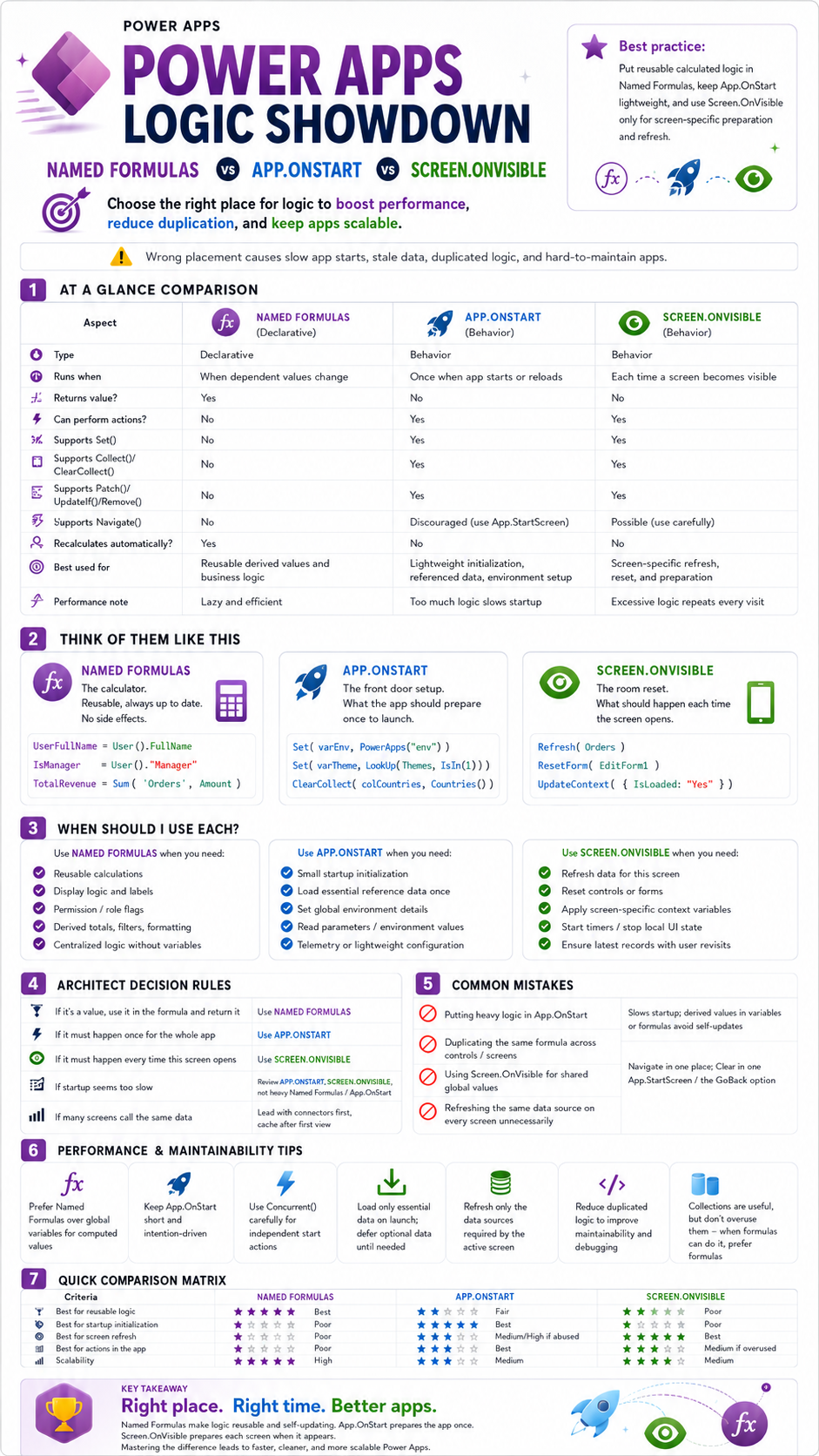
Power Apps Logic Showdown: Named Formulas vs App.OnStart vs Screen.OnVisible
In Power Apps, performance problems rarely come from one big mistake. They usually come from dozens of small logic-placement decisions: a formula copied into five controls, a collection loaded too early, a screen refreshing data every time the user comes back, or an App.OnStart formula doing work that should not block startup.
That is why understanding Named Formulas, App.OnStart, and Screen.OnVisible matters. They may look like three places to put Power Fx logic, but they are not interchangeable. Each one has a different job.
The simple rule is this:
Named Formulas calculate. App.OnStart initializes. Screen.OnVisible prepares the screen.
Get that right, and your app becomes faster, cleaner, and easier to maintain. Get it wrong, and you create slow launches, stale data, unnecessary refreshes, and duplicated logic everywhere.
The Core Difference
Microsoft describes the App object as having several key properties, including Formulas for defining named formulas, OnStart for logic that runs when the app starts, and StartScreen for deciding which screen appears first when the app loads. (Microsoft Learn)
That distinction is important. Power Apps is not just asking, “Where can this formula run?” It is asking, “What kind of logic is this?”
Here is the clean mental model:
| Tool | Best Mental Model | Main Job |
|---|---|---|
| Named Formulas | The calculator | Reusable, self-updating values |
| App.OnStart | The front-desk setup | One-time startup preparation |
| Screen.OnVisible | The room reset | Screen-specific setup every time the screen opens |
The mistake many makers make is treating all three like a storage closet for any formula. That is how apps become slow and hard to debug.
1. Named Formulas: The Best Place for Reusable Logic
Named Formulas live in the app’s App.Formulas property. Microsoft’s code optimization guidance says Named Formulas provide a more flexible and declarative way to manage values and calculations throughout an app. (Microsoft Learn)
Think of Named Formulas like Excel formulas, not variables. They calculate a value based on other values. When dependencies change, the formula can update. That makes them excellent for logic that should always stay current.
Use Named Formulas for:
Reusable calculations
Business rules
Role and permission flags
Display text
Derived values
Reusable filters
Computed totals
Formatting logic
Conditional visibility logic
Example:
UserFullName = User().FullName

IsManager = varUserRole = "Manager"

TotalOrderAmount = Sum(colOrders, Amount)

CanApproveRequest = varUserRole in ["Manager", "Director", "Admin"]
This kind of logic should usually not be stored in variables unless there is a strong reason. Variables can become stale. Named Formulas are cleaner because they describe the truth instead of storing a snapshot of the truth.
Bad pattern
Set(varUserFullName, User().FullName);
Set(varIsManager, varUserRole = "Manager");
Set(varCanApproveRequest, varUserRole in ["Manager", "Director", "Admin"]);
This works, but it creates more moving parts. Now you have to worry about when those variables were set, whether they need to be updated, and whether another screen has a different version of the same logic.
Better pattern
UserFullName = User().FullName
IsManager = varUserRole = "Manager"
CanApproveRequest = varUserRole in ["Manager", "Director", "Admin"]
The unspoken truth: many Power Apps become messy because makers use variables as a comfort blanket. If the value can be expressed as a formula, a Named Formula is often the better architecture.
2. App.OnStart: Use It Carefully
App.OnStart is for behavior logic that runs when the app starts. Microsoft guidance explains that OnStart is used for actions that should occur during startup, such as setting variables, initializing global tasks, and preparing the app. (Microsoft Learn)
That makes App.OnStart powerful, but also dangerous.
The more you put in App.OnStart, the more you risk slowing down the first-load experience. A slow first screen makes users think the whole app is bad, even if the rest of the app is well built.
Use App.OnStart for:
Small startup initialization
Environment detection
Theme setup
Global configuration
Essential reference data
User profile setup
Feature flags
Lightweight telemetry setup
Parameters needed across the app
Example:
Set(varEnvironment, Param("env"));

Set(varUserEmail, User().Email);

Set(varAppVersion, "1.0.0");

ClearCollect(
    colCountries,
    Countries
);
This is reasonable if the data is small and needed early. But App.OnStart should not become a dumping ground for every data source in your app.
Bad pattern
ClearCollect(colOrders, Orders);
ClearCollect(colEmployees, Employees);
ClearCollect(colDepartments, Departments);
ClearCollect(colProjects, Projects);
ClearCollect(colInvoices, Invoices);
ClearCollect(colAuditLogs, AuditLogs);
This may feel organized, but it can make startup painfully slow. Worse, users may not even need most of that data in their first task.
Better pattern
Load only what is essential at startup. Load screen-specific data when the user enters the screen. Use Named Formulas for reusable calculations. Use OnVisible for screen refresh logic only when necessary.
Microsoft also documents the Concurrent function, which can improve startup performance when independent data calls can run at the same time instead of waiting for each other sequentially. (Microsoft Learn)
Example:
Concurrent(
    ClearCollect(colCountries, Countries),
    ClearCollect(colDepartments, Departments),
    ClearCollect(colSettings, AppSettings)
);
But be careful: Concurrent is not magic. It helps when calls are independent. It does not fix bad architecture, oversized lists, non-delegable queries, or unnecessary startup loading.
3. Screen.OnVisible: Use It for Screen-Specific Preparation
Screen.OnVisible runs when a user navigates to a screen. Microsoft’s Screen control documentation says OnVisible defines behavior when the user navigates to a screen and can be used to set variables and preload data used by that screen. (Microsoft Learn)
That makes Screen.OnVisible the right place for screen-specific preparation.
Use Screen.OnVisible for:
Refreshing data for the active screen
Resetting forms
Preparing local context variables
Starting timers
Clearing temporary screen state
Loading data needed only for that screen
Applying screen-specific defaults
Example:
Refresh(Orders);

ResetForm(frmOrderDetails);

UpdateContext({
    locMode: "View",
    locShowPanel: false
});
This makes sense when the screen needs fresh data each time it opens.
But there is a trap.
If you put too much logic in Screen.OnVisible, that logic runs every time the user returns to the screen. That can create repeated data calls, flickering screens, slower navigation, and unnecessary load on SharePoint, Dataverse, or SQL.
Bad pattern
Refresh(Orders);
Refresh(Employees);
Refresh(Departments);
Refresh(Projects);
ClearCollect(colAllOrders, Orders);
ClearCollect(colAllEmployees, Employees);
ClearCollect(colAllProjects, Projects);
Every time the user opens the screen, the app repeats this work. That might be okay for a small app, but it becomes painful in enterprise apps.
Better pattern
Only refresh what the screen truly needs:
Refresh(Orders);

UpdateContext({
    locSelectedStatus: "Open",
    locShowFilters: false
});
The hard truth: Screen.OnVisible is one of the most abused properties in Power Apps. It feels convenient because the screen “fixes itself” every time it opens, but that convenience can hide performance waste.
StartScreen vs Navigate in App.OnStart
One of the most important architecture improvements is avoiding heavy navigation logic in App.OnStart.
Microsoft documentation for the Navigate function says you should use the App object’s StartScreen property to control the first screen displayed. (Microsoft Learn) Microsoft’s deep linking documentation also shows using StartScreen with Param() to decide which screen to open based on launch parameters. (Microsoft Learn)
Instead of doing this:
// App.OnStart
If(
    Param("AdminMode") = "1",
    Navigate(AdminScreen),
    Navigate(HomeScreen)
);
Prefer this:
// App.StartScreen
If(
    Param("AdminMode") = "1",
    AdminScreen,
    HomeScreen
)
That is cleaner because StartScreen is declarative. It tells Power Apps what the first screen should be instead of forcing navigation during startup.
The Enterprise Architecture Rule
For a professional Power Apps build, use this decision rule:
If it is a value, use Named Formulas.
Example:
CanEditRecord = varUserRole in ["Admin", "Manager"]
If it must happen once at startup, use App.OnStart.
Example:
Set(varUserEmail, User().Email);
If it must happen every time a screen opens, use Screen.OnVisible.
Example:
ResetForm(frmRequest);
Refresh(Requests);
That one rule can prevent 70% of messy Power Apps logic.
Practical Example: Approval App
Imagine you are building a Power Apps approval system connected to SharePoint or Dataverse.
You have:
Request list
Approver roles
Status filters
Approval form
Dashboard screen
Admin screen
A weak design might put everything in App.OnStart:
Set(varUserEmail, User().Email);
ClearCollect(colRequests, Requests);
ClearCollect(colApprovers, Approvers);
Set(varIsApprover, CountRows(Filter(colApprovers, Email = varUserEmail)) > 0);
Set(varPendingCount, CountRows(Filter(colRequests, Status = "Pending")));
It works, but it loads too much and stores values that may become stale.
A stronger design splits responsibility:
App.OnStart
Set(varUserEmail, User().Email);

ClearCollect(
    colApprovers,
    Approvers
);
App.Formulas
IsApprover = varUserEmail in colApprovers.Email

PendingRequests = Filter(
    Requests,
    Status.Value = "Pending"
)

PendingRequestCount = CountRows(PendingRequests)
Dashboard.OnVisible
Refresh(Requests);

UpdateContext({
    locSelectedStatus: "Pending"
});
This is cleaner. Startup is lighter. Business logic is reusable. Screen refresh is controlled.
Common Mistakes to Avoid
Mistake 1: Loading everything at startup
This is the most common performance killer. Users do not need the whole app loaded before they can see the first screen.
Better approach: load essentials first, defer the rest.
Mistake 2: Using variables for everything
Variables are useful, but overusing them creates stale state. If the value is derived from other values, consider a Named Formula.
Mistake 3: Copying formulas across controls
If the same formula appears in multiple places, it probably belongs in App.Formulas.
Mistake 4: Refreshing data on every screen
Refreshing is not free. Refresh only what the active screen needs.
Mistake 5: Using Screen.OnVisible for global logic
Screen.OnVisible should prepare the screen, not manage the whole app.
Mistake 6: Navigating from App.OnStart
Use App.StartScreen when deciding the first screen.
My Recommended Power Apps Logic Placement Framework
Here is the professional framework I would use in real business apps:
| Logic Type | Best Place |
|---|---|
| User display name | Named Formula |
| Role flag | Named Formula |
| Permission check | Named Formula |
| App version | App.OnStart or Named Formula |
| Theme setting | App.OnStart |
| Deep link routing | App.StartScreen |
| Startup parameter reading | App.OnStart or StartScreen |
| Load small reference table | App.OnStart |
| Load large transactional data | Screen.OnVisible or gallery Items |
| Reset form | Screen.OnVisible |
| Refresh active screen data | Screen.OnVisible |
| Reusable filter logic | Named Formula |
| Reusable label text | Named Formula |
| One-time global setup | App.OnStart |
| Screen mode variable | Screen.OnVisible or Navigate context |
The biggest shift is this:
Do not ask, “Where can I put this code?” Ask, “Who should own this responsibility?”
That is the mindset difference between a beginner app and a maintainable enterprise app.
Performance Tips for Better Power Apps
1. Keep App.OnStart short
App.OnStart should be predictable and lightweight. Do not use it as your entire app’s loading warehouse.
2. Use Named Formulas for derived logic
If a value can be calculated, calculate it declaratively instead of manually storing it.
3. Avoid unnecessary collections
Collections are useful, especially for offline scenarios, temporary state, and small reference data. But do not collect every data source just because it feels faster. Sometimes direct delegation-friendly queries are better.
4. Use Concurrent carefully
Concurrent can help independent startup operations run at the same time, but it should not hide poor data-loading strategy. (Microsoft Learn)
5. Prefer App.StartScreen for routing
For first-screen logic and deep linking, StartScreen is usually cleaner than Navigate inside OnStart. (Microsoft Learn)
6. Be careful with OnVisible dependencies
Microsoft warns that if non-blocking App.OnStart is enabled, Screen.OnVisible can run in parallel with App.OnStart, so you should avoid relying on variables or collections initialized by App.OnStart because they might not be ready yet. (Microsoft Learn)
That is an important advanced point. If your screen assumes App.OnStart has already finished, you can create random bugs that are hard to reproduce.
Best Practice Pattern
Here is a strong, clean pattern:
App.OnStart
Set(varUserEmail, User().Email);
Set(varAppVersion, "1.0.0");

Concurrent(
    ClearCollect(colDepartments, Departments),
    ClearCollect(colSettings, AppSettings)
);
App.StartScreen
If(
    Param("screen") = "admin",
    AdminScreen,
    HomeScreen
)
App.Formulas
CurrentUserName = User().FullName

IsAdmin = varUserEmail in Filter(colSettings, SettingName = "Admins").Value

OpenRequests = Filter(
    Requests,
    Status.Value = "Open"
)

OpenRequestCount = CountRows(OpenRequests)
HomeScreen.OnVisible
Refresh(Requests);

UpdateContext({
    locSelectedTab: "Open",
    locLoading: false
});
This gives you separation of concerns:
App.OnStart initializes.
StartScreen routes.
Named Formulas calculate.
OnVisible prepares the screen.
That is the clean architecture.
Final Takeaway
Power Apps performance is not only about faster connectors or better data sources. It is also about putting logic in the right place.
Named Formulas are for reusable values and business logic.
App.OnStart is for lightweight startup setup.
Screen.OnVisible is for screen-specific preparation and refresh.
App.StartScreen should handle first-screen routing instead of heavy Navigate logic in OnStart.
The best Power Apps makers do not just build apps that work. They build apps that are easy to understand, easy to change, and hard to break.
So before you add another formula, ask:
Is this a value, a startup action, or a screen action?
That one question will make your Power Apps cleaner, faster, and more professional.