Power Automate Expression Library
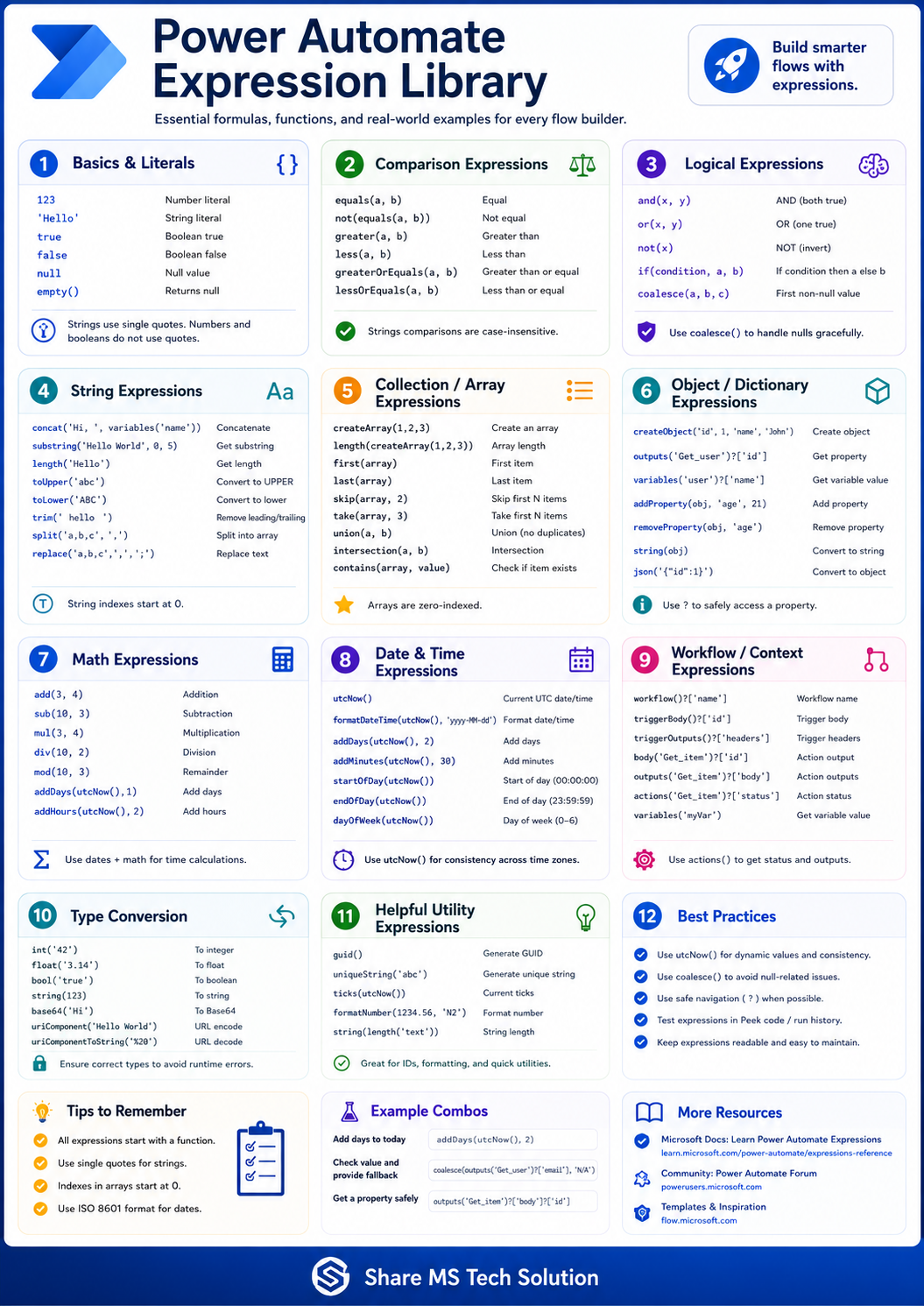
Power Automate is powerful when you drag and drop actions together. But the real power starts when you learn how to use expressions.
Expressions allow you to make your flows dynamic. They help you format dates, compare values, handle empty fields, work with arrays, read SharePoint item properties, and prevent common flow errors.
Many beginners build Power Automate flows by only using dynamic content. That works for simple automation, but as soon as your flow needs logic, formatting, conditions, or data cleanup, expressions become essential.
In this guide, we will walk through the most important Power Automate expression categories every flow builder should understand.

What Are Power Automate Expressions?
Power Automate expressions are formulas used inside flows to calculate values, transform data, check conditions, or retrieve specific information.
You can use expressions in many places, including:
- Compose actions
- Conditions
- Apply to each loops
- Variables
- SharePoint actions
- Email notifications
- Approval flows
- Trigger conditions
- Dynamic field values
A simple example is:
utcNow()
This returns the current date and time in UTC.
Another useful example is:
coalesce(triggerBody()?['Title'], 'No Title')
This checks whether the Title field has a value. If it is empty or missing, it returns “No Title” instead of causing issues.
That is why expressions matter. They make your flows safer, smarter, and more professional.
1. Basics and Literals
Before using advanced expressions, you need to understand the basics.
Common literal values include:
123
'Hello'
true
false
null
empty()
In Power Automate, text values should usually be wrapped in single quotes.
Example:
'Approved'
Numbers and booleans do not need quotes.
Example:
100
true
false
A common beginner mistake is treating numbers and text the same way. Power Automate expressions are sensitive to data types, so understanding literals helps prevent errors later.
Practical use case:
Use literal values when setting default text, checking status values, or creating simple conditions.
2. Comparison Expressions
Comparison expressions help your flow compare two values.
Common examples include:
equals(a, b)
not(equals(a, b))
greater(a, b)
less(a, b)
greaterOrEquals(a, b)
lessOrEquals(a, b)
Example:
equals(triggerBody()?['Status'], 'Approved')
This checks whether the Status field equals Approved.
You can use comparison expressions inside conditions, trigger conditions, and advanced logic.
Practical use case:
Check whether an approval status is Approved, Rejected, Pending, or Completed.

3. Logical Expressions
Logical expressions allow you to combine multiple checks.
Common examples include:
and()
or()
not()
if()
coalesce()
Example:
and(
  equals(triggerBody()?['Status'], 'Approved'),
  greater(triggerBody()?['Amount'], 1000)
)
This checks whether the status is Approved and the amount is greater than 1000.
Another useful expression is:
if(equals(triggerBody()?['Status'], 'Approved'), 'Send Email', 'Do Nothing')
This allows you to return different values depending on the condition.
One of the most important logical expressions is:
coalesce()
Example:
coalesce(triggerBody()?['Email'], 'No email provided')
This helps avoid null-value problems.
Practical use case:
Use logical expressions when building approval routing, escalation flows, validation rules, or notification logic.
4. String Expressions
String expressions help you work with text.
Common examples include:
concat()
substring()
length()
toUpper()
toLower()
trim()
split()
replace()
Example:
concat('Hello ', triggerBody()?['EmployeeName'])
This combines “Hello” with an employee name from SharePoint or another data source.
Another useful example:
toLower(triggerBody()?['Email'])
This converts an email address to lowercase.
String expressions are very useful when building email messages, formatting names, cleaning text, or creating readable outputs.
Practical use case:
Generate personalized email messages such as:
concat('Hello ', triggerBody()?['EmployeeName'], ', your request has been approved.')
5. Collection and Array Expressions
Arrays are lists of values. In Power Automate, arrays are used often when working with SharePoint items, Excel rows, Dataverse records, or filtered data.
Common array expressions include:
createArray()
length()
first()
last()
skip()
take()
union()
intersection()
contains()
Example:
length(body('Get_items')?['value'])
This returns the number of SharePoint items returned by a Get items action.
Another example:
first(body('Get_items')?['value'])
This gets the first item from the result.
Important tip:
Arrays are zero-indexed. That means the first item starts at position 0, not 1.
Practical use case:
Use array expressions when working with multiple SharePoint list items, filtering records, checking duplicates, or counting returned results.

6. Object and Dictionary Expressions
Objects store data as key-value pairs.
Example object:
{
  "id": 1,
  "name": "John"
}
Common object expressions include:
createObject()
outputs()
variables()
addProperty()
removeProperty()
string()
json()
Example:
outputs('Get_item')?['body/Title']
This gets the Title field from a SharePoint Get item action.
Another example:
variables('UserProfile')?['Email']
This safely reads the Email property from a variable.
The ? operator is very important because it helps prevent flow failures when a property does not exist.
Practical use case:
Use object expressions when reading data from SharePoint, Dataverse, HTTP responses, JSON payloads, or trigger outputs.
7. Math Expressions
Math expressions allow you to calculate values inside a flow.
Common examples include:
add()
sub()
mul()
div()
mod()
Example:
add(10, 5)
This returns 15.
Another example:
mul(triggerBody()?['Quantity'], triggerBody()?['Price'])
This multiplies quantity by price.
Math expressions can also be combined with date functions.
Example:
addDays(utcNow(), 7)
This returns a date seven days from now.
Practical use case:
Use math expressions for invoice calculations, approval thresholds, SLA deadlines, scoring logic, and reporting flows.
8. Date and Time Expressions
Date and time expressions are some of the most commonly used expressions in Power Automate.
Common examples include:
utcNow()
formatDateTime()
addDays()
addMinutes()
startOfDay()
endOfDay()
dayOfWeek()
Example:
formatDateTime(utcNow(), 'yyyy-MM-dd')
This formats the current date as Year-Month-Day.
Another example:
addDays(utcNow(), 3)
This adds three days to the current date.
One of the biggest best practices is to use:
utcNow()
instead of relying on local time, especially when flows are used across different time zones.
Practical use case:
Use date expressions for reminders, due dates, approval deadlines, scheduled reports, and time-based notifications.

9. Workflow and Context Expressions
Workflow and context expressions allow you to access details about the flow, trigger, and actions.
Common examples include:
workflow()
triggerBody()
triggerOutputs()
body('ActionName')
outputs('ActionName')
actions()
variables()
Example:
triggerBody()?['Title']
This reads the Title value from the trigger.
Another example:
outputs('Get_item')?['body']
This reads the full output body from a Get item action.
These expressions are extremely important when you need to reference data from previous steps.
Practical use case:
Use workflow/context expressions when reading SharePoint trigger values, action outputs, approval responses, or HTTP results.
10. Type Conversion Expressions
Power Automate often receives data in different formats. Sometimes a number arrives as text. Sometimes a JSON value needs to be converted. Type conversion expressions help you fix that.
Common examples include:
int()
float()
bool()
string()
base64()
uriComponent()
uriComponentToString()
Example:
int('42')
This converts the text value '42' into a number.
Another example:
string(123)
This converts the number 123 into text.
Practical use case:
Use type conversion when comparing numbers, working with JSON, formatting outputs, or preparing values for SharePoint and Dataverse fields.
11. Helpful Utility Expressions
Utility expressions help with formatting, unique IDs, ticks, and reusable values.
Common examples include:
guid()
uniqueString()
ticks()
formatNumber()
Example:
guid()
This generates a unique ID.
Another example:
formatNumber(1234.56, 'N2')
This formats a number with two decimal places.
Practical use case:
Use utility expressions when generating tracking IDs, formatting currency, creating unique filenames, or logging flow activity.
12. Best Practices for Power Automate Expressions
Learning expressions is not just about memorizing formulas. It is about using them safely and clearly.
Here are important best practices:
Use utcNow() for consistency
utcNow()
This helps avoid time zone confusion.
Use coalesce() to avoid null errors
coalesce(triggerBody()?['Email'], 'No Email')
This provides a fallback value if the field is empty.
Use safe navigation with ?
triggerBody()?['Title']
This helps prevent errors when a property is missing.
Test expressions in run history
Always check your flow run history to see what values your expressions return.
Use Compose actions for testing
Compose is one of the best actions for testing expressions before using them in conditions, variables, or updates.

Real-World Example: Handling Missing SharePoint Data
Imagine you have a SharePoint list where users submit requests. Sometimes the phone number field is empty.
Instead of using the field directly, you can use:
coalesce(triggerBody()?['PhoneNumber'], 'No phone number provided')
This prevents your email notification from showing blank values or failing unexpectedly.
You can also format the submission date:
formatDateTime(triggerBody()?['Created'], 'MMMM dd, yyyy')
Then you can build a cleaner email message:
concat(
  'Request submitted by ',
  triggerBody()?['EmployeeName'],
  ' on ',
  formatDateTime(triggerBody()?['Created'], 'MMMM dd, yyyy')
)
This is where expressions become powerful. They turn basic flows into professional automation solutions.
Common Mistakes Beginners Make
Many Power Automate beginners struggle with expressions because they make small syntax mistakes.
Common mistakes include:
- Forgetting single quotes around text
- Using the wrong action name
- Comparing text to numbers
- Not handling null values
- Forgetting that arrays start at index 0
- Not testing expressions in Compose first
- Copying expressions without understanding the output structure
The best way to improve is to build small examples, test them, and review the run history.
Final Thoughts
Power Automate expressions are one of the most important skills every flow builder needs to master.
They help you move beyond simple drag-and-drop automation and build flows that are dynamic, reliable, and easier to maintain.
If you work with SharePoint, Microsoft 365, Power Apps, Dataverse, approvals, email notifications, or business process automation, expressions will save you time and help you build better solutions.
Start with the basics:
equals()
if()
concat()
utcNow()
formatDateTime()
coalesce()
outputs()
triggerBody()
Then gradually move into arrays, objects, type conversion, and advanced workflow expressions.
The more comfortable you become with expressions, the more professional your Power Automate solutions will become.
Watch the Full Video
If you want the step-by-step visual explanation, watch the full video on my YouTube channel:
Power Automate Expressions Explained: Build Smarter Flows Step by Step
Subscribe for more tutorials on Microsoft 365, SharePoint Online, Power Apps, Power Automate, Power BI, Copilot, and AI automation.
About Share MS Tech Solution
Share MS Tech Solution helps professionals, makers, and organizations learn practical Microsoft 365 and Power Platform solutions, including SharePoint Online, Power Apps, Power Automate, Power BI, Copilot, and AI-driven automation.
For more tutorials, guides, and real-world Microsoft technology content, follow Share MS Tech Solution.